My2Cloud keeps you informed about your services with notifications - for example a new Backup2Cloud, DR2Cloud, SaaS2Cloud or Veeam2Cloud alert. These always appear inside the portal, and you can also choose to have them emailed to you so you see them even when you are not signed in. This guide shows how to switch the emails on or off and pick exactly what you receive.
Where to find it. Click the bell icon in the top-right corner of the portal, then the small cog in the corner of the notifications panel. This opens the Notification settings window. Every user manages their own settings, so changing yours does not affect anyone else on your account.
In-app notifications and email are two different things
There are two ways My2Cloud can reach you, and they are controlled separately:
- In-app notifications - the bell icon in the top bar. A number appears on the bell when you have unread items, and clicking it lists them. These are always on while notifications are enabled.
- Email notifications - the same messages, also sent to your email address. These are optional and off unless you turn them on. They are handy when you want to hear about an alert without having the portal open.
Turning email off does not stop the in-app bell. You will still see everything inside the portal - you just will not get a copy by email.
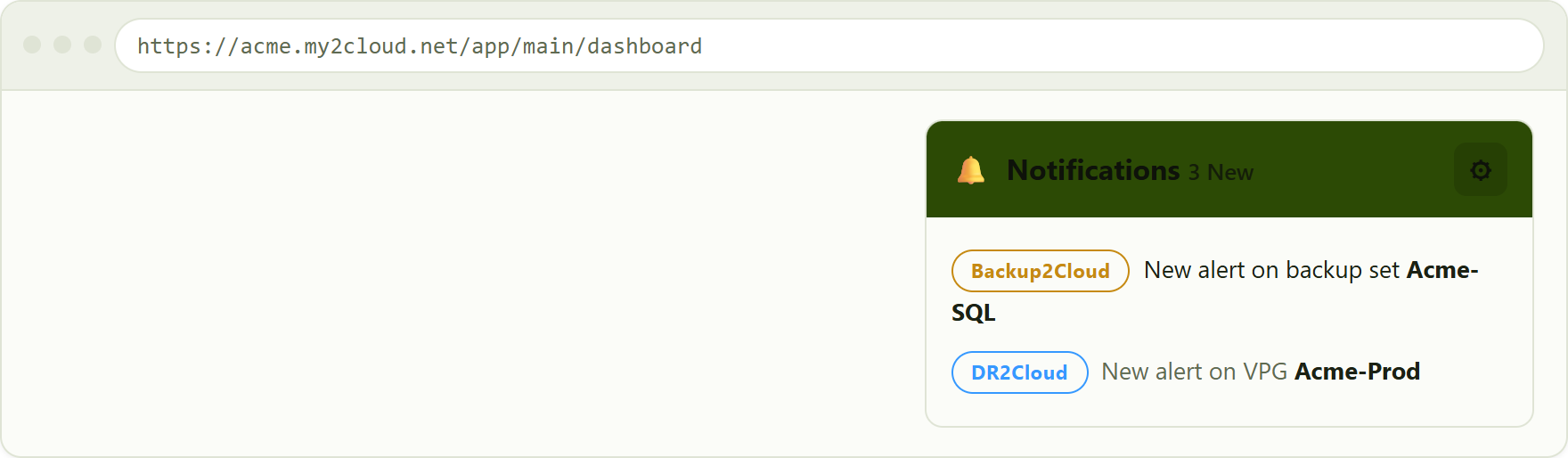
the notifications panel. The cog in the top corner opens Notification settings.
Open your notification settings
- Click the bell icon in the top-right corner of the portal.
- In the panel that drops down, click the cog icon in the coloured header.
- The Notification settings window opens, showing your current choices.
The Notification settings window
The window has two switches at the top and, below them, a list of notification types you can tick individually.
- Receive Notifications - the master switch. When it is off, you receive nothing at all: no bell, no email. Leave it on for normal use.
- Email Notifications - "Also email me these notifications, even when I am not signed in". Turn this on to get emails, off to stop them. This switch is only available while Receive Notifications is on.
- Notification Types - a tick box for each kind of notification you can receive, such as a new alert for each of your services. Untick anything you would rather not be told about.
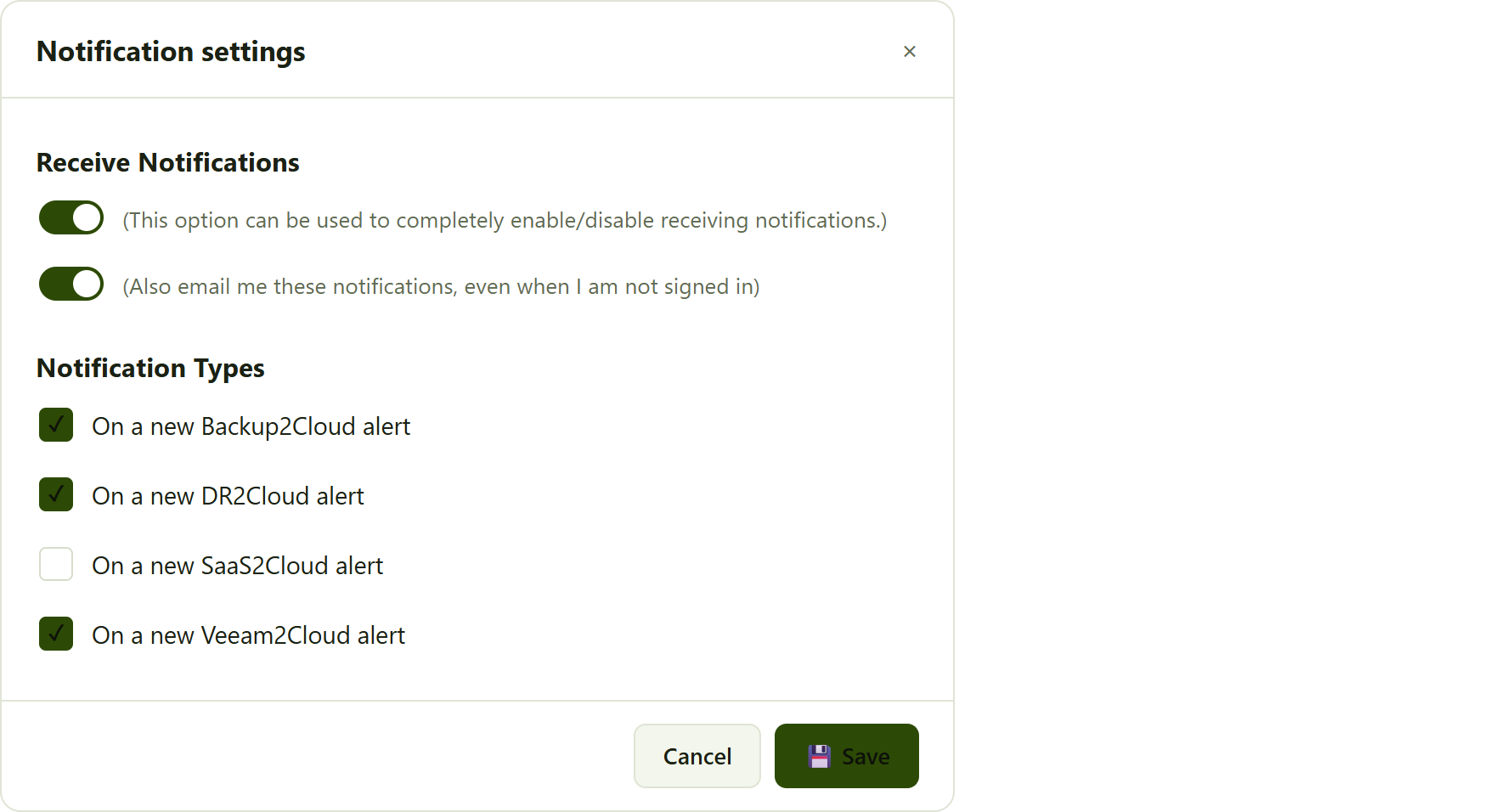
Notification settings with both switches on and the notification types ticked. You will only see the types for the services on your account.
Only the services you actually have appear under Notification Types. If your account uses Backup2Cloud and DR2Cloud but not SaaS2Cloud, you will not see a SaaS2Cloud line.
Turn emails on
- Open Notification settings (bell, then cog).
- Make sure Receive Notifications is on.
- Switch Email Notifications on.
- Under Notification Types, tick each item you want emailed to you.
- Click Save. A confirmation appears and the window closes.
Emails go to the address on your profile. If yours is out of date, update it first under My settings (your name in the top-right corner).
Turn emails off
- Open Notification settings.
- Switch Email Notifications off.
- Click Save.
You will stop receiving emails straight away. The bell inside the portal carries on as before, so nothing is lost - you simply read your notifications in the portal instead.
Prefer to keep some emails but not others? Leave Email Notifications on and instead untick individual lines under Notification Types. That way you still get emailed about the things that matter and stay quiet on the rest.
The quick link in every email
Every notification email carries a short footer reminder: "Don't want these emails? Turn them off in your notification settings." If an email arrives that you would rather not receive, that line points you straight back to the settings described here. The email also includes a Log in to My2Cloud to review in full button so you can open the portal and see the whole notification.
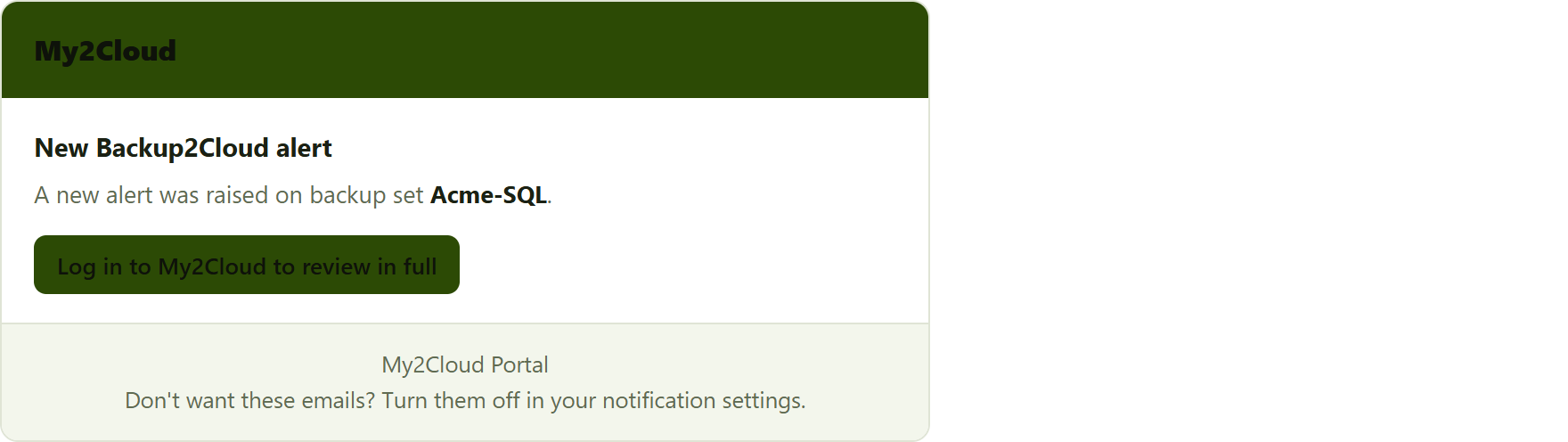
a notification email. The footer reminds you where to turn the emails off.
Turning everything off
If you switch the master Receive Notifications off, both the bell and the emails stop. When it is off, the notification types are greyed out and the portal shows a reminder: "You completely disabled receiving notifications. You can enable it and select notification types you want to receive." For most people it is better to leave the master switch on and just fine-tune the individual types and the email switch.
Tips and troubleshooting
- The Email switch will not turn on. It is only available while Receive Notifications is on. Switch the master option on first.
- You changed a setting but nothing happened. Remember to click Save. Closing with Cancel or the × discards your changes.
- No emails are arriving. Check Email Notifications is on and the relevant type is ticked, confirm your profile email address is correct, and look in your spam or junk folder.
- A service is missing from the list. Notification types only show for the services on your account, so you will not see options for services you do not use.
- Still seeing the bell after turning email off. That is expected - email and in-app notifications are separate. To silence the bell as well, turn off the individual types or the master switch.
Was this article helpful?
That’s Great!
Thank you for your feedback
Sorry! We couldn't be helpful
Thank you for your feedback
Feedback sent
We appreciate your effort and will try to fix the article