My2Cloud keeps you posted with in-app notifications: a new backup alert, a data-collection issue, a new user joining, and similar events. They gather behind the bell in the top bar. This guide shows how to read them, mark them as read, open the full list, and explains that older notifications are tidied away automatically after a while.
Where to find it. The notification bell sits in the top-right corner of the portal, next to your name and avatar. Clicking it opens the notifications panel. The full list lives at /app/notifications.
1. The notification bell
The bell is always visible in the top bar. When you have unread notifications, a small coloured badge appears on the bell showing how many are waiting. When everything has been read, the badge disappears and only the plain bell remains.
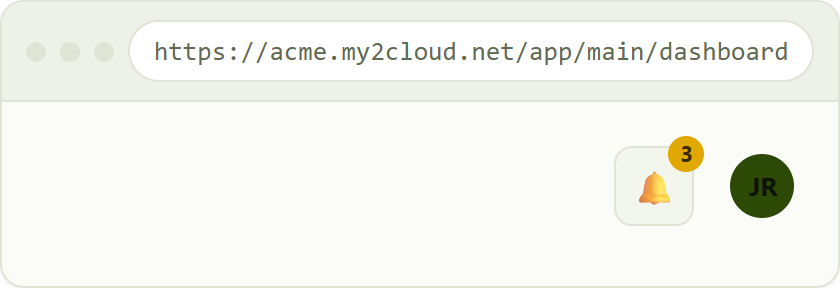
the notification bell in the top bar. The badge shows three unread notifications.
2. Opening the notifications panel
Click the bell to open the notifications panel. It lists your most recent notifications, newest first. For each one you see an icon, the message, and how long ago it arrived (for example "5 minutes ago"). Unread notifications stand out; ones you have already read appear dimmed.
An unread notification shows a green set as read link on the right. Click it to mark just that one as read, without leaving the panel. Clicking the notification itself opens its full details.
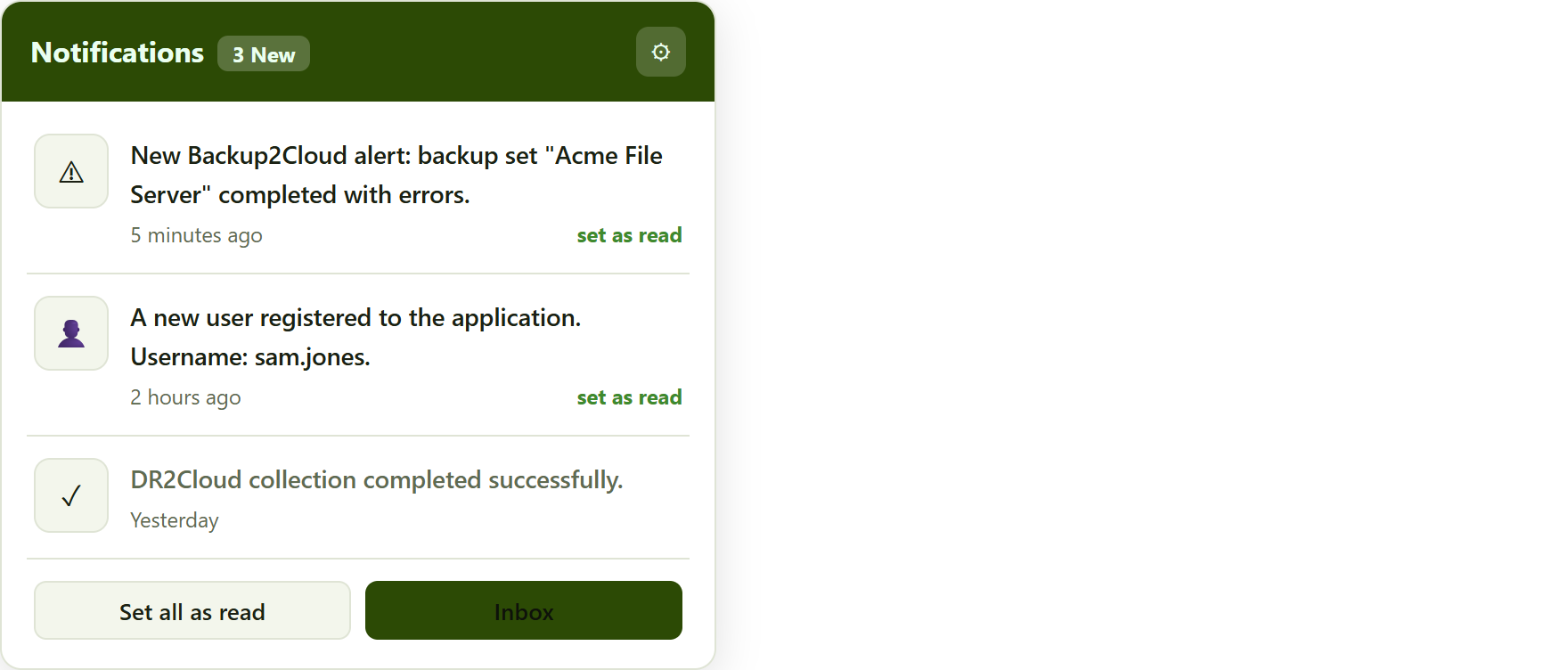
the notifications panel. Unread rows are bold; the third has already been read. The cog opens notification settings.
If you have nothing waiting, the panel simply reads There are no notifications.
3. Marking notifications as read
- One at a time - click set as read on any unread row in the panel. Its badge count drops by one.
- All at once - click Set all as read at the bottom of the panel. Every notification is marked read and the bell badge clears.
Marking a notification as read does not delete it. It stays in your list (dimmed) until it is either removed by you or tidied away automatically once it is old enough - see section 5.
4. The full notifications list
Click Inbox at the bottom of the panel to open the full Notifications page. This is the complete history, with search and filters so you can find a particular message.
- Search - type any words from a notification to narrow the list.
- Read state - show All or only Unread.
- Severity - filter by Info, Success, Warning, Error or Fatal.
- Date range - pick a period, with quick presets for Today, Yesterday, Last 7 Days and Last 30 Days.
Each row has actions to View the notification, mark it as read, or delete it. Along the top you will also find Set all as read, Refresh and Delete Listed Notifications (which removes everything currently matching your filters).
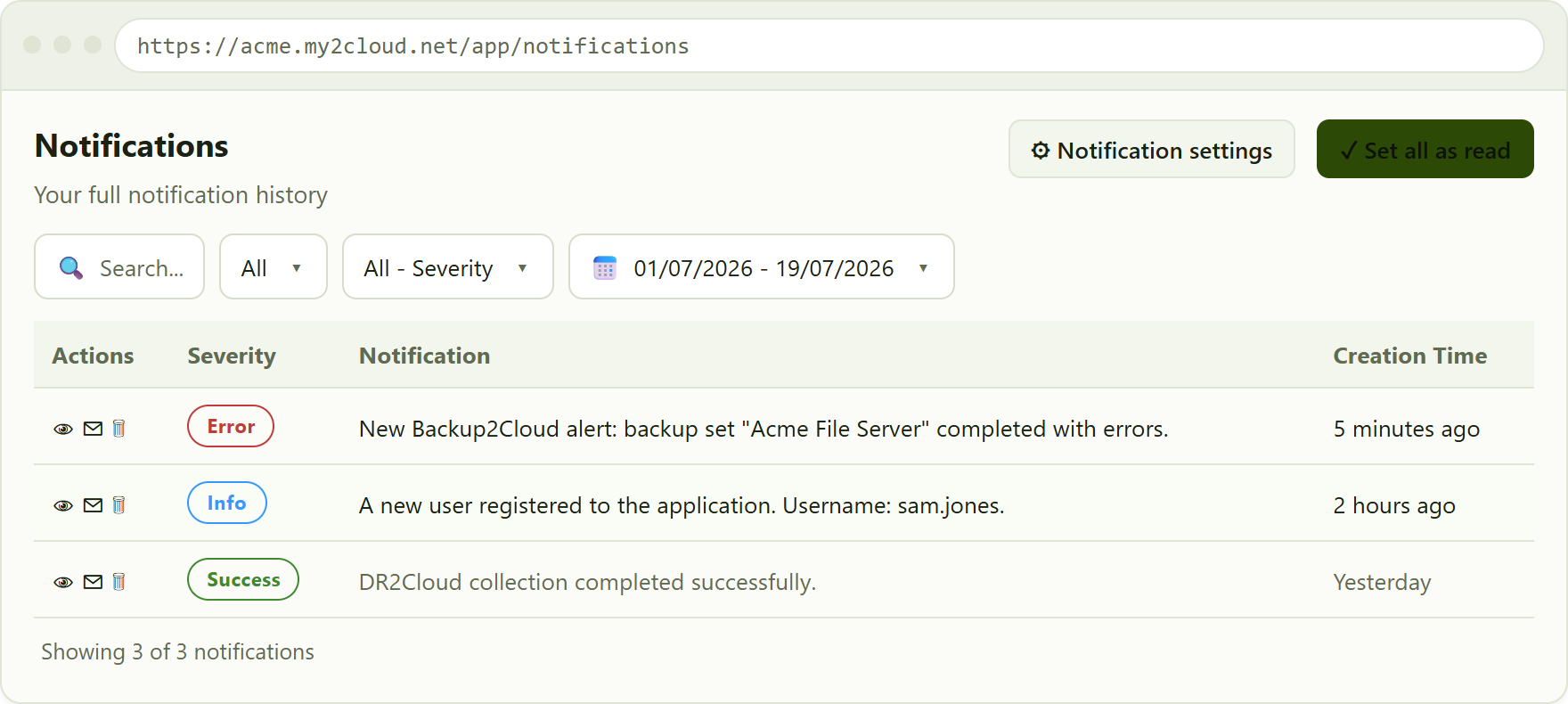
the full Notifications page, with search, read-state, severity and date filters. The read row is shown dimmed.
5. How long notifications are kept
To stop your inbox growing without limit, My2Cloud tidies up automatically. Once a day, a background clean-up removes notifications that are older than the retention period. By default this is about 90 days, so anything more than roughly three months old is cleared out. Newer notifications, read or unread, are left alone.
Good to know. The retention period is a portal-wide setting managed by your administrator, so the exact number of days may differ on your platform. If there is a notification you want to keep a record of, save or forward it before it ages out - once removed it cannot be recovered.
6. Getting these by email too
You do not have to be signed in to stay informed. From the panel's cog (or Notification settings on the full page) you can choose to also receive selected notifications by email. This is handy for alerts you want to see even when the portal is not open.
For the step-by-step on turning email delivery on or off, see the companion article "Turning alert emails on or off".
Tips
- Badge not clearing? Use Set all as read in the panel, or mark items individually - the badge counts only unread notifications.
- Looking for an old message? Open the Inbox and widen the date range, or switch the read-state filter to All.
- Can't find something from months ago? It may have passed the retention window (about 90 days) and been tidied away automatically.
- Too many, or too few? Use Notification settings to choose which notification types you receive, and whether to also get them by email.
Was this article helpful?
That’s Great!
Thank you for your feedback
Sorry! We couldn't be helpful
Thank you for your feedback
Feedback sent
We appreciate your effort and will try to fix the article