A Service Filter narrows a single user down to just one account within a service, so they only ever see that account's data across the portal - dashboards, live views, backup-set lists and analytics alike. This guide shows administrators how to create a filter, assign it to a user, and understand exactly what the user then sees.
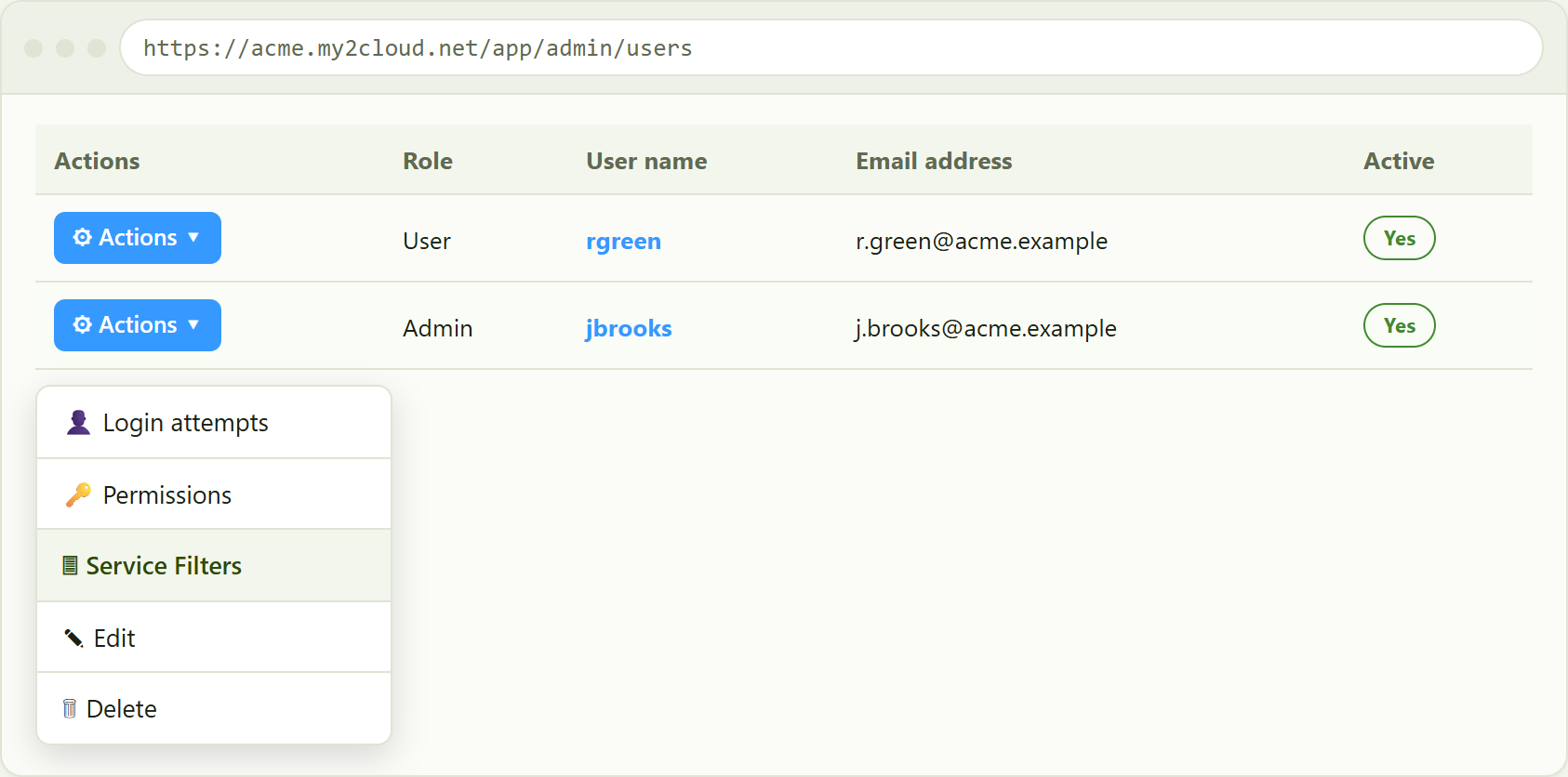
Where to find it. Go to Administration › Users (/app/admin/users). Open the Actions menu on any user row and choose Service Filters. You need the Service Filters permission to see this option.
What a Service Filter is (and is not)
Think of your tenant as holding several accounts within a service - for example a handful of Backup2Cloud accounts, or several Zerto ZORGs. By default, any user who can open a service page sees all of your tenant's accounts for that service.
A Service Filter ties one user to one account within one service. Once a filter is in place, that user is scoped to that single account everywhere in the portal, and cannot see or query the others - even the tenant's totals and charts reflect only their permitted account.
Filters are not the same as roles and permissions. Roles and permissions decide which features and pages a user can reach (for example, whether they can open the Backup2Cloud pages at all). A Service Filter decides which accounts' data they see once they are there. You will often use both together: a permission to grant access to the service, and a filter to limit it to one account.Key rules to remember
- A filter applies to one user at a time. It is set per user, not per role.
- You can link only one filter per service to a user. If you try to add a second for the same service, the portal reminds you that only a single filter per service is allowed.
- Filters are organised by service: Backup2Cloud (Asigra account), DR2Cloud (Zerto ZORG), SaaS2Cloud (CloudAlly account) and Veeam2Cloud (Veeam tenant). A user can have one filter in each.
- A user with no filter for a service continues to see every account your tenant holds for that service.
1. Open the user's Service Filters
On the Users page, find the user and click the Actions button on their row, then choose Service Filters.
the Actions menu on a user row, with Service Filters highlighted.
2. Review the current filters
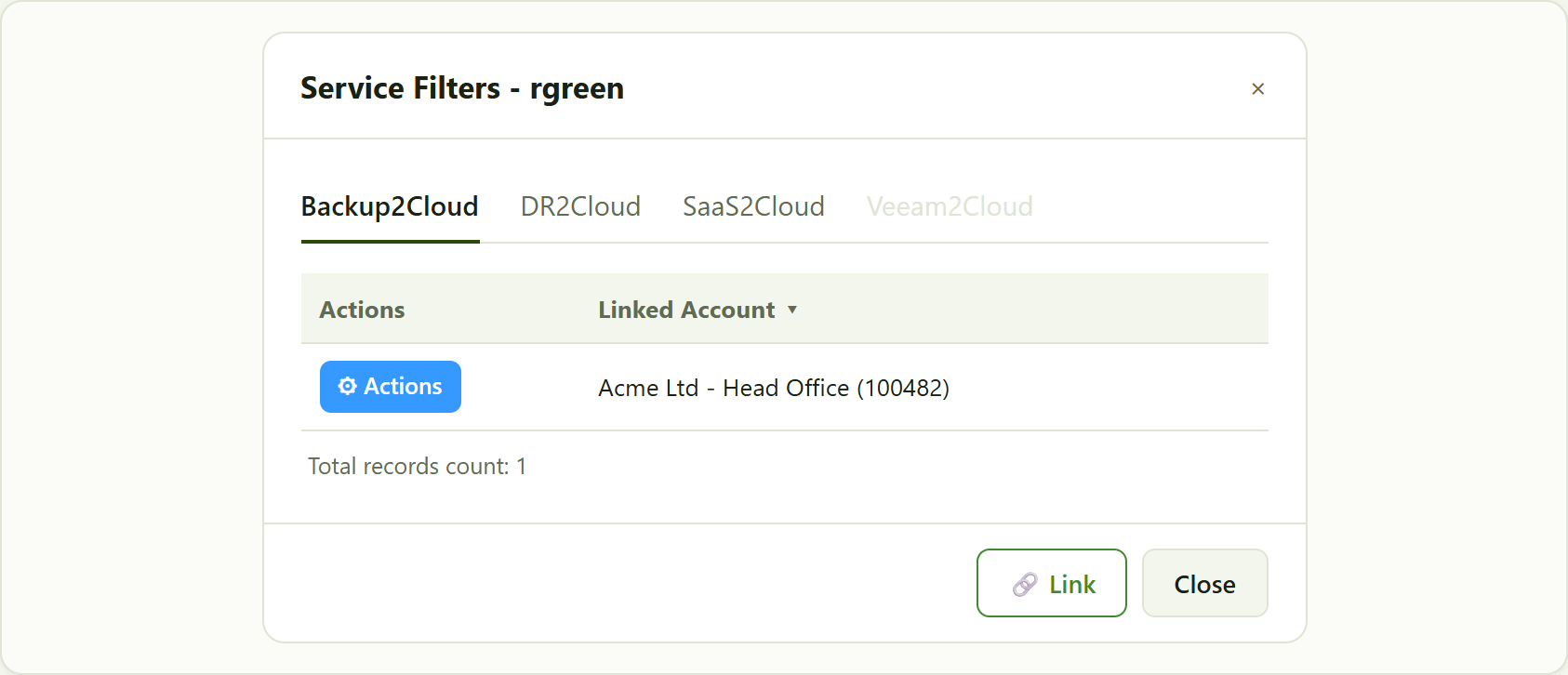
The Service Filters window opens, titled with the user's name. It has a tab for each service your tenant uses - Backup2Cloud, DR2Cloud, SaaS2Cloud and Veeam2Cloud. A tab is greyed out if your tenant does not have that service. Each tab lists the accounts currently linked to this user for that service, under an Actions column and a Linked Account column. If nothing is linked, it reads No Linked Accounts, which means the user can currently see them all.
the Service Filters window for a user. Each service is a tab; linked accounts are listed with an Actions column and a Linked Account column.
3. Link an account to the user
- Select the service tab you want to restrict (for example Backup2Cloud).
- Click Link at the foot of the window.
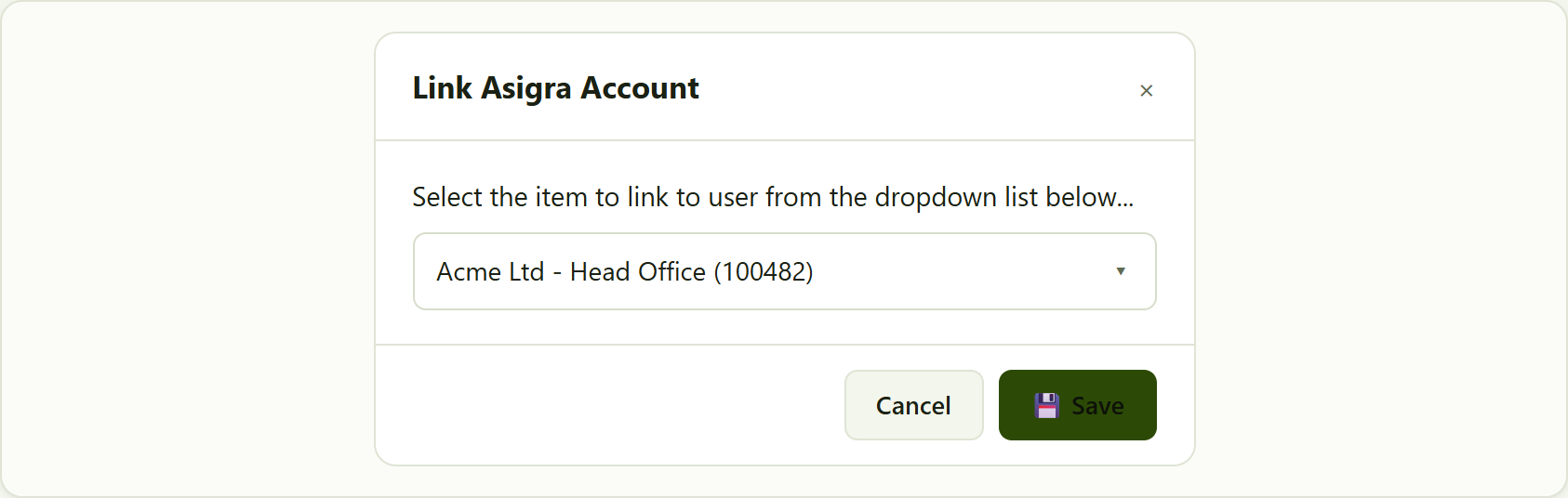
- A small dialog opens - Link Asigra Account for Backup2Cloud (or Link Zerto ZORG, Link Cloudally Account, Link Veeam Tenant for the others). Choose the account from the drop-down list.
- Click Save. The account now appears in the list, and the user is immediately scoped to it.
the link dialog. Pick the single account the user should be limited to, then Save.
One filter per service. A user can only be linked to a single account per service. To move a user to a different account, remove the existing filter first (see below), then link the new one.4. What the user sees afterwards
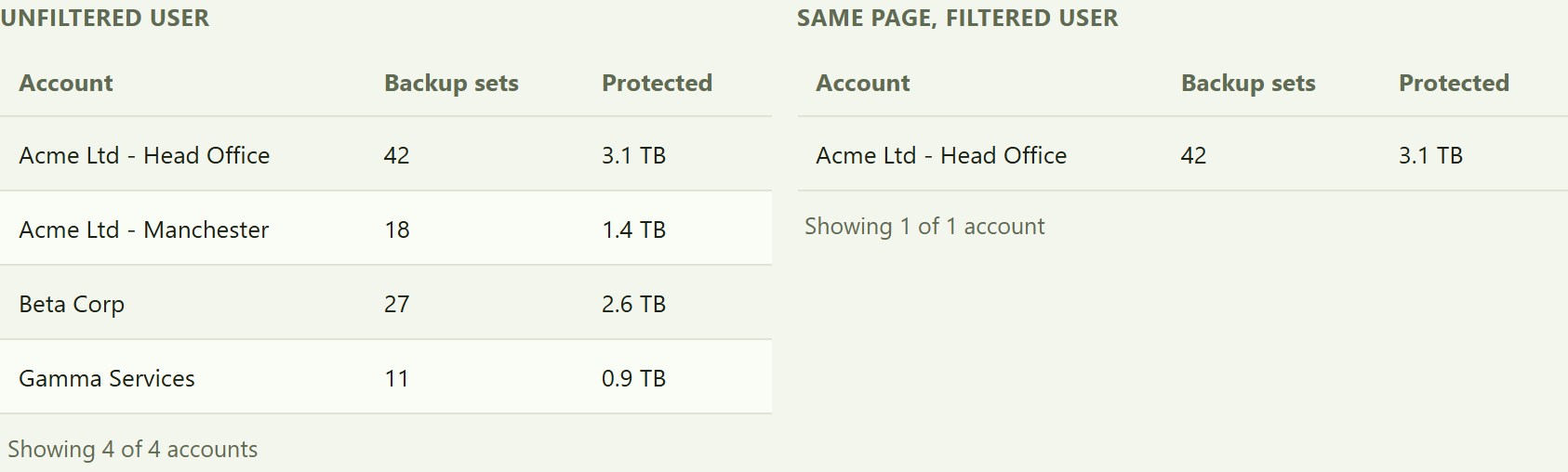
Once a filter is assigned, the restriction follows the user across the whole portal. Wherever a page, widget or export would normally list all of your tenant's accounts, the filtered user now sees only their permitted account. Stat tiles, charts and analytics are recalculated to that one account, and the underlying data requests are scoped on the server, so the user cannot reach the other accounts even by other means.
the same Backup2Cloud view for an unfiltered user (all accounts) and a user filtered to Acme Ltd - Head Office (one account only).
5. Remove or change a filter
To lift a restriction, open the user's Service Filters, go to the relevant tab, click Actions on the linked row and choose Delete. Confirm when prompted.
Removing a filter widens access. When you delete a filter, that user can once again see all of your tenant's accounts for that service. The portal warns you of this before it removes the link. Only remove a filter if the user is meant to see everything, or you are about to link a different account.Tips and troubleshooting
- No Service Filters option in the Actions menu - your own role does not include the Service Filters permission. Ask a host administrator to grant it.
- A service tab is greyed out - your tenant is not enabled for that service, so there is nothing to filter.
- The user still sees every account - check that a filter is actually listed on the correct service tab. An empty No Linked Accounts list means no restriction is in force.
- You want to restrict several accounts, not one - filters are one account per service. To share an account grouping with several people instead, use roles and permissions to control access to the service, and give each user their own single-account filter.
- Nothing appears in the link drop-down - the account list comes from the accounts mapped to your tenant for that service. If it is empty, the service may not yet be linked at tenant level.
Was this article helpful?
That’s Great!
Thank you for your feedback
Sorry! We couldn't be helpful
Thank you for your feedback
Feedback sent
We appreciate your effort and will try to fix the article