If a colleague can see accounts, services or figures that you cannot, nothing has gone wrong - My2Cloud simply tailors what each person sees. This guide explains the four things that decide your view, and the quick change your administrator can make to widen it.
The short answer. Your view is shaped by four settings: the Service Filters applied to your account, your role and permissions, which services your organisation has enabled, and (on analytics pages) the date range you have chosen. The first three are set by an administrator; the last one you control yourself.
1. A Service Filter is limiting your accounts
My2Cloud lets an administrator narrow an individual user down to specific accounts within a service. This is called a Service Filter. It is meant to be helpful: if you only look after one site or one customer, your administrator can filter your login so you see just that, keeping the tables short and relevant.
When a filter is applied to you, every list, table and dashboard for that service shows only the accounts you are permitted to see. You will not see an error or a "denied" message - the other accounts are simply absent, and totals such as protected data add up only across the accounts you can see. That is why your colleague's list can be longer than yours even though you are both looking at the same page.
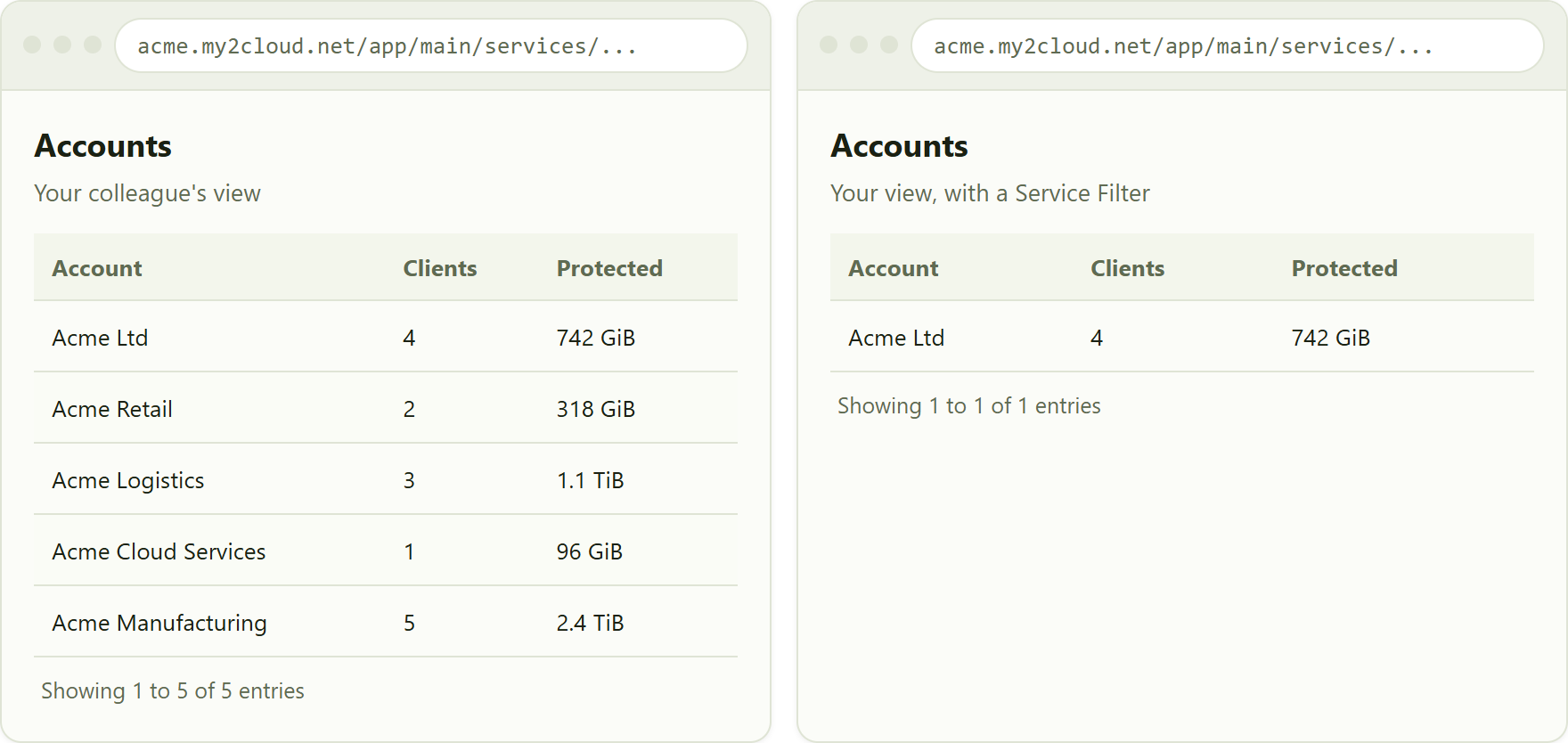
the same page for two people. A Service Filter restricts the view on the right to a single permitted account, so fewer rows appear.
A filter can be applied to any of the four services independently, so it is possible to have the full picture for one service (for example Backup2Cloud) but a narrowed view of another (for example DR2Cloud). If you think your filter is too tight, or is missing an account you now need, ask your administrator to review it. Administrators can find the steps in the companion article "Configuring per-user Service Filters".
2. Your role controls which services and features you get
Alongside filters, every user is given a role that decides which parts of My2Cloud are switched on for them. A role can grant or withhold whole services and individual features, for example whether you can open the DR2Cloud pages at all, or whether you are allowed to see the Stored storage figures.
The effects you may notice include:
- A service is missing from the left-hand menu entirely - your role does not include it.
- A page opens but a column or figure a colleague mentions is not there - that detail is gated by a separate permission.
- Administration or billing areas are not available to you - these are usually reserved for administrators.
None of this means anything is broken; it means your role is scoped to what you need. If you require access to a service or feature you cannot currently see, ask your administrator to adjust your role. The companion article "User roles and permissions explained" covers how they do this.
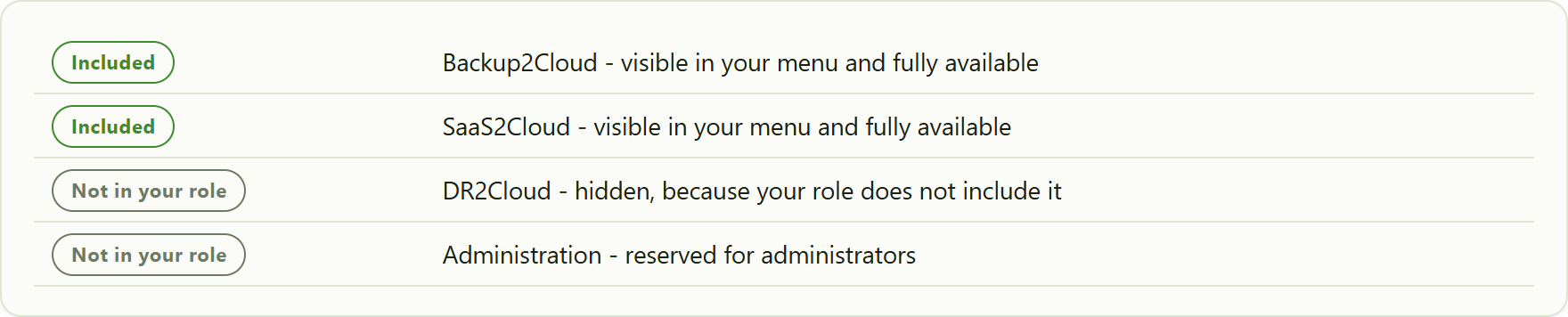
your role decides which services appear. Items not in your role are simply absent from the menu.
3. Your organisation may not have that service
My2Cloud brings together four Assurestor services - Backup2Cloud, DR2Cloud, SaaS2Cloud and Veeam2Cloud - but most organisations subscribe to only some of them. You will only see the services your organisation actually takes. If a colleague at a different company sees a service you do not, that is usually because their organisation subscribes to it and yours does not.
This is different from a role restriction: here the service is not part of your organisation's subscription at all, rather than simply switched off for your login. If your organisation is starting to use a new Assurestor service and it has not appeared yet, your administrator or your Assurestor account contact can arrange for it to be enabled.
4. The date range is hiding data (analytics pages only)
The analytics dashboards show historical trends, so they include a date-range control near the top. Whatever you choose there decides the window of history on screen. If it is set to a short or older period, you may see fewer results, smaller totals, or a chart that looks empty simply because little or nothing was recorded in that window.
This one is entirely in your hands. If an analytics page looks emptier than you expect, widen the date range (for example to the last three or twelve months) before assuming data is missing. Live service pages, which show the current real-time picture, do not have a date range and are not affected by this.
Good to know. The date range only affects the analytics views. The live service pages under each service always show the latest data we hold, so changing dates is never needed there.
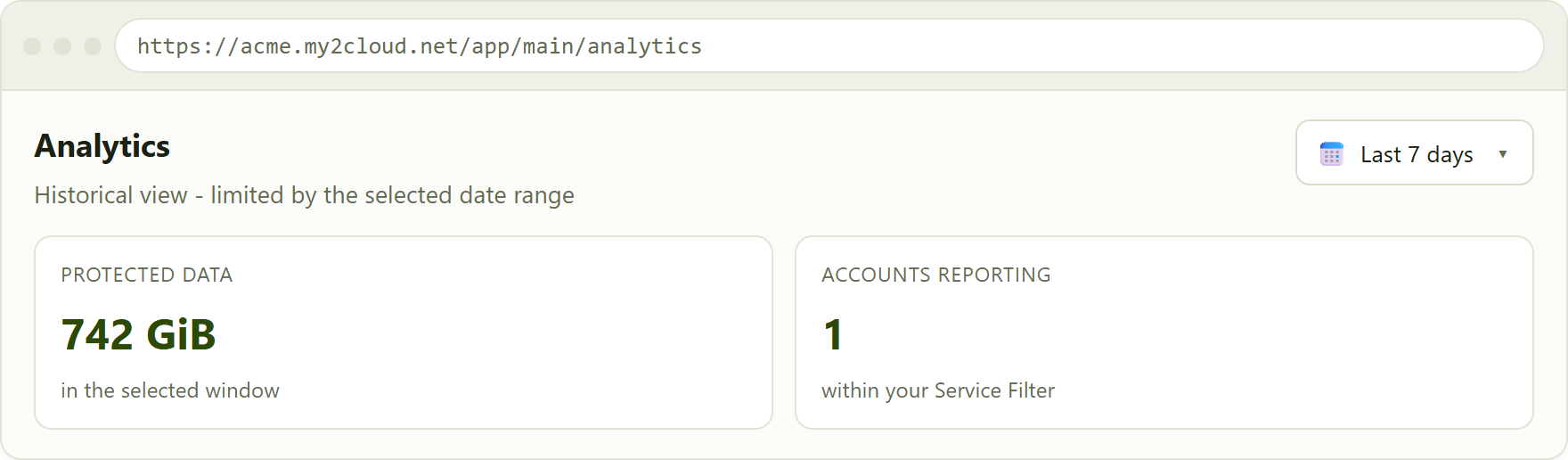
an analytics page with a short "Last 7 days" range. Widening the range to the last three or twelve months brings more history into view.
What to do next
- If an analytics page looks empty, widen the date range first - this is the one you can fix yourself.
- If accounts are missing from a service you can otherwise use, a Service Filter is probably narrowing your view. Ask your administrator to review or widen it.
- If a whole service or feature is missing from your menu, ask your administrator to check your role.
- If the service is not part of your organisation's plan at all, speak to your administrator or your Assurestor account contact about enabling it.
Reassurance. Seeing less than a colleague does not mean data has been lost or that anything is wrong with your account. My2Cloud deliberately tailors each person's view, and widening it is a quick change for your administrator to make.
Related articles
- Configuring per-user Service Filters - for administrators, how to set which accounts a user may see.
- User roles and permissions explained - for administrators, how roles decide which services and features each user gets.
Was this article helpful?
That’s Great!
Thank you for your feedback
Sorry! We couldn't be helpful
Thank you for your feedback
Feedback sent
We appreciate your effort and will try to fix the article