New in release 3.1, My2Cloud lets you carry out the everyday DS-Client and account actions you would normally perform in the Asigra console - locking, deactivating, reactivating, resetting hardware registration and removing - directly from the Backup2Cloud Clients and Accounts pages. Every action is confirmed before it runs, and the destructive ones are kept behind a separate permission so an administrator decides who can remove.
Where to find it. Open Services › Backup2Cloud › DS-Clients (or Accounts) from the left-hand menu. The DS-Clients list is at/app/main/services/backup2cloud/dsclients. The management controls only appear if your administrator has enabled the feature and granted you the permission described below.What you can do
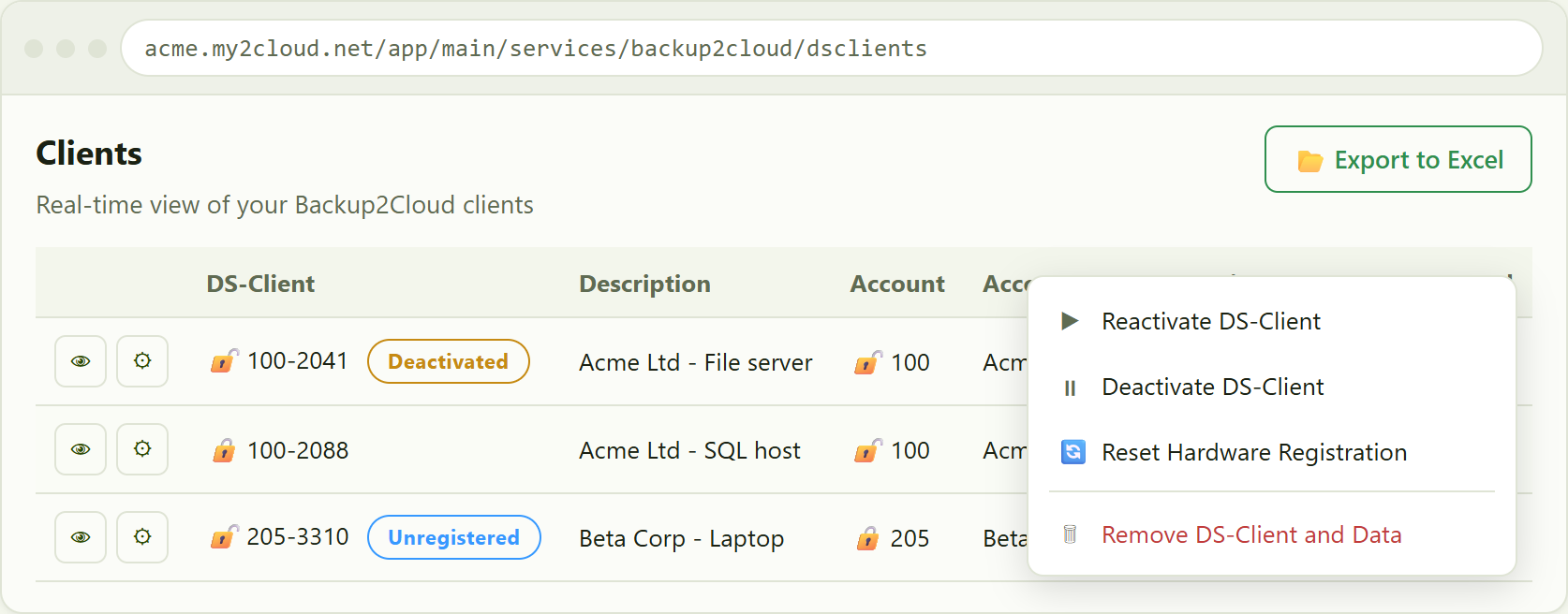
Where you have the permission, each row on the Clients page gains a cog Actions button next to the usual view (eye) button. The actions available for a DS-Client are:
- Lock DS-Client - suspend the DS-Client so it cannot back up.
- Unlock DS-Client - release a locked DS-Client.
- Deactivate DS-Client - take the DS-Client out of service.
- Reactivate DS-Client - bring a deactivated DS-Client back into service.
- Reset Hardware Registration - clear the hardware lock so the DS-Client can re-register (for example after a rebuild or a move to new hardware).
- Remove DS-Client and Data - permanently delete the DS-Client and its backup data.
On the Accounts page the equivalent actions are Lock Account, Unlock Account and Remove Account.
Only the valid actions appear
The Actions menu is built from the item's current state, so you only ever see actions that make sense. For example:
- Unlock DS-Client only appears when the DS-Client is locked, and Lock DS-Client only when it is active.
- Reactivate DS-Client only appears once a DS-Client has been deactivated.
- Remove DS-Client and Data is only available once the DS-Client has been deactivated or is unregistered. Until then it stays greyed out with a note explaining why.
- Remove Account is only available when the account has no DS-Clients left. If it still has DS-Clients, remove those first.
the Clients list. A red padlock marks a locked DS-Client or account and a grey open padlock an unlocked one. Deactivated and Unregistered DS-Clients carry a badge. The cog opens the Actions menu, showing only the actions valid for that row.
Reading the indicators
Two columns carry a padlock so you can see the lock state at a glance:
- A ? red padlock means the DS-Client (in the DS-Client column) or the owning account (in the Account column) is locked.
- A ? grey open padlock means it is unlocked.
Two badges show a DS-Client's lifecycle state next to its number:
- Deactivated - the DS-Client has been taken out of service.
- Unregistered - the DS-Client has never registered its hardware.
The same indicators appear as badges in the header of the DS-Client detail view (the eye button), including Account locked and DS-Client locked, so you always know the state before you act.
Confirming an action
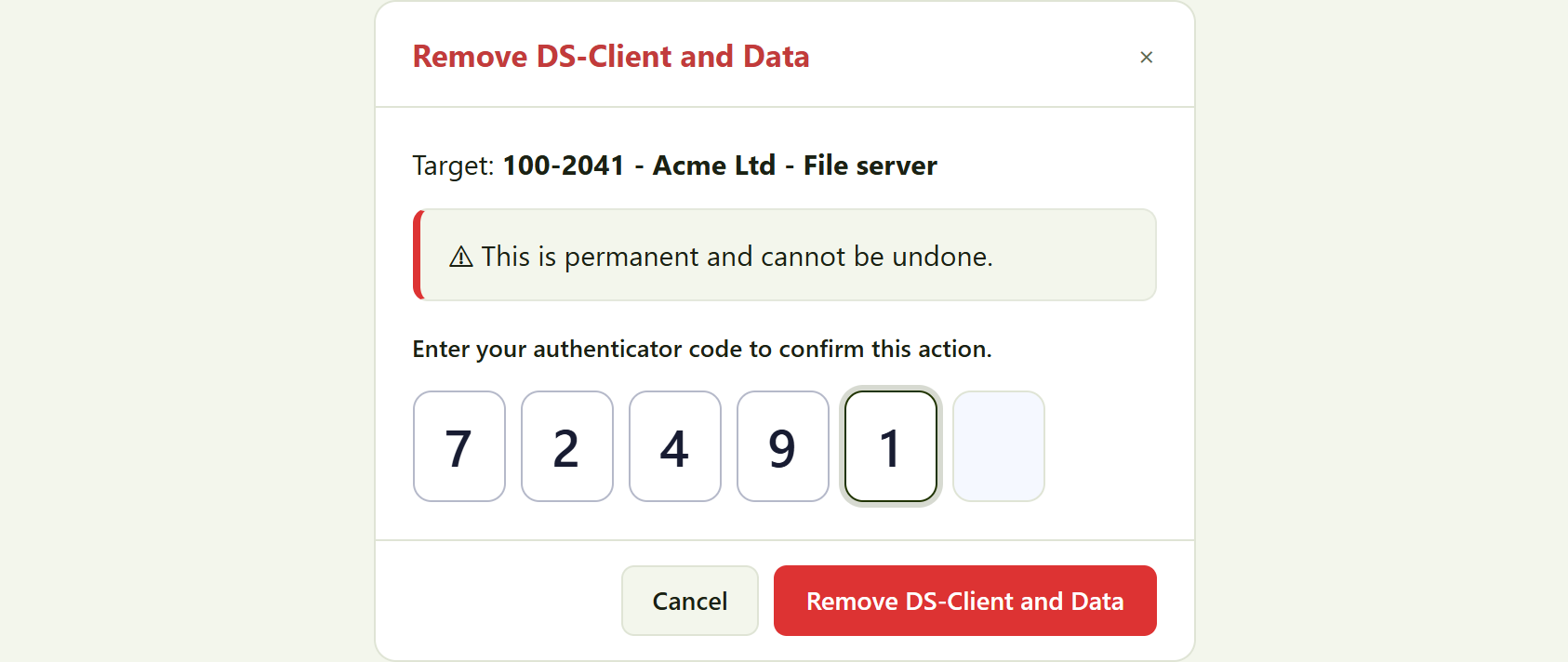
Choosing an action opens a confirmation dialog. It names the action, shows the Target you are about to change, and - for the destructive Remove actions - warns you in red that this is permanent and cannot be undone. To go ahead you confirm with a credential:
- If you have two-factor authentication enabled, you enter your six-digit authenticator code. The action confirms automatically as soon as the sixth digit is entered, so you do not need to press the button.
- If you do not use two-factor authentication, you enter your account password instead.
The one exception is Reset Hardware Registration, which needs no code or password (see below).
confirming a destructive action. With two-factor enabled you enter your six-digit authenticator code; the action confirms automatically once the sixth digit is entered.
Reset Hardware Registration
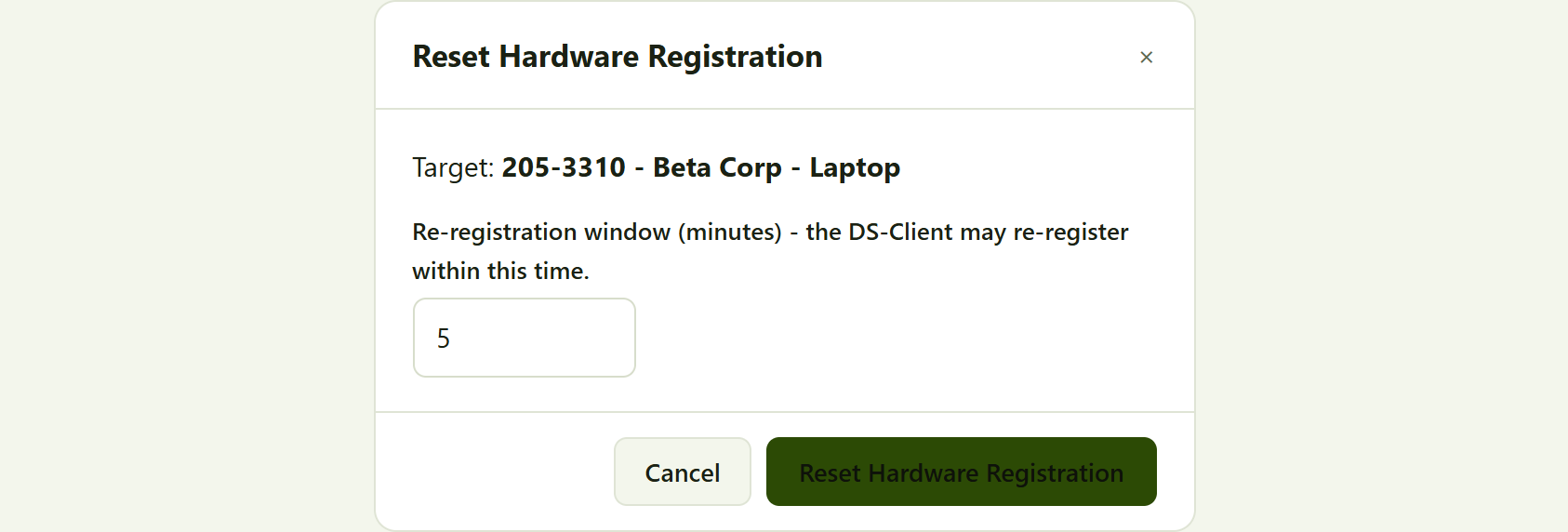
Reset Hardware Registration clears the DS-Client's hardware lock so it can register again on new or rebuilt hardware. It is a benign, self-healing action, so it does not ask for your code or password. Instead the dialog offers a re-registration window in minutes (five by default): the DS-Client may re-register within this time. Set the window you need and confirm.
resetting hardware registration. No code or password is required; you just set the re-registration window and confirm.
When an action succeeds the portal confirms it and refreshes the list so the new state (padlock or badge) shows straight away. If an action cannot be completed, the portal shows the reason returned by Backup2Cloud and leaves the dialog open so you can try again.
Who can manage and who can remove
This whole area is gated in two layers, so access can be tuned to your organisation:
- A DS-Client Management feature must be enabled for your organisation before any of the management controls appear.
- Two separate permissions then split the everyday work from the irreversible work:
- Manage DS-Clients (lock, deactivate, reactivate, reset hardware) - the day-to-day lifecycle actions.
- Remove DS-Clients and accounts - the destructive actions, kept deliberately separate so an administrator can decide who is allowed to remove.
If you can see the cog Actions button but a Remove action is greyed out, it is usually because the item is not yet in a removable state (a DS-Client must be deactivated or unregistered; an account must have no DS-Clients). If you cannot see the cog at all, you have not been granted a management permission - ask your administrator.
Tips
- Use the search box and the account and region filters to find the right DS-Client quickly before opening its Actions menu.
- Removing is permanent. To retire a DS-Client cleanly, deactivate it first, confirm you no longer need its data, then use Remove DS-Client and Data.
- To remove an account, remove all of its DS-Clients first; only then does Remove Account become available.
- Keep your authenticator app to hand. With two-factor enabled every action (except Reset Hardware) needs a fresh code, and the code submits itself once you have typed all six digits.
Was this article helpful?
That’s Great!
Thank you for your feedback
Sorry! We couldn't be helpful
Thank you for your feedback
Feedback sent
We appreciate your effort and will try to fix the article