The Backup2Cloud Backupsets page is a real-time list of every backup set across your Asigra DS-Clients. This guide explains each column, the Type pill colours, and how to use the filters - including the handy "with / without data" filter.
Where to find it. In the left menu open Services → Backup2Cloud → Backupsets (web address /app/main/services/backup2cloud/backupsets). It shows live data pulled straight from the Asigra NOC.
The page at a glance
Along the top is the page title and an Export to Excel button. Below it a row of filters, then the table. Every column except Account can be sorted by clicking its header; the list is sorted by Last backup (newest first) to begin with.
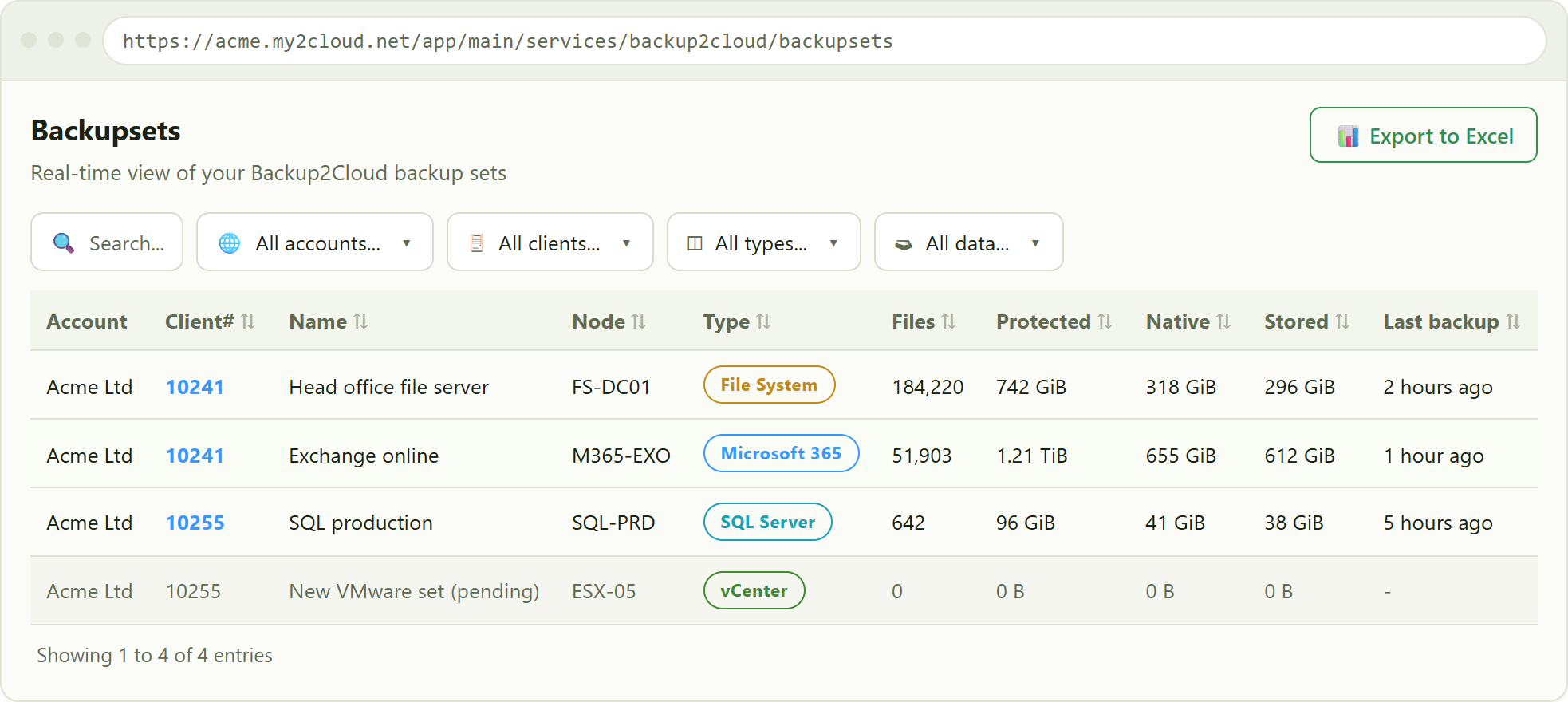
the Backupsets page. The greyed-out row is a set that has no data yet.
What each column means
- Account - the Backup2Cloud account the set belongs to.
- Client# - the DS-Client (box) number. It is a link: click it to open that DS-Client and see all of its sets and activity.
- Name - the backup-set name as configured in Asigra.
- Node - the machine or source node the set protects.
- Type - the kind of data, shown as a colour-coded pill (see below).
- Files - the number of items in the set.
- Protected - the total original size of everything we hold for you, counting every retained version. It is larger than your live environment and grows as backup history builds up.
- Native - the original size of your current data, counting the most recent version of each file once. It stays close to the size of your live environment.
- Stored - the real space your backups occupy in our cloud after de-duplication and compression, normally much smaller than Protected or Native. (This column only appears if your account is permitted to see stored figures.)
- Last backup - when the set last ran, shown as a friendly "time ago". Hover it to see the exact date and time in your timezone.
Understanding Protected, Native and Stored
These three figures answer three different questions, so it is normal for them to differ a lot:
- Protected data - the total original size of everything we have backed up for you, counting every version we hold. Because Backup2Cloud keeps multiple versions of your files across your chosen retention period, this figure is larger than your live environment and grows as more history builds up. It reflects the full depth of your protection, not the size of your current data.
- Native data - the original size of your current data, counting the most recent version of each file once. This is the true picture of the live data you are protecting right now, at its full original size before any compression. It does not inflate just because we hold more history, so it stays close to the size of your actual environment.
- Stored data - the real amount of space your backups take up in our cloud after de-duplication and compression. This is normally much smaller than your Protected or Native figure, because we strip out duplicate and repeated data before it is written to storage.
In short. Protected is everything we hold including history, Native is your live data at full size, and Stored is what it actually occupies once optimised. Sizes are shown in binary units (GiB, TiB).
The Type pill colours
The Type column groups the many Asigra set types into colour families so you can scan the list quickly:
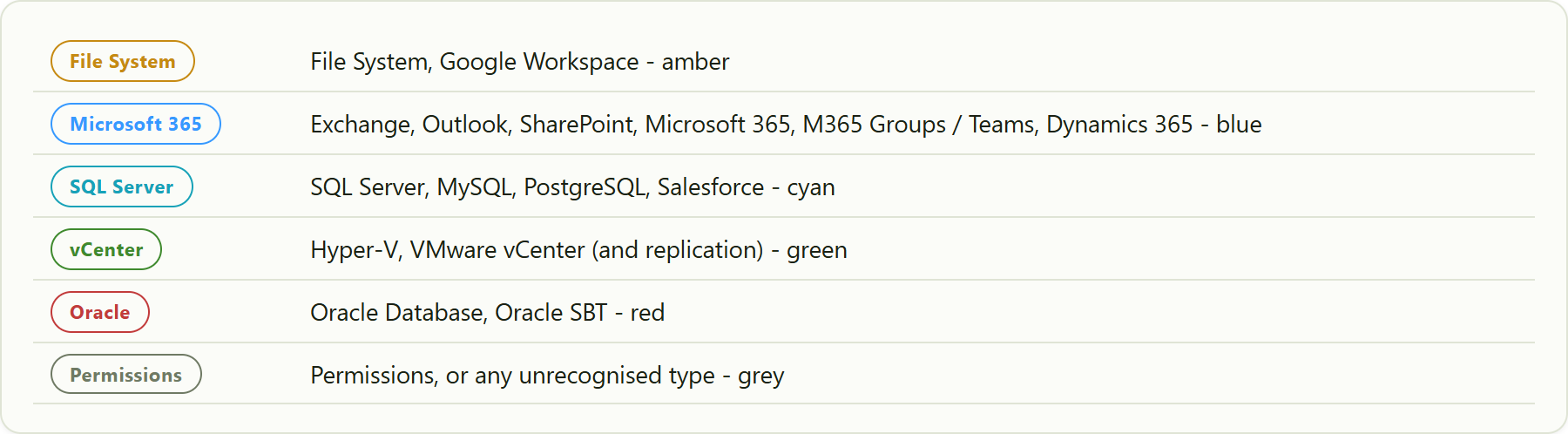
the Type pill families. The pill keeps the type's own wording.
Using the filters
The filter row narrows the table instantly; combine any of them.
- Search - matches the backup-set Name and Node.
- Account - limit to one Backup2Cloud account.
- Client - limit to one DS-Client, listed as
box (account). - Type - pick a single set type, for example "Microsoft 365" or "VMware vCenter Server".
- Data - the "with / without data" filter, explained next.
"With data" vs "Without data"
The last filter lets you separate sets that are actually holding data from ones that are not:
- All data... - show everything (the default).
- With data - only sets where Protected, Native or Stored is non-zero.
- Without data - only sets where all three sizes are zero.
A set with no data is also shown as a greyed-out row in the table, so newly-created or not-yet-run sets stand out at a glance. Choose Without data to list exactly those - a quick way to spot a set that was configured but has never completed a backup.
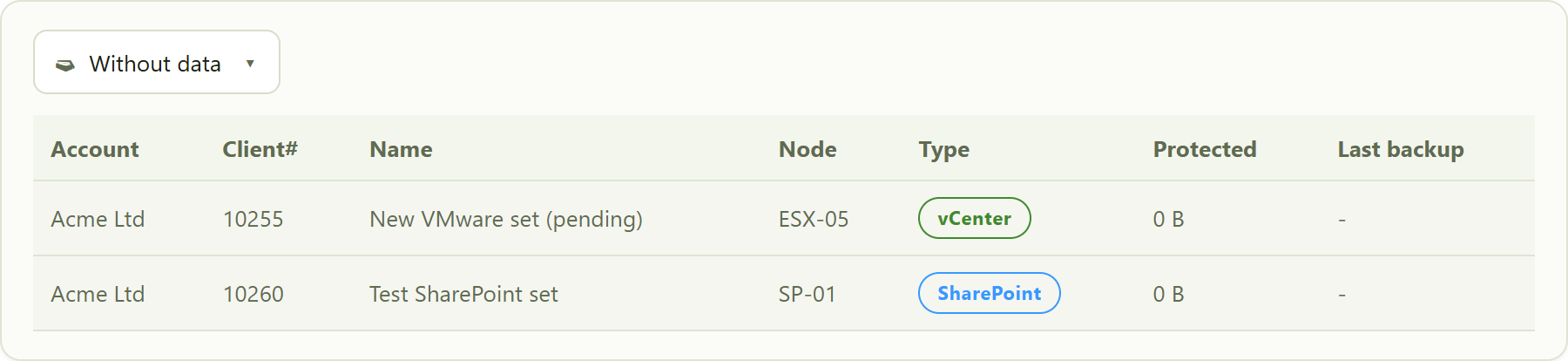
the "Without data" filter isolates sets that hold no data yet.
Exporting
Export to Excel downloads the list exactly as you have it on screen - the same filters, sort order and visible columns. The export uses the full descriptive type names (for example "Microsoft SharePoint Server (VSS-aware)") rather than the short pill labels.
Tips
- Click a Client# to jump to that DS-Client's full detail, including its backup sets, activity history and lock state.
- A red padlock elsewhere in Backup2Cloud means a locked DS-Client or account; the Backupsets list itself only greys out rows that hold no data.
- Sort by Stored (largest first) to find the sets consuming the most cloud storage.
- Sort by Last backup (oldest first) to spot sets that have not run recently.
Was this article helpful?
That’s Great!
Thank you for your feedback
Sorry! We couldn't be helpful
Thank you for your feedback
Feedback sent
We appreciate your effort and will try to fix the article