Everything about your own account lives in My settings: your name and contact details, your timezone, changing your password, and turning on the authenticator app (2FA) for stronger sign-in. This guide walks through each.
Where to find it. Click your name or avatar in the top-right corner of the portal and choose My settings. Changing your password is on the same menu under Change password.
1. Your profile
The My settings panel opens on the Profile tab. Update any field and click Save. Fields marked with an asterisk are required.
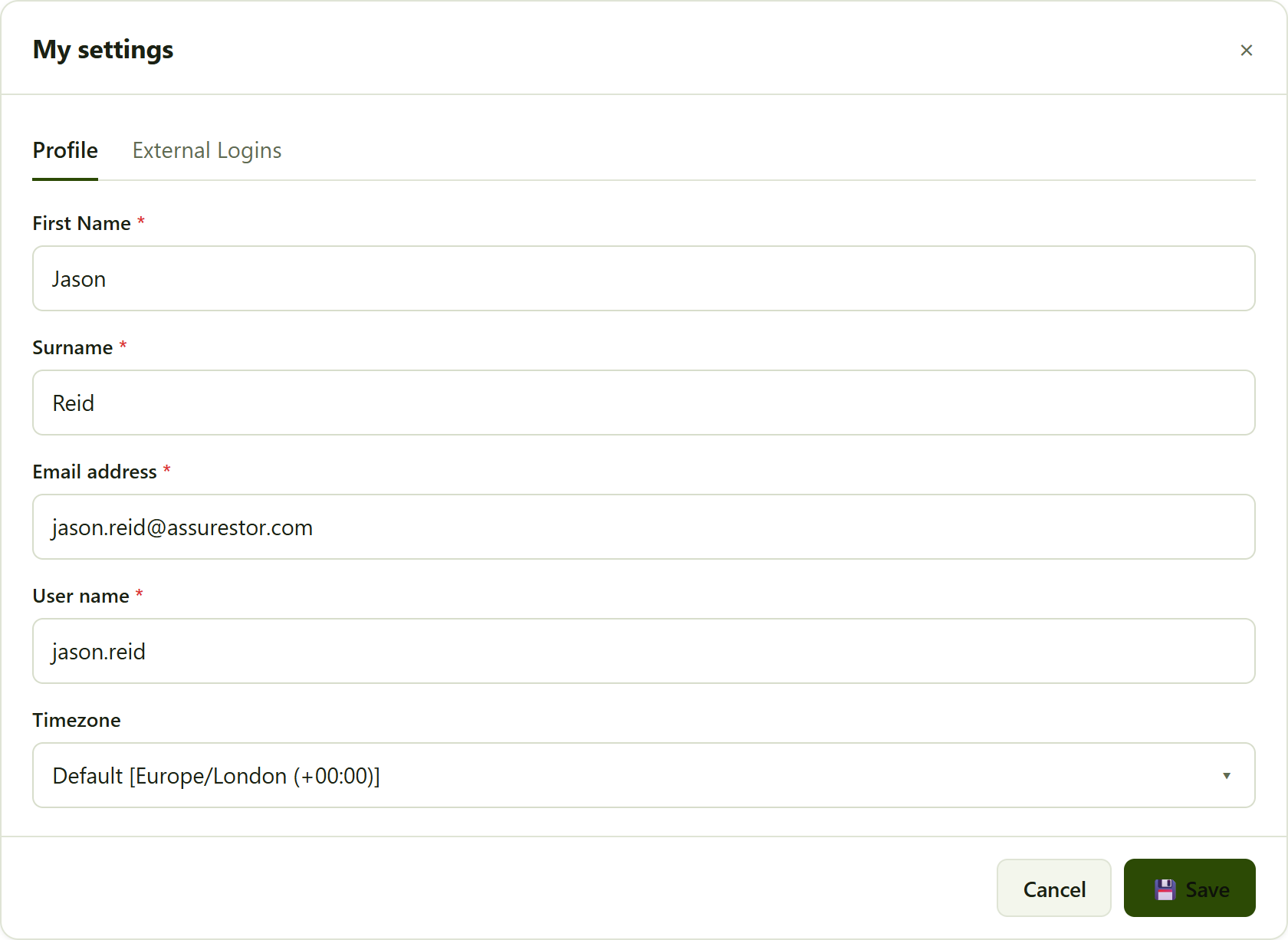
the My settings panel, Profile tab.
User name. The primary administrator account name cannot be changed. If the User name box is greyed out, that is why.
2. Change your password
Choose Change password from your account menu, then enter your current password and your new one twice.
- Current password - the password you sign in with today.
- New password - the eye icon reveals what you have typed. The portal enforces a minimum length and a mix of upper case, lower case, a digit and a symbol.
- New password (repeat) - must match exactly, or you will see "Passwords don't match".
- Click Save.
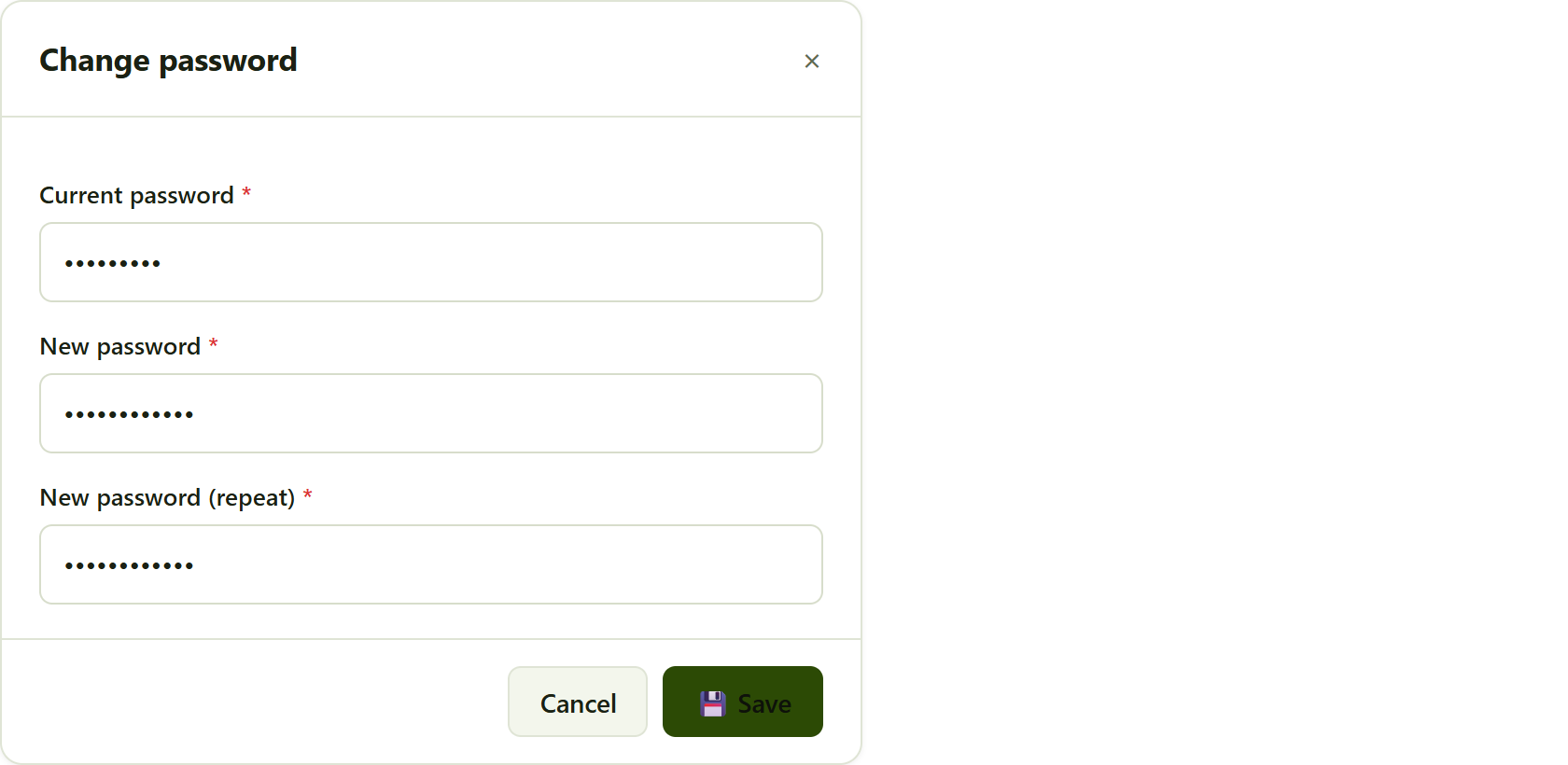
the Change password dialog.
3. Turn on the authenticator app (2FA)
Two-factor authentication adds a second step at sign-in: as well as your password you enter a six-digit code from an authenticator app on your phone (Microsoft Authenticator, Google Authenticator, Authy, and similar). We strongly recommend turning it on.
On the Profile tab, scroll to the two-factor section. When it is off you will see a dashed Enable Authenticator App notice. Click Enable to start the short wizard.
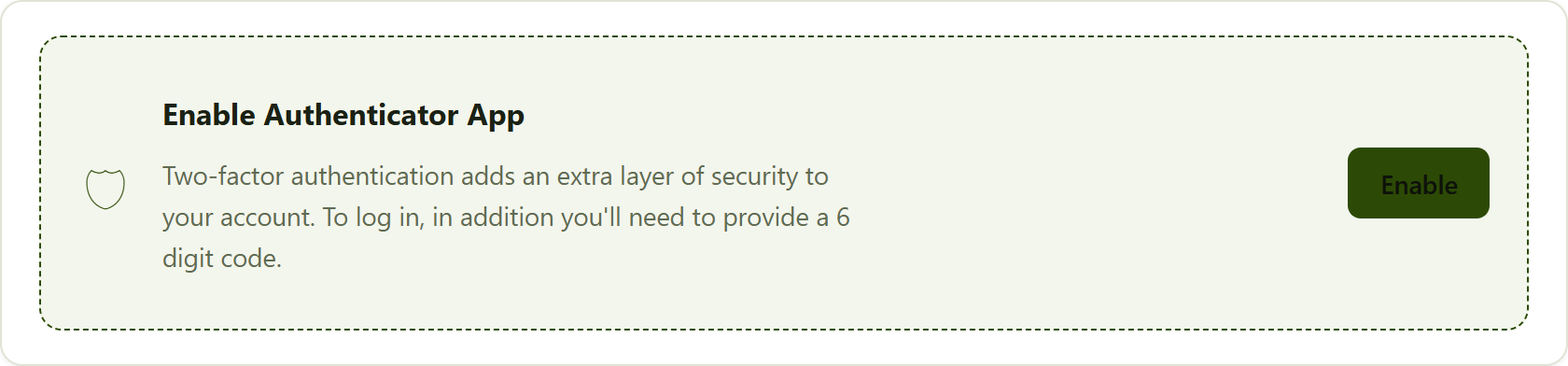
the two-factor section when it is switched off.
The three-step wizard
- Scan the QR code. Open your authenticator app, add a new account, and scan the QR code shown. The app then generates a six-digit code. Type it into the six boxes and click Continue.
- Save your recovery codes. You are shown a set of one-time recovery codes. Download or Copy them and keep them somewhere safe - they let you back in if you lose your phone.
- Done. Two-factor is now on. The next time you sign in you will be asked for a code.
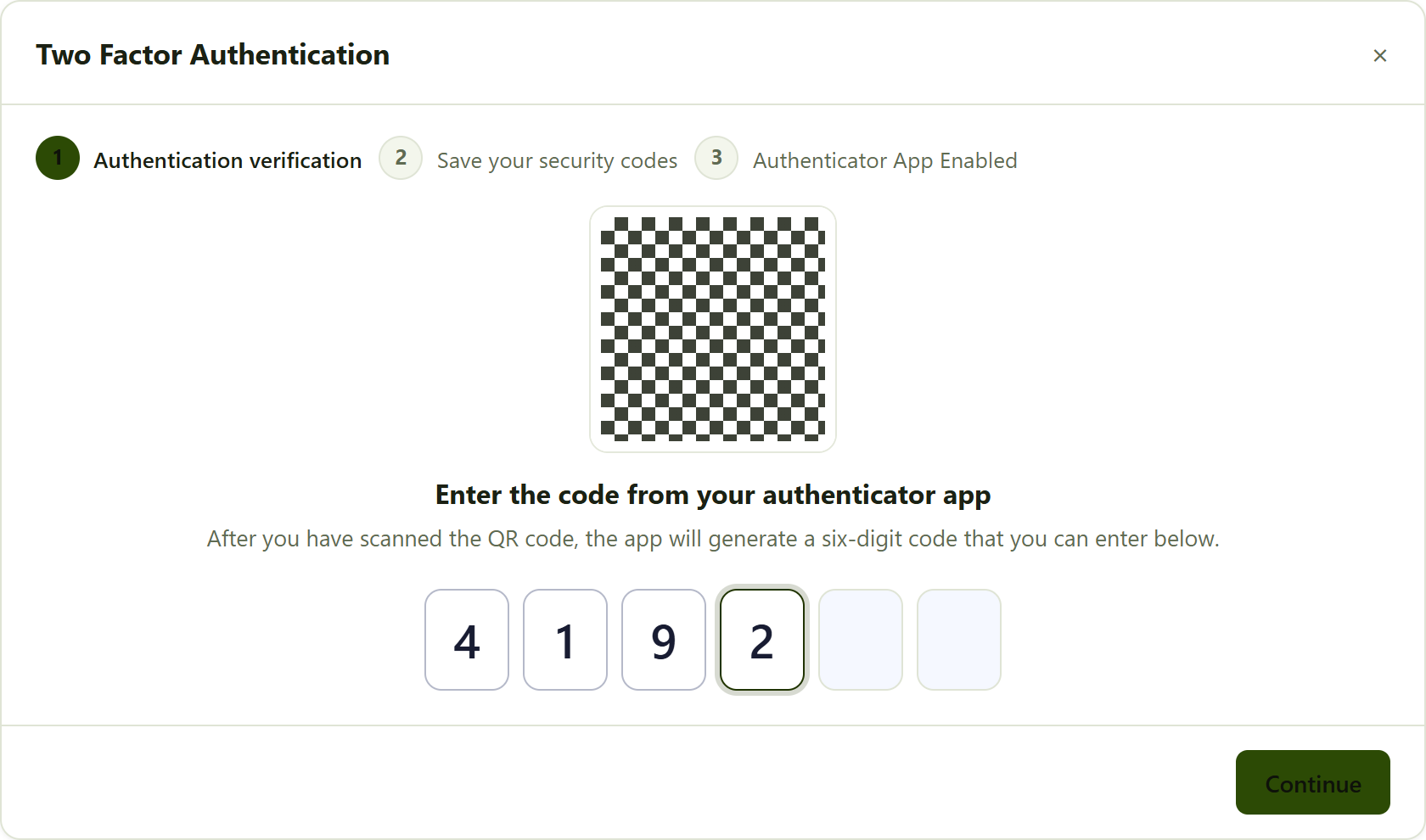
step 1 of the wizard. The highlighted box is the next digit to type.
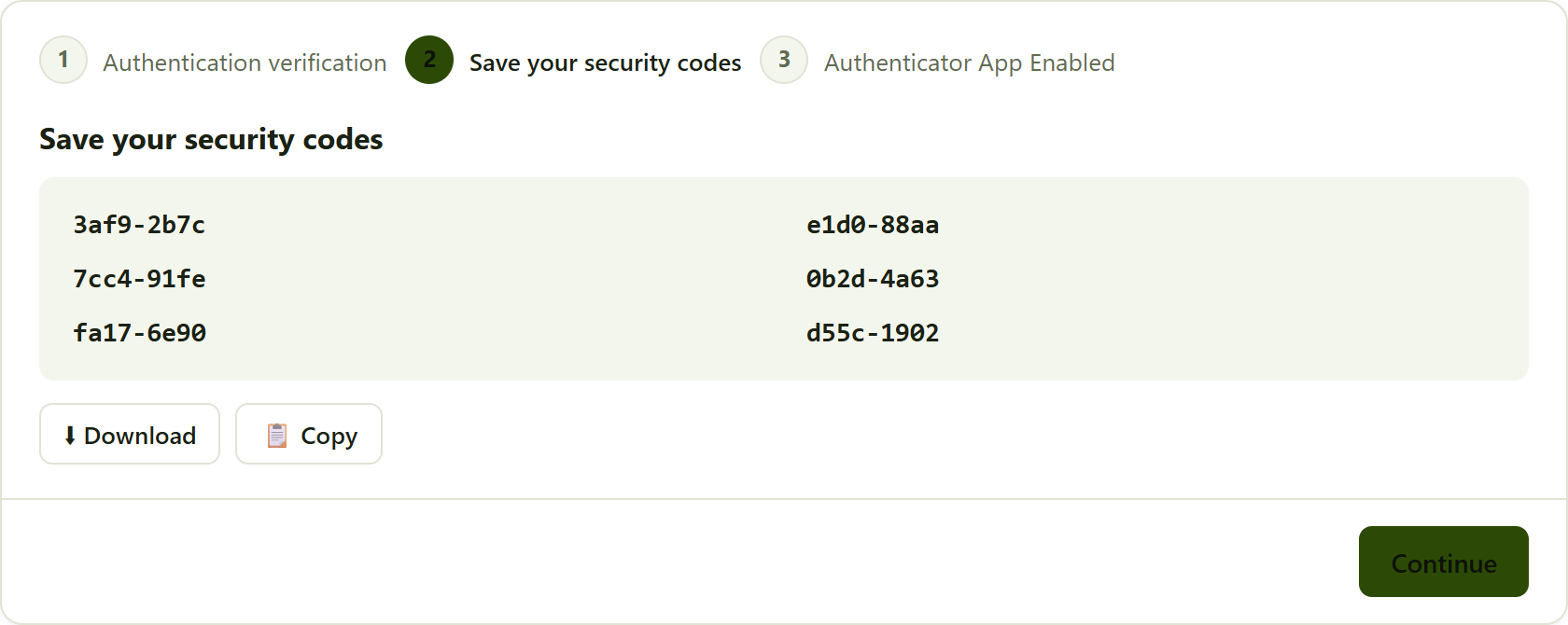
step 2. Keep these recovery codes somewhere safe and private.
Recovery codes matter. Each code works once. If you lose your phone and have no recovery codes, you will need an administrator to reset your two-factor before you can sign in again. Store them like passwords - never in a shared document or a ticket.
4. Once 2FA is on
The two-factor section then shows as enabled, with a green Authenticator App Enabled heading and two buttons:
- View Recovery Codes - shows your codes again (you confirm with a current authenticator code first).
- Disable - turns two-factor off. You confirm with a current code before it is removed.
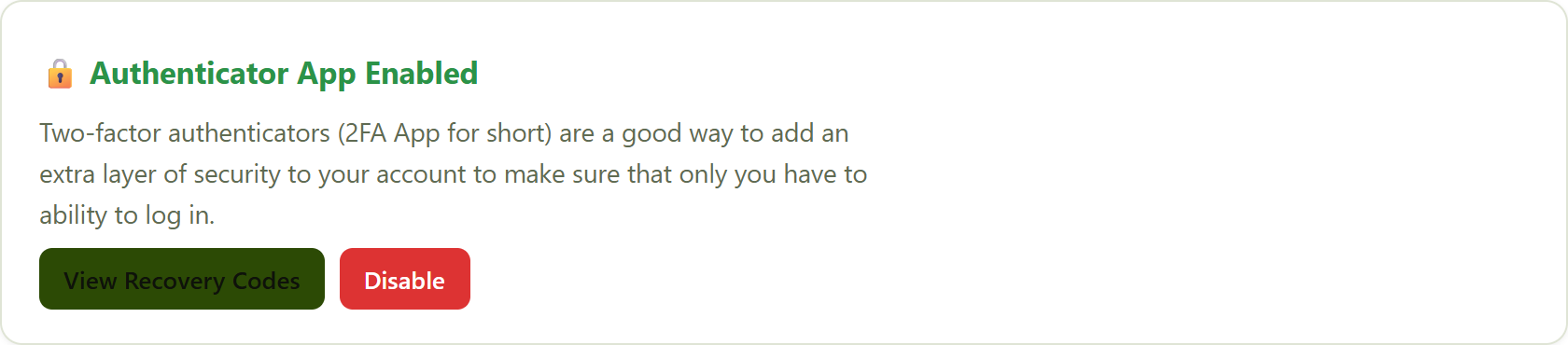
the two-factor section once the authenticator app is enabled.
Signing in with 2FA
After entering your username and password you reach a Verify Security Code screen. Type the current six-digit code from your authenticator app into the same six-box entry. If "Remember this browser" is offered and you tick it, this device will skip the code next time.
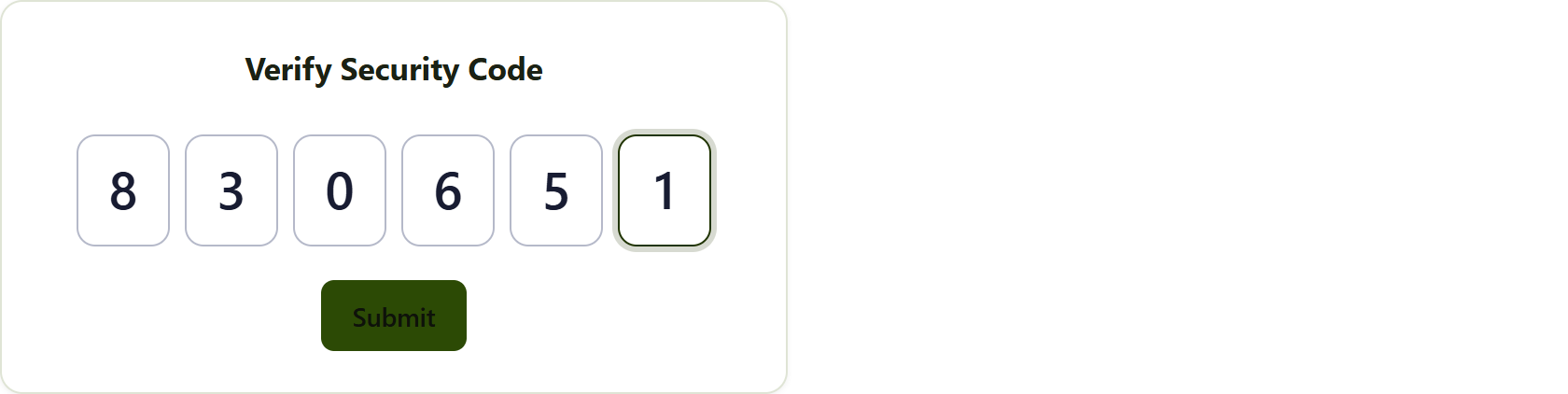
the sign-in code screen uses the same six-box entry.
Some actions ask for your code too. Where an action is sensitive - for example managing a Backup2Cloud DS-Client - the portal asks you to confirm with your current authenticator code (or your password if you do not have 2FA on). Once the sixth digit is entered the action confirms automatically.
Troubleshooting
- "Passwords don't match" - the two new-password boxes differ; retype them carefully.
- The code is rejected - authenticator codes are time-based, so your phone's clock must be accurate. Wait for the next code and try again.
- Lost your phone - use a recovery code on the Verify Security Code screen. If you have none, ask an administrator to reset your two-factor.
- Can't see the two-factor section - it appears on the Profile tab of My settings; scroll down past Timezone.
Was this article helpful?
That’s Great!
Thank you for your feedback
Sorry! We couldn't be helpful
Thank you for your feedback
Feedback sent
We appreciate your effort and will try to fix the article