How to sign in to My2Cloud at your company's own web address, and - if your account covers more than one organisation - how to move between them. Host administrators can also read how to open a customer's portal without a separate password.
Where to find it. My2Cloud opens at your organisation's own address, in the formyour-company.my2cloud.net(for exampleacme.my2cloud.net). Going there takes you straight to the sign-in page for that organisation.
1. Signing in
Open your company's My2Cloud address in a browser. Because the address already identifies your organisation, you only need your own credentials:
- Type your User name or email in the first box.
- Type your Password. The eye icon at the end of the box reveals what you have typed, and a warning appears if Caps Lock is on.
- Tick Remember me if you are on a device only you use, so you stay signed in for longer.
- Click Log in.
Forgotten your password? Use the Forgot password? link to have a reset sent to your email address.
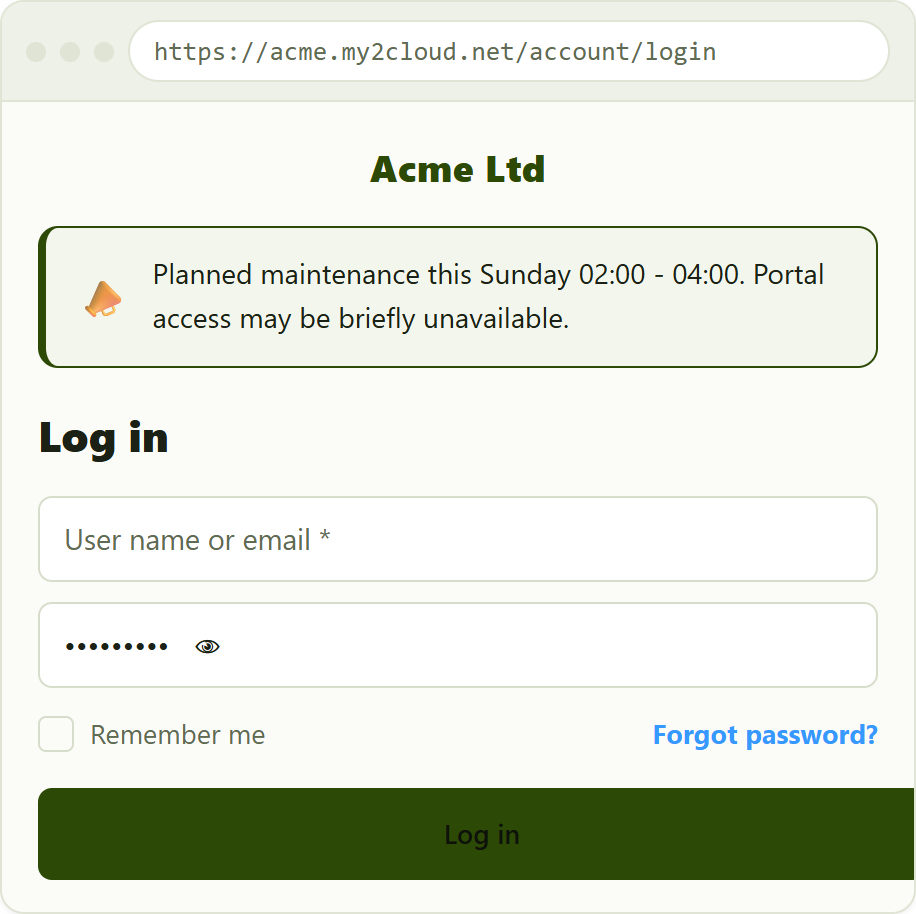
the sign-in page at an organisation's own address. The welcome banner only appears when Assurestor has a message to show.
The welcome banner. The green announcement strip above the form is optional. Assurestor switches it on when there is something to tell you (for example planned maintenance), so it will not always be there.
If two-factor is enabled
If you have turned on the authenticator app, after your password you are asked for a six-digit code before you reach the portal. That short step is covered separately in Your profile, password and two-factor authentication.
2. Choosing an organisation before you sign in
Almost everyone reaches the right organisation simply by using their company address, so no extra step is needed. If you have opened a shared sign-in page instead, a small line above the form shows which organisation you are about to sign in to:
Current tenant: Acme Ltd ( Change )
Click Change to open the Switch tenant dialog. Leave Switch to tenant on, type your organisation's tenancy name (the first part of your web address, such as acme), and confirm. Turning the toggle off signs you in to the host, which is reserved for Assurestor staff.
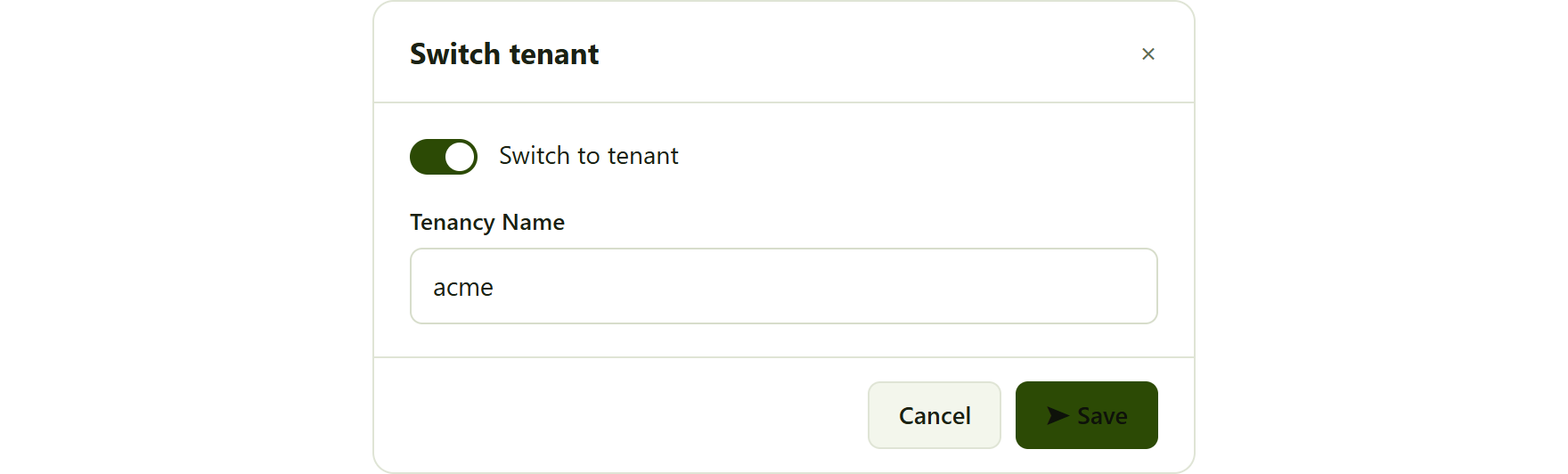
the Switch tenant dialog. The tenancy name is the first part of your address (acme in acme.my2cloud.net).
3. Switching between your organisations once signed in
Some people work across more than one organisation - for example a managed-service partner who looks after several customers, or a colleague who belongs to two companies. If your accounts have been linked together, you can hop between them without signing out and back in.
Open the menu under your name or avatar in the top-right corner and choose Manage linked accounts. Any accounts you have used recently are listed there too, so switching is a single click. When you pick another account, the portal reloads showing that organisation's data.
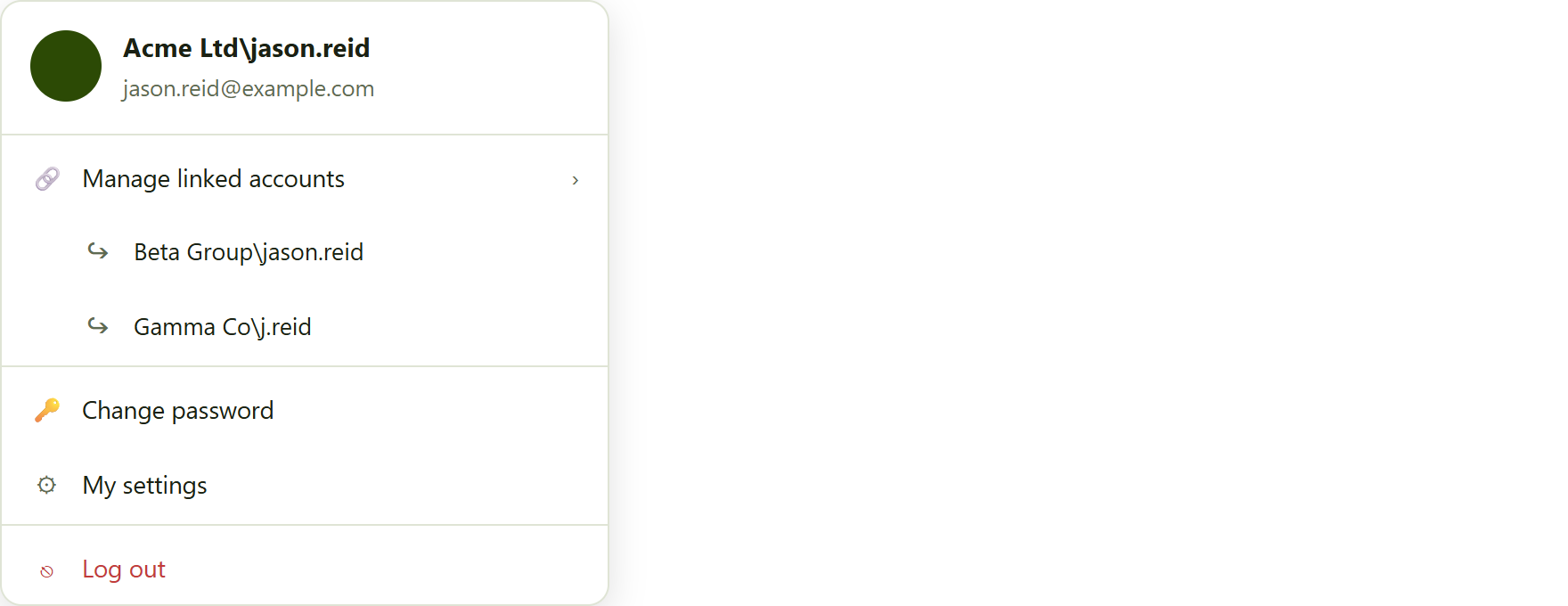
the account menu, top-right. Linked organisations appear under Manage linked accounts for one-click switching.
Don't see other organisations? Linked accounts have to be set up first. If you need access to another organisation added to your login, ask your administrator or raise a support ticket - it is not something you can add yourself from this menu.
4. Host administrators: logging in to a customer's portal
This section is for Assurestor host administrators only. From the host you can open any customer's portal to see exactly what they see, without knowing their password.
- Go to Administration › Tenants.
- Find the organisation, open its actions menu (the row's three-dot / menu control) and choose Login as this tenant. The option is only available for active tenants.
- Pick the user you want to sign in as, and the portal opens in that organisation's context.
While you are signed in this way, a Back to my account option appears at the top of your account menu. Use it to return to your own host session when you are finished.
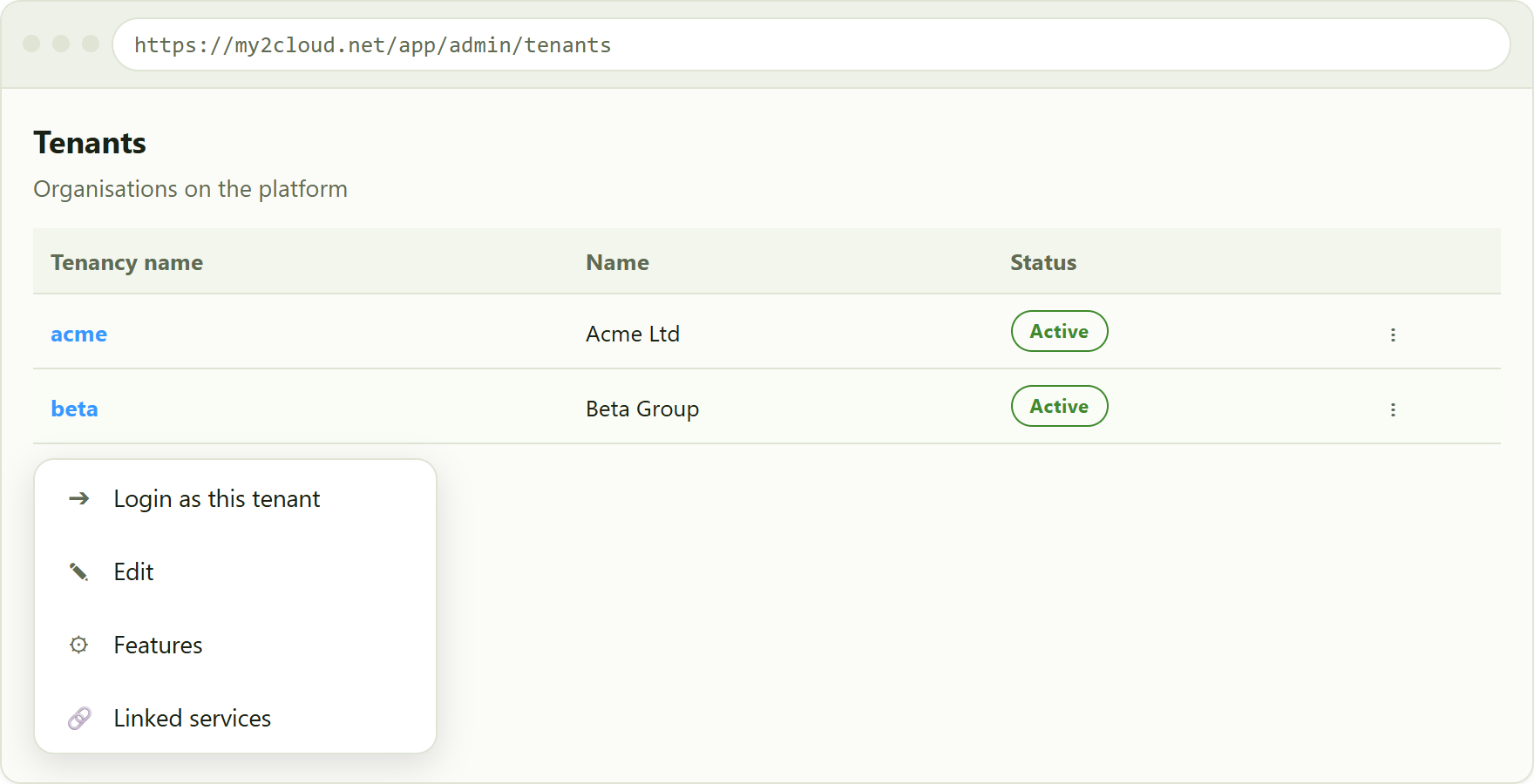
the Tenants admin page. The row menu offers Login as this tenant for active organisations.
Tips and troubleshooting
- Bookmark your address. Save
your-company.my2cloud.netso you always land on the right organisation's sign-in page. - "Log in" stays greyed out. Both the user name and password boxes must be filled in before the button becomes active.
- Wrong organisation's data after signing in. Check the name shown at the top of your account menu. If your login is linked to more than one, use Manage linked accounts to switch.
- Asked for a code you don't have. If two-factor is on and you have lost your phone, use a recovery code, or ask an administrator to reset your two-factor. See the two-factor article for detail.
- Host administrators: if you cannot get back to your own session, use Back to my account at the top of the account menu; it only appears while you are signed in as a tenant.
Was this article helpful?
That’s Great!
Thank you for your feedback
Sorry! We couldn't be helpful
Thank you for your feedback
Feedback sent
We appreciate your effort and will try to fix the article