My2Cloud ships curated default dashboard layouts. When we release an improved default, your existing view stays exactly as you left it - your saved layout is never overwritten automatically. This guide explains how you (or, for tenant users, a host administrator) can clear a saved layout so it picks up the newest default.
Where this applies. Every dashboard in My2Cloud has a built-in default: the live service dashboards (Backup2Cloud, DR2Cloud, SaaS2Cloud and Veeam2Cloud), the usage and analytics dashboards, and the Host and Tenant Usage dashboards. Each of these can be reset independently, and resetting one dashboard never affects the others.
1. How default layouts work
The default layout for each dashboard - which widgets appear, and how they are sized and arranged - is defined centrally and shipped with the portal. These defaults are promoted from the host administrator's own arranged dashboards: the host admin lays a dashboard out the way it should look for everyone, and that arrangement becomes the built-in default.
The moment you drag, resize, add or remove a widget and click Save, that dashboard becomes your saved layout. From then on you see your version, not the default. This is deliberate - a portal update should never rearrange a dashboard you have carefully set up. The trade-off is that when a better default ships, you keep your old layout until you reset it.
2. Reset your own dashboard
There is no separate "reset" button. Instead, you return a dashboard to its default by removing your custom pages in Edit mode. When only one page remains, the delete button changes to Back To Default.
- Open the dashboard you want to reset.
- Turn on the Edit mode switch in the top-right of the header.
- If you have added extra pages (tabs), delete them one at a time with Delete Page until a single page is left.
- With one page remaining, the same button now reads Back To Default. Click it.
- Confirm the prompt: "Are you sure to remove … page and back to default?". The dashboard reloads with the current built-in default layout.
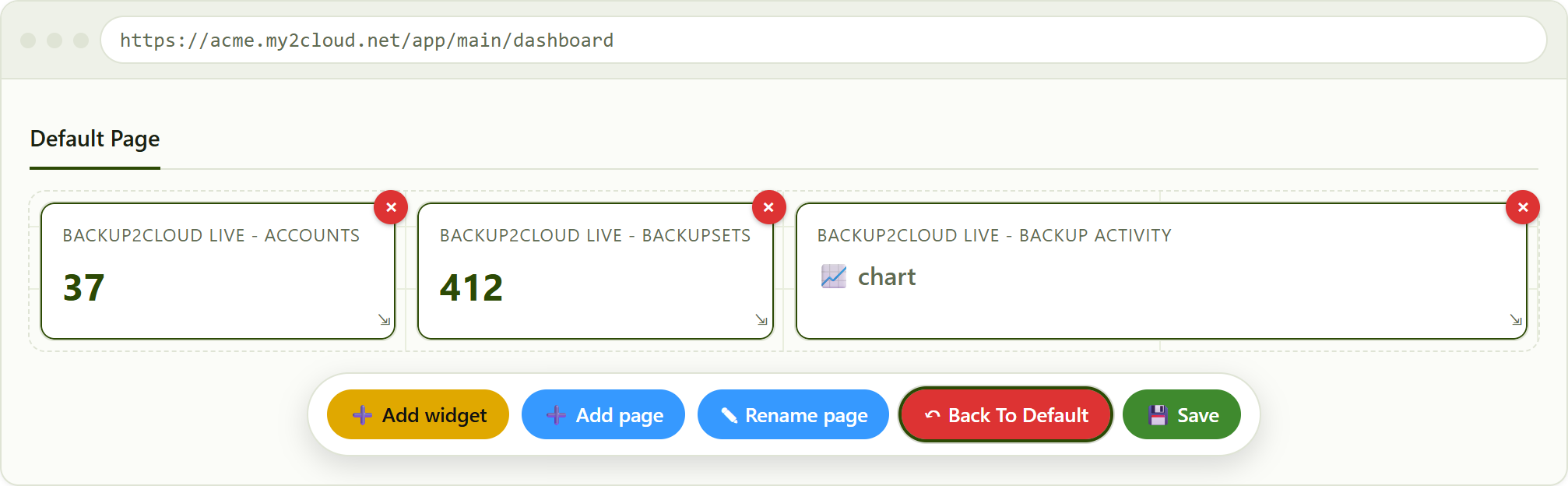
with a single page left in Edit mode, the delete button reads "Back To Default" (highlighted). Clicking it restores the shipped default for that dashboard.
Only that dashboard is affected. Resetting to default clears your saved layout for the dashboard you are on. Your other dashboards, and every other user's view, are left untouched. If you later want your old arrangement back, you will need to rebuild it - so reset only when you are happy to take the new default.
3. Reset tenant users' dashboards (host administrators)
Asking every user to reset each of their dashboards by hand is impractical after a release. So a host administrator can perform a single administrative reset that clears the saved dashboard layouts for all tenant users at once. After the reset, those users automatically fall back to the latest built-in defaults the next time they open a dashboard.
This is a maintenance action carried out by the Assurestor team against the live service, typically run just after deploying a release that ships new default layouts. It is safe to repeat and does not need any downtime.
Host layouts are left alone. The reset only clears layouts saved by tenant users. A host administrator's own saved dashboards are never touched - which matters, because the host admin's arrangements are the source the defaults are promoted from in the first place. If you are a host user and want the new default yourself, use the per-user Back To Default steps in section 2.
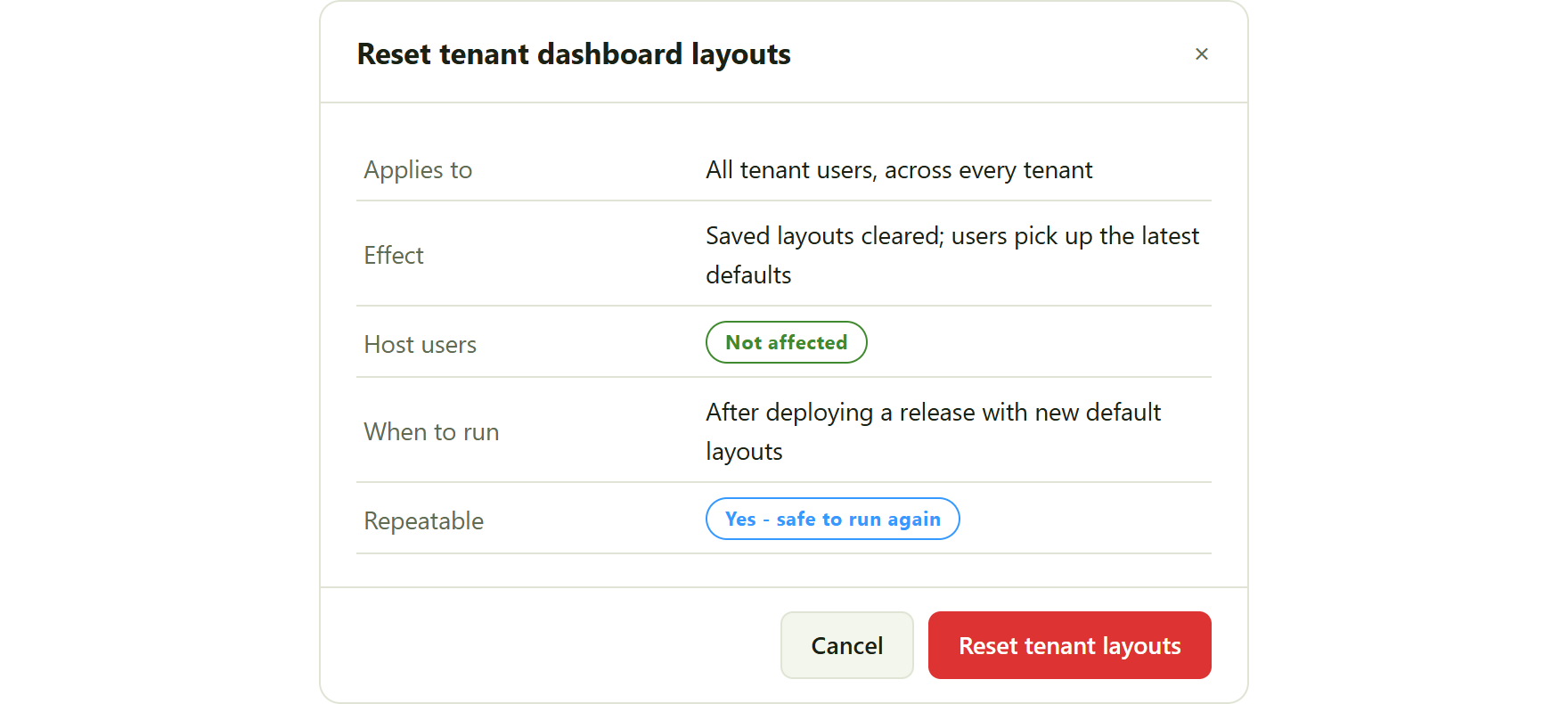
the host-side reset clears tenant users' saved layouts in one action, leaving host users untouched.
4. Old default vs new default
A reset simply swaps a user's saved arrangement for the current shipped one. A new default might add a widget, drop one that is no longer useful, or rearrange the layout so the most important figures come first. The stat tiles below show the kind of change a fresh default can bring.
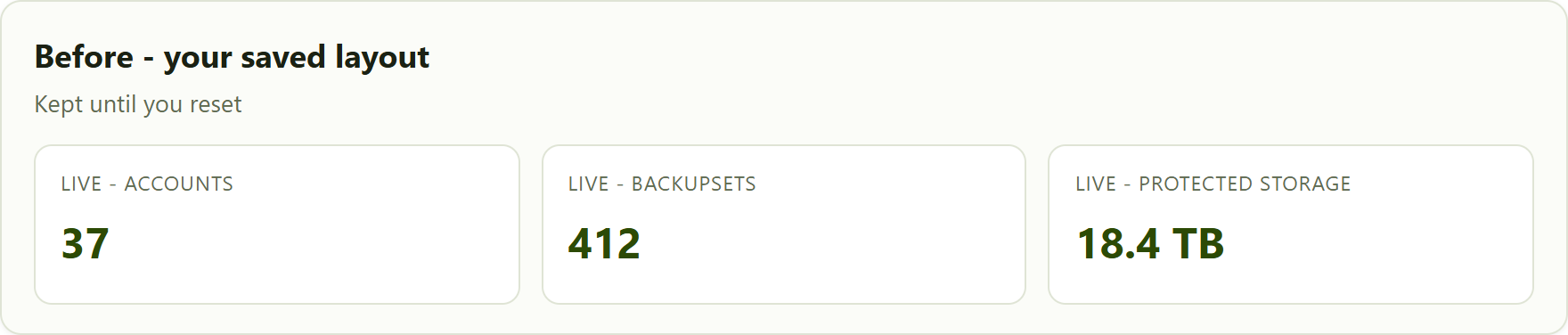
an older default with three summary tiles.
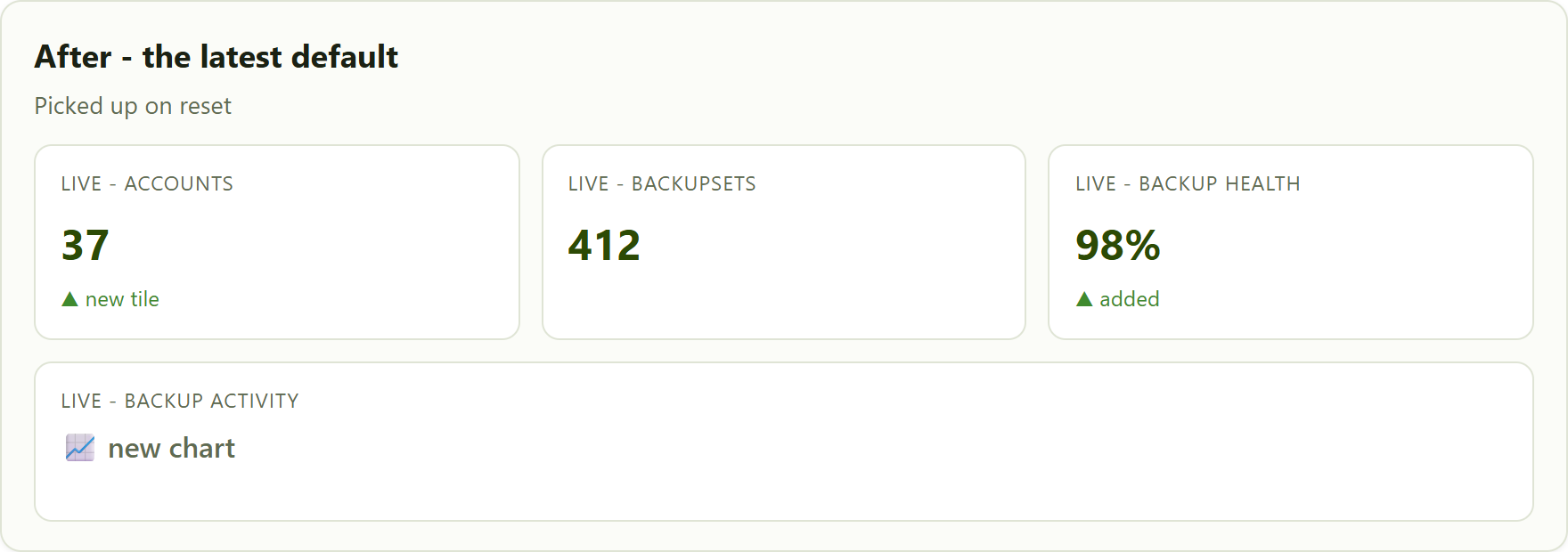
the same dashboard after reset, showing an added health tile and a wider activity chart from the newer default.
Tips and troubleshooting
- The button still says "Delete Page". You have more than one page. Delete the extra pages first - the button only changes to Back To Default when a single page is left.
- No Edit mode switch. Your role does not include dashboard-edit permission, so you cannot reset the layout yourself. Ask an administrator.
- I reset but still see the old layout. This is usually browser cache. Refresh the page (or hard-refresh) - see the "My menu or dashboard looks broken after an update" article.
- Everyone in my tenant needs the new default. Rather than asking each user to reset, ask your Assurestor contact to run the host-side tenant reset described in section 3.
- I want to keep my layout. Then do nothing. Your saved layout is retained across updates until you (or the host-side reset) clear it.
Was this article helpful?
That’s Great!
Thank you for your feedback
Sorry! We couldn't be helpful
Thank you for your feedback
Feedback sent
We appreciate your effort and will try to fix the article