The Billing area of My2Cloud shows the invoices and credit notes for your account, drawn straight from Assurestor's accounts system. This guide shows you where to find them, how to read the invoices list, what each status colour means, and how to open an invoice or credit note in full.
Where to find it. In the left menu open Billing (the coins icon), then choose Invoices or Credit Notes. The invoices list lives at/app/main/billing/invoicesand credit notes at/app/main/billing/creditnotes. The Billing menu also has a Dashboard and a Payments page.
The billing overview at a glance
Your main dashboard can show two billing tiles that summarise your position without opening the full list. Each one is clickable and takes you straight to the invoices page, already filtered:
- Outstanding Balance - the total of every invoice that is not yet fully paid, with a count of how many are open. Click it to see those invoices.
- Overdue Balance - the total that is past its due date. It shows a "past due" marker and turns amber when there is something to pay, or reads "Nothing overdue" when you are up to date.
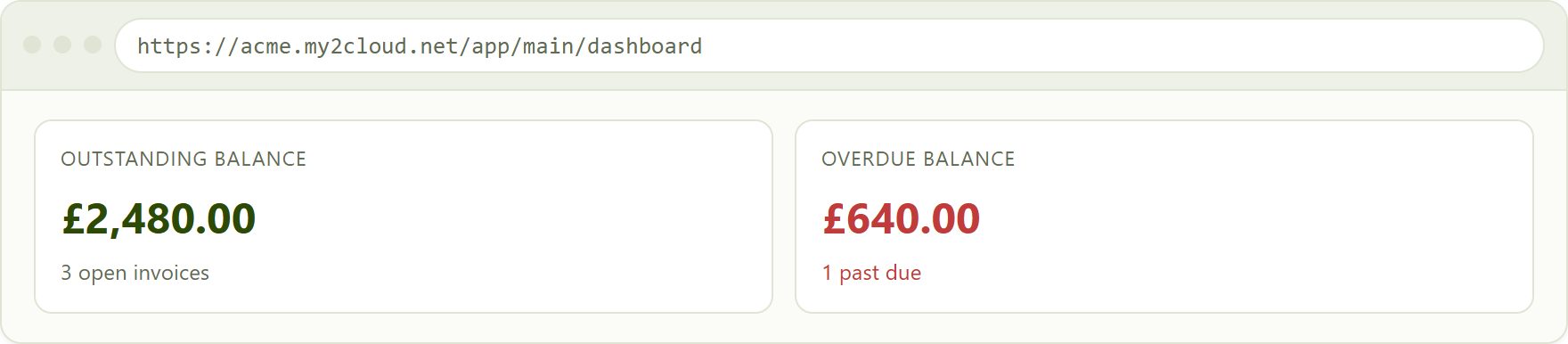
the Outstanding and Overdue billing tiles. Figures are sample data only. Click either tile to jump to the matching invoices.
The invoices list
The Invoices page opens with the title "Invoices" and the subtitle "List of active and historic invoices". At the top are a search box and a date range picker; below them is the table. By default it shows the last twelve months. Click a column header with a sort arrow to reorder the list.
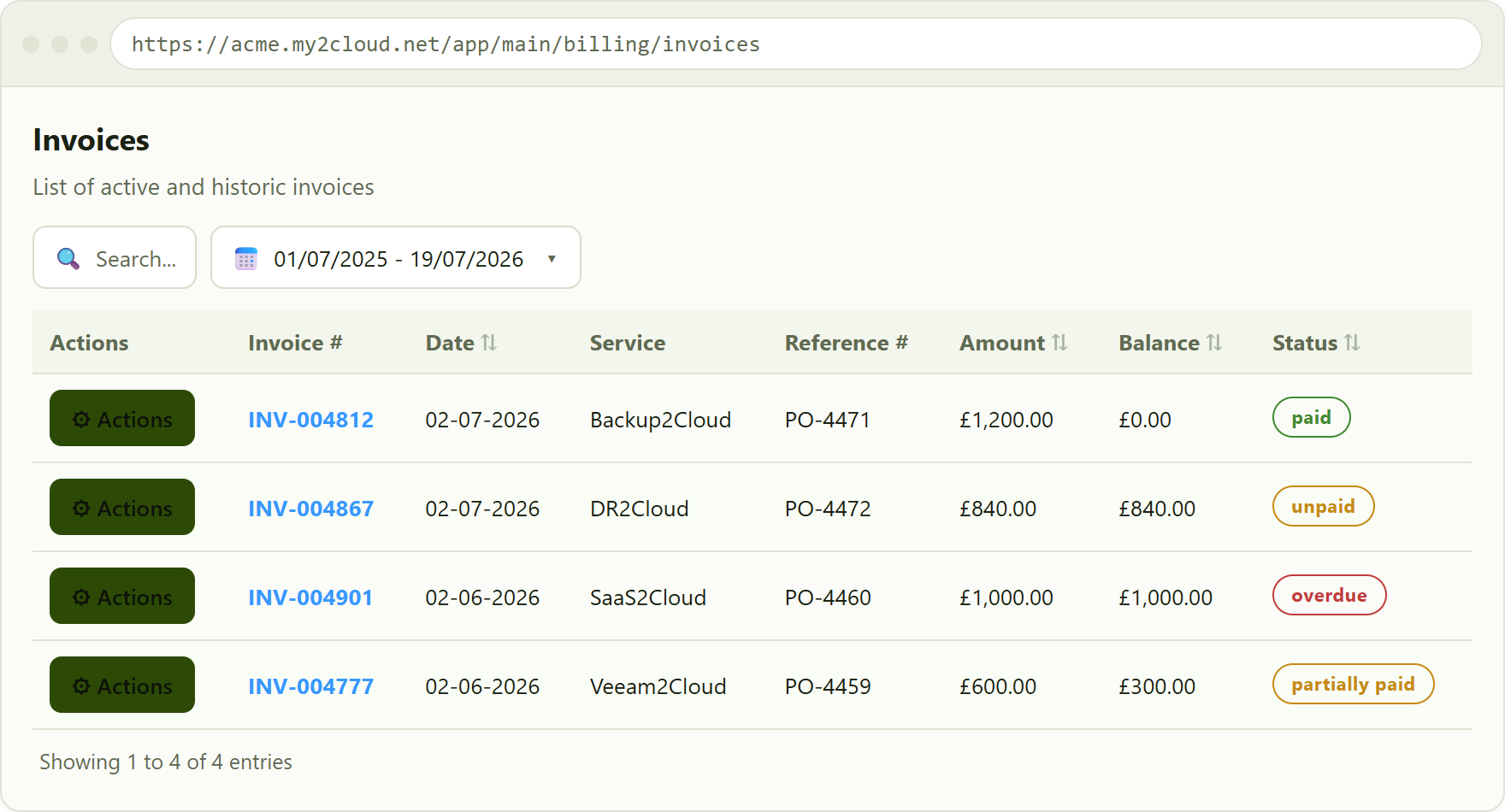
the Invoices list with sample data. The Status column uses colour-coded pills, explained below.
What each column means
- Actions - a menu button for the row. It offers View (open the invoice here) and View in accounts portal (open the same invoice in Assurestor's online accounts system in a new tab).
- Invoice # - the invoice number. It is a link: click it to open the full invoice.
- Date - the date the invoice was raised, shown as day-month-year.
- Service - the Assurestor service the invoice relates to, for example Backup2Cloud, DR2Cloud, SaaS2Cloud or Veeam2Cloud.
- Reference # - your reference for the invoice, such as a purchase-order number, where one has been recorded.
- Amount - the total value of the invoice.
- Balance - how much is still outstanding. A balance of zero means the invoice is fully paid; a balance equal to the amount means nothing has been paid yet.
- Status - where the invoice is in its life, shown as a colour-coded pill (see next section).
Invoice status pill colours
The Status pill tells you at a glance whether an invoice still needs paying. "Outstanding" simply means any invoice that is not yet fully paid, whatever its exact status.
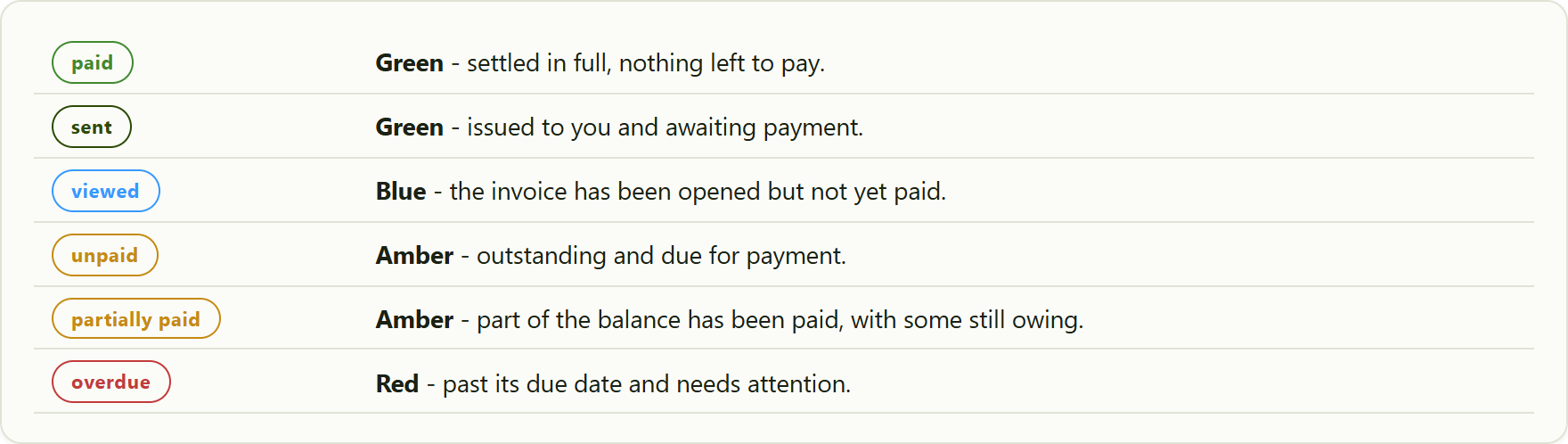
the invoice status pills. Green means clear or awaiting, amber means outstanding, and red means overdue.
In short. Green pills need no action, amber pills are outstanding and awaiting payment, and a red overdue pill is the one to look at first. Sorting by Status groups them together.
Opening an invoice
Click the Invoice # link, or choose View from the Actions menu, to open the full invoice in a pop-up window. It shows the complete document exactly as issued - who it is billed to, the invoice and reference numbers, the dates, the line items, and the totals including any balance still due. Use Close when you are finished, or the Actions menu's View in accounts portal option to open it in the online accounts system.
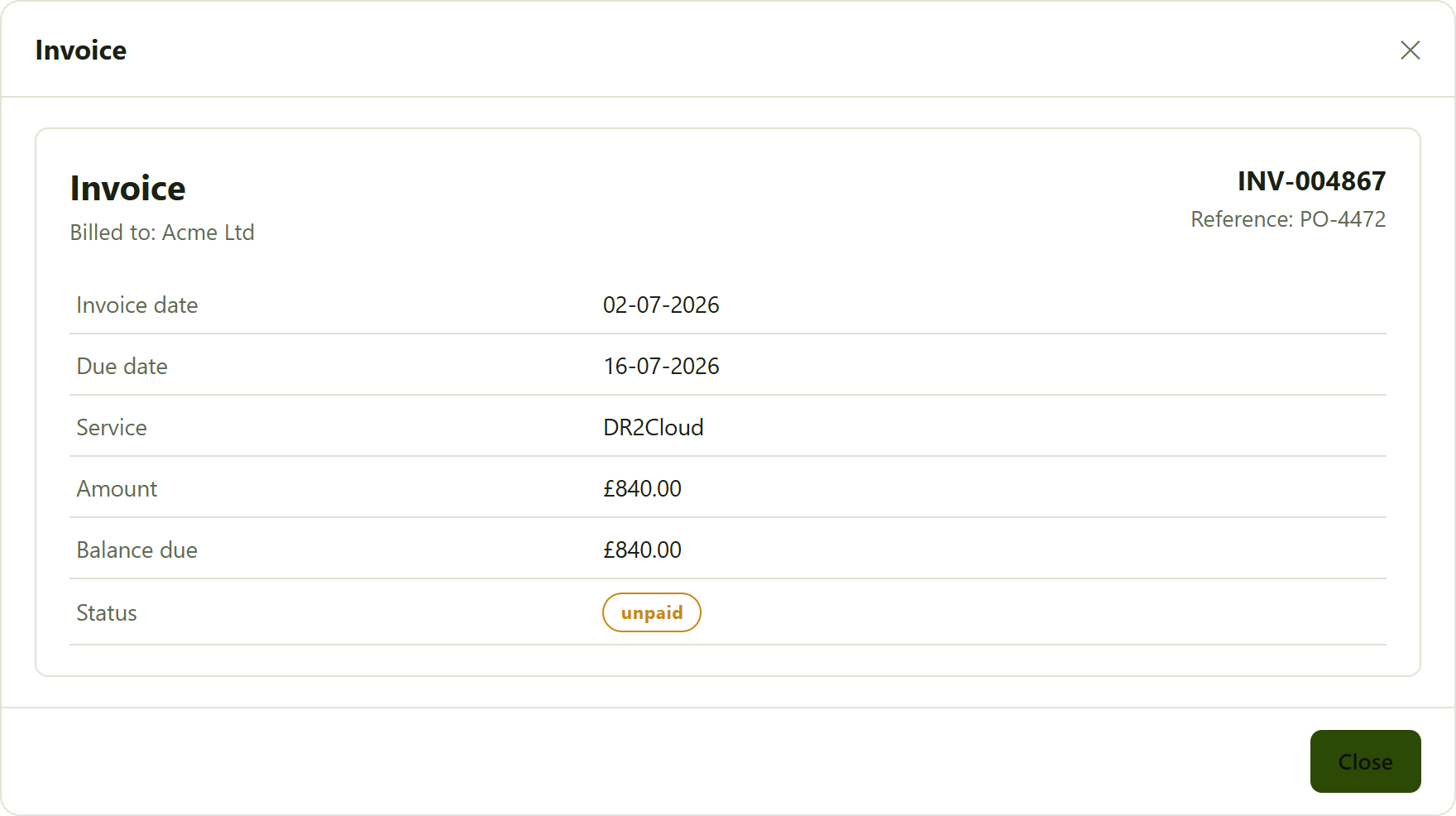
an invoice opened in the viewer. The real document shows the full itemised invoice; the figures here are sample data.
Reading your credit notes
A credit note reduces what you owe, for example after an adjustment or a returned charge. Open Billing → Credit Notes to see them. The page works just like the invoices list, with the same search and date-range filters, and shares most of the same columns.
- Actions - the row menu, with View to open the credit note.
- Date - when the credit note was raised.
- Credit Note # - the credit note number; click it to open the document in full.
- Credit Note Ref - your reference, where recorded.
- Amount - the value of the credit.
- Balance - how much of the credit is still available to apply.
- Status - the state of the credit note, as a colour-coded pill.
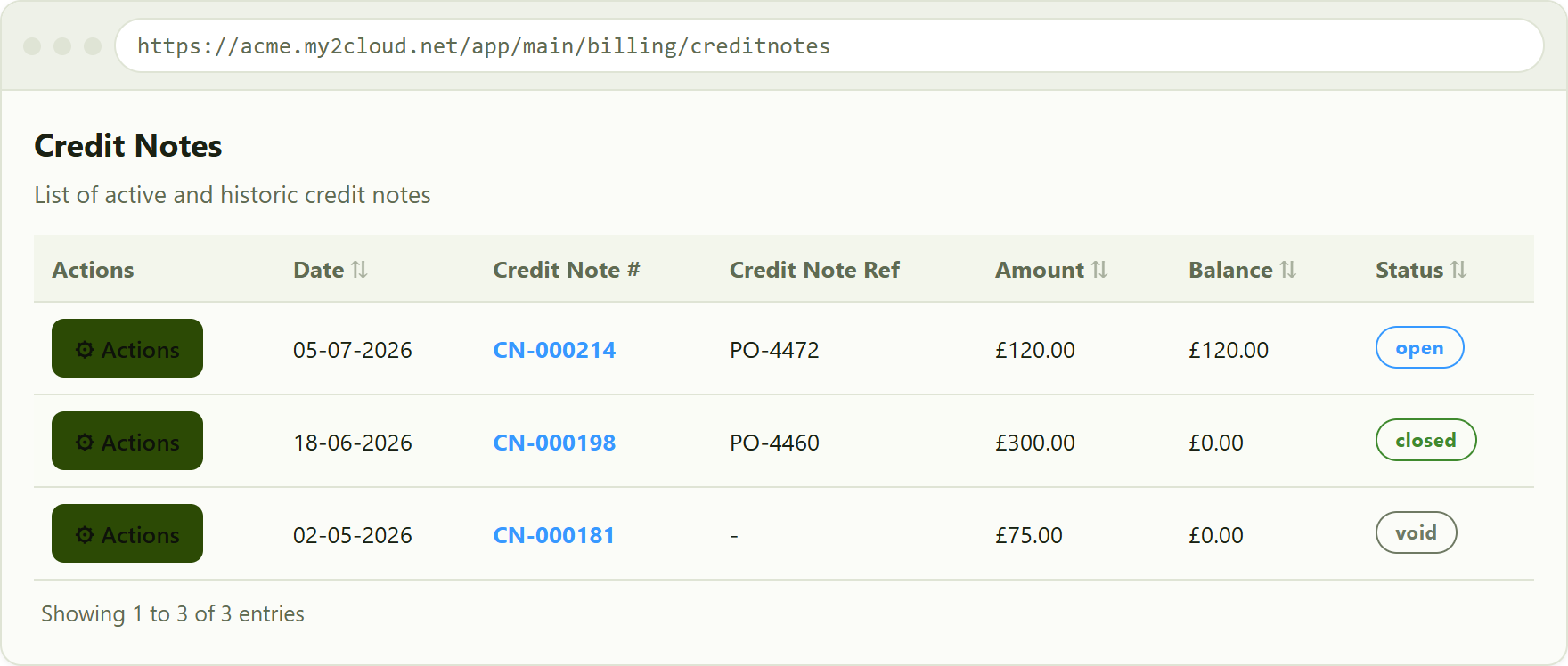
the Credit Notes list with sample data.
Credit note status colours
- open Blue - the credit still has a balance available to apply against invoices.
- closed Green - the credit has been fully applied, with nothing left.
- void Grey - the credit note has been cancelled and no longer applies.
Tips
- Use the date range picker to look further back than the default twelve months, or to narrow to a single month.
- The search box matches on invoice or credit note number and reference, so you can find a document quickly by its PO number.
- Arriving from the Outstanding or Overdue dashboard tile pre-filters the list; a chip at the top of the page shows the active filter, and you can remove it to see everything again.
- Sort by Status to group outstanding and overdue invoices together, or by Balance to bring the largest amounts owing to the top.
- Choose View in accounts portal from an invoice's Actions menu to open it in Assurestor's online accounts system, where you can download a copy.
Was this article helpful?
That’s Great!
Thank you for your feedback
Sorry! We couldn't be helpful
Thank you for your feedback
Feedback sent
We appreciate your effort and will try to fix the article