My2Cloud has a built-in knowledge base of guides for the 2cloud services. You can search it or browse it by category and folder, then open any article to read it in full - without leaving the portal.
Where to find it. In the left-hand menu open Support and choose Knowledgebase. The web address is /app/main/support/knowledgebase on your My2Cloud portal.
What you will see
The page opens on the Knowledgebase header ("Useful articles on 2cloud services"). Below it a "How can we help?" banner offers a search box, and under that the categories are shown as cards you can browse. The articles are pulled from Assurestor's service desk, so the list stays up to date automatically.
Categories cover the 2cloud services you would expect - for example Backup2Cloud, DR2Cloud, SaaS2Cloud, Veeam2Cloud and the My2Cloud Portal itself. Each card lists the folders it contains.
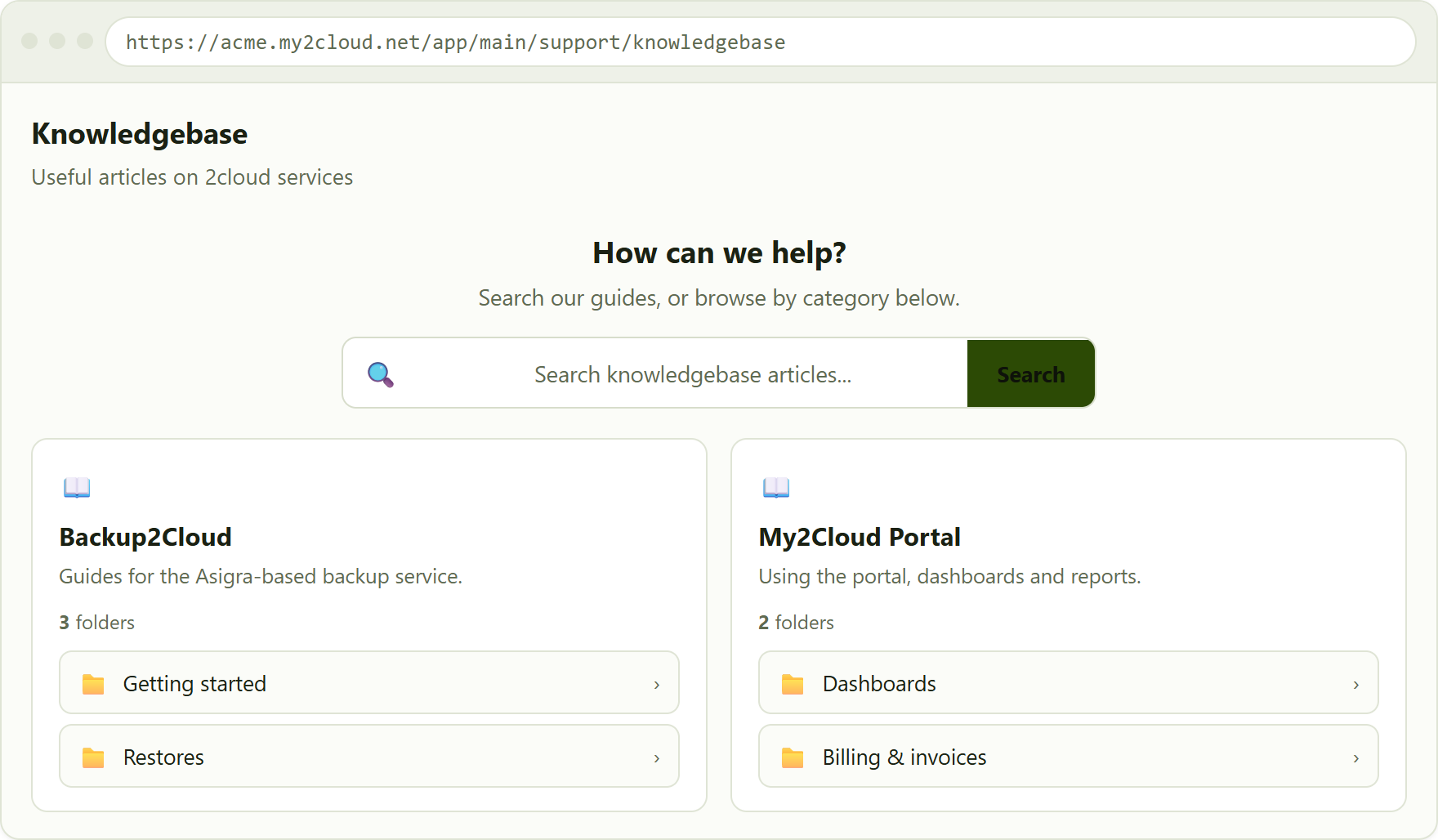
the knowledge base landing page - a search box at the top and category cards, each listing its folders.
Browsing by category
- Find the category card for the service you are interested in.
- The card shows how many folders it holds, listed as buttons underneath.
- Click a folder to open the articles inside it.
Browsing is the quickest route when you already know which service your question is about.
Searching
If you would rather search across everything, use the search box in the "How can we help?" banner:
- Type at least three characters into Search knowledgebase articles...
- Press Enter or click Search.
- The matching articles are listed, with the heading showing Search Results and the words you searched for.
The article list
Whether you opened a folder or ran a search, the results appear as a tidy list. Along the top you will see:
- A back arrow (the left arrow) to return to the categories.
- A breadcrumb showing the category and folder (or "Search Results" and your search text).
- A Search... box that filters the list you are looking at, so you can narrow it further.
- A count of how many articles are shown.
Each row shows the article's title, a short snippet, and tags for its category and folder. Click a row - or its View link - to open the article. Longer lists are paged, with a "Showing 1 to 10 of..." note at the foot.
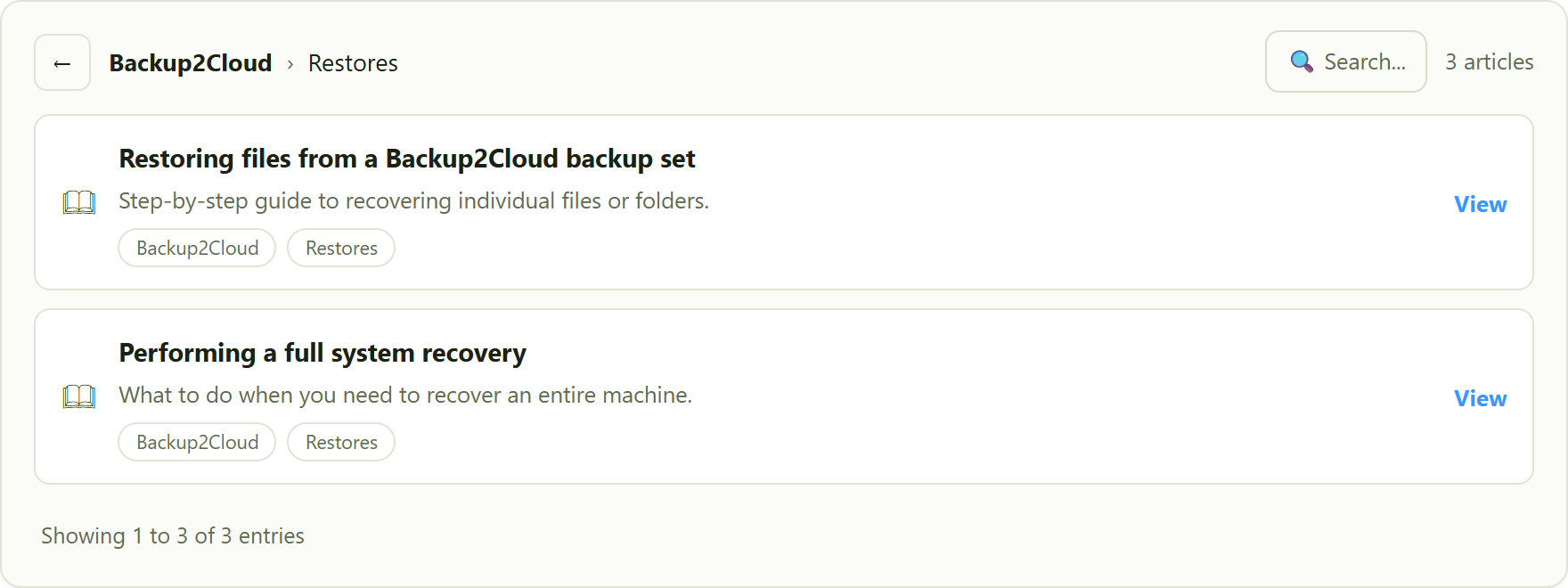
the article list, with the breadcrumb, an in-list filter box and the article count. Click a row to read it.
Opening an article
Selecting an article opens it in a large reading window over the page. The title sits at the top, the full article body fills the window, and any attachments appear as download buttons at the bottom, each showing the file name and size. Click Close (or the cross, top right) to return to the list.
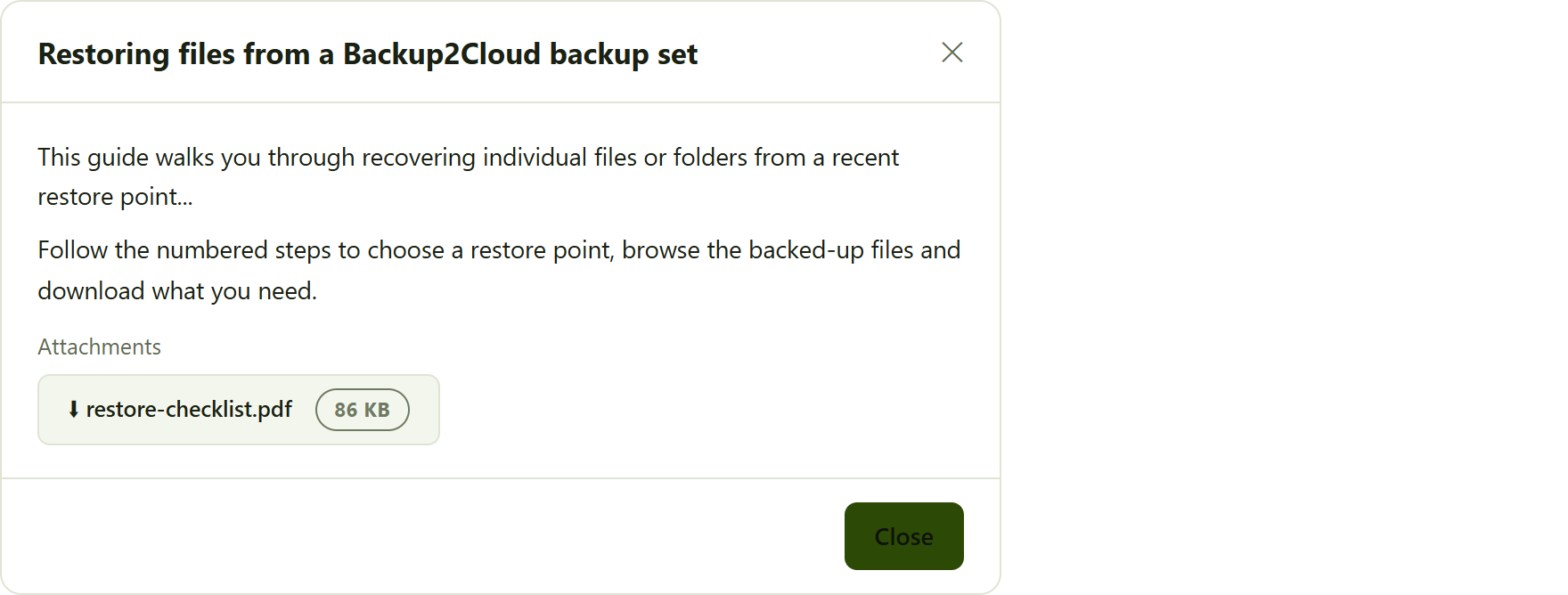
an opened article. The full text appears in the reading window, with any attachments available to download.
Tips
- Search needs three characters. A very short term will not run - type a little more of the word.
- Filter within a list. The Search... box on the article list only narrows the articles already shown; use the main search box to look across every category.
- Use the back arrow. It returns you to the categories without losing your place, so you can dip into another folder.
- Still stuck? If no article answers your question, raise a ticket from Support › Tickets and our team will help.
Was this article helpful?
That’s Great!
Thank you for your feedback
Sorry! We couldn't be helpful
Thank you for your feedback
Feedback sent
We appreciate your effort and will try to fix the article