Almost every service and live view in My2Cloud has an Export to Excel button. It gives you a spreadsheet of the list you are looking at - and the important part is that it exports exactly what you see: the same filters, the same sort order and the same columns. This guide explains how it works and how to get the most out of it.
Where to find it. Look at the top right of any service list - for example Services → Backup2Cloud → Backupsets, or the live views under Backup2Cloud, DR2Cloud, SaaS2Cloud and Veeam2Cloud. The Export to Excel button sits in the page header, beside the title.
The Export to Excel button
The button is a green outline button with a small spreadsheet icon, labelled Export to Excel. Click it once and your browser downloads an Excel workbook (an .xlsx file) containing the current table. There is no dialog to fill in and nothing to configure - what you see on screen is what you get in the file.
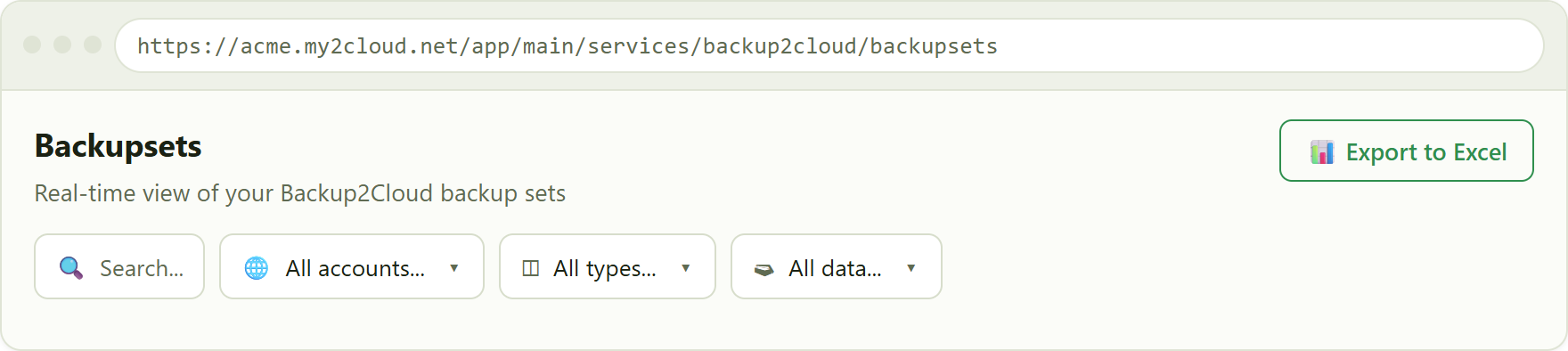
the Export to Excel button in the page header, above the filter row.
The export matches what you see
This is the key thing to understand. The export is built from the table in front of you at the moment you click, not from a separate full data dump. Three things carry across:
- Your filters - anything you have typed into the search box, and any dropdown filter you have chosen (account, client, type, "with / without data", and so on) is applied first. Only the rows that survive those filters are exported.
- Your sort order - the rows appear in the file in the same order as on screen. If you have sorted by a column, for example largest stored size first or oldest backup first, the spreadsheet keeps that order.
- Your visible columns - the workbook has one column per column shown in the table, with the same headings, in the same left-to-right order.
Pages do not limit the export. If the table is spread across several pages, you still get every matching row, not just the page you happen to be viewing. Paging only affects what fits on screen - the export always contains the full filtered result.
A quick example
Say you filter the Backupsets list to Acme Ltd and type sql in the search box, leaving two rows on screen. The export contains just those two rows and just the columns you can see - a tidy spreadsheet, not the whole estate.
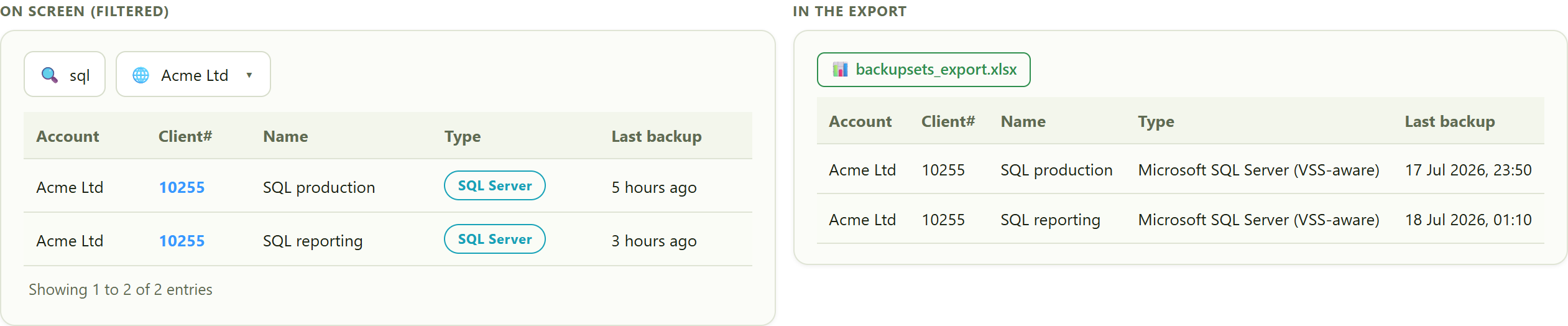
the filtered list becomes a spreadsheet of exactly those rows and columns. Relative dates are written out in full, and short type labels become their full descriptive name.
Columns you cannot see are not exported
Some columns are only shown to accounts that are permitted to see them. A good example is the Stored figure on Backup2Cloud, which is hidden unless your account is allowed to view stored (post-optimisation) sizes. If a column is not on your screen, it is not in your export either. The workbook only ever contains the columns you can actually see, so nobody exports data they are not entitled to.
Relative dates become exact dates
On screen, times are often shown in a friendly relative form such as "2 hours ago" or "yesterday", with the exact moment available when you hover over the value. That relative wording is only helpful while you are looking at the page. In the export, those same values are written out as a full, exact date and time instead, so the spreadsheet stays accurate however long after you open it - and so you can sort or filter on real dates in Excel.
Also tidied for the spreadsheet. Sizes are written using the same units you see in the table (for example GiB and TiB), and short colour-coded labels are expanded to their full descriptive name - for instance the Backup2Cloud Type pill exports as the complete Asigra set-type name rather than the shortened badge text.
Tips
- Filter first, then export. Narrow the list to what you actually need - one account, one client, a search term, "without data" - and only then click Export to Excel. You will get a focused spreadsheet instead of a large one you have to trim afterwards.
- Sort before you export if the order matters, for example largest storage first for a review, or oldest last backup first to chase stale sets. The file preserves whatever order you set.
- Clear your filters (reset the search box and dropdowns) when you genuinely want the whole list - the export always follows the table, so an empty search means everything you are permitted to see.
- Each download is a fresh snapshot. Live views pull current data, so exporting again later gives you an up-to-date file. The filename includes a timestamp, which keeps repeated exports from overwriting each other in your downloads folder.
Was this article helpful?
That’s Great!
Thank you for your feedback
Sorry! We couldn't be helpful
Thank you for your feedback
Feedback sent
We appreciate your effort and will try to fix the article