Four-eyes approvals require a second person to authorise a destructive action before it runs. This guide is for administrators: appointing Security Officers, choosing which actions are gated, setting the quorum and expiry window, and understanding the warnings the page shows you.
Where to find it. Go to Administration › Approvals › Settings (/app/admin/approvals/settings). You need the Configure approvals permission.
Before you start
- Your edition must include the Approvals feature. If it does not, the page tells you so and nothing can be switched on - speak to Assurestor.
- You need at least one Security Officer, and realistically two. See the roster section below for why one is rarely enough.
1. Appoint your Security Officers
Approving is done by the Security Officer role, and by nothing else. The permission that allows a decision cannot be ticked onto any other role - it is not offered in the permission tree at all. That is deliberate: if an administrator could grant themselves the ability to approve, the maker and the checker become the same person and the whole control reduces to an extra dialog.
To appoint someone, add them to the Security Officer role under Administration › Users. They appear on the Approvals settings page immediately.
Choose officers who are not the people doing the work. The control assumes an operator raises and an officer authorises. If your only officers are also your only operators, most requests will be self-raised and will need a third person to clear.
Inactive accounts do not count
Officers whose accounts are disabled are listed but greyed out, and are excluded from every roster calculation. A disabled account cannot sign in, so it cannot approve anything.
2. The master switch
The switch at the top of the page turns approvals on for your organisation. With it off, nothing is gated regardless of what the action list below says - useful while you are still deciding your policy, and the safe state to return to if something is misconfigured.
3. Approvals required, and the expiry window
| Approvals required | How many different officers must approve before the action runs. One is a genuine two-person control already, because the person who raised it can never be one of the approvers. |
| Expiry window | How long a request stays open. After that it closes as Expired, the raiser is told, and nothing runs. Long enough to survive a weekend, short enough that stale intent does not sit around waiting to be approved by someone who has forgotten the context. |
4. Choose which actions are gated
Below the settings is the action catalogue, grouped by service. Each entry shows what the action does and its blast radius - what is actually destroyed or interrupted - so the decision to gate it is made with the consequence in front of you. Each has a sensible default, and a switch to override it for your organisation.
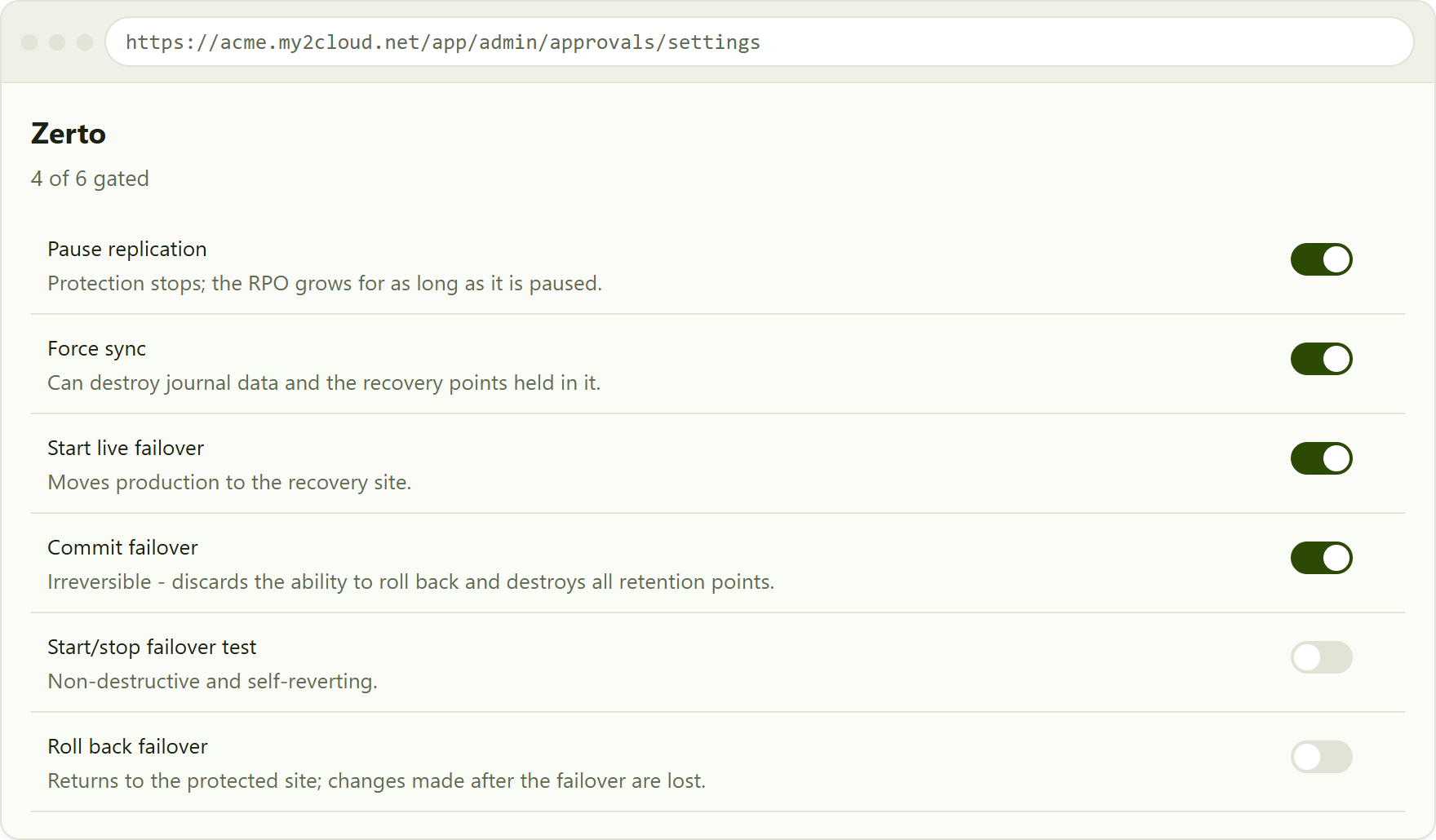
the action catalogue for one service. Entries run from the everyday to the irreversible, so the list reads the way the decision is made.
Gate less than you think you should. A quorum in front of everything trains people to click through without reading, and a control nobody reads is not a control. The defaults gate what genuinely cannot be undone and leave routine, reversible work alone.
Only your services appear
The catalogue lists actions for the services your organisation actually has. There is no point configuring a control for a platform you do not use.
5. Understanding the roster warnings
Two checks run as you change the quorum, and they mean different things.
| Blocked | The roster can never satisfy this. You have asked for more approvals than you have active officers, so no request could ever be authorised. Saving is refused - a control that can never be satisfied is not a safety net, it is an outage waiting for the first destructive action. |
| Warning | A self-raised request would stall. The quorum is satisfiable in general, but not for a request raised by an officer, who cannot then vote on it. Such a request is perfectly legitimate - it just needs one more officer than it needs approvals, or it will sit until it expires. |
6. What happens if an officer leaves
Approval is authority in the present, not a fact about the past. If an officer leaves, is deactivated or loses the role, any approval they had already given on a request that is still open stops counting towards its quorum. The decision itself stays on the record - the trail is never rewritten - but it can no longer be half of a two-person control.
The request simply stays Pending: nobody refused it and nothing failed. If it can no longer reach its quorum with the officers who remain, the portal warns so that you can appoint another officer before it expires. Requests that were already decided keep their original counts, because they were authorised by whoever held the role at the time.
7. Evidence for auditors
Anyone with access to the Approvals page can download the full trail with Export audit trail: every request and every decision, including rejections, expiries and break-glass overrides, with the reasons given. It is deliberately available to more than just officers, since the person assembling evidence for an audit is often not the person deciding.
Tips and troubleshooting
- The page says the feature is not enabled - your edition does not include Approvals. Speak to Assurestor.
- I cannot find the permission to let someone approve - it is not in the permission tree by design. Add them to the Security Officer role instead.
- Saving is refused - you have asked for more approvals than you have active officers. Appoint another, or lower the number.
- A switch will not turn on - check the per-action approvals number against your roster; an action asking for more approvals than you have officers cannot be enabled.
- Everything is configured but nothing is being gated - check the master switch at the top of the page, and that the users raising the actions are not themselves the only officers.
- A change did not seem to apply - settings that match the default are not stored separately, so a switch returning to its default value is normal and not data loss.
Was this article helpful?
That’s Great!
Thank you for your feedback
Sorry! We couldn't be helpful
Thank you for your feedback
Feedback sent
We appreciate your effort and will try to fix the article