Some actions in My2Cloud destroy data or cut over live systems, and cannot be undone by clicking again. Four-eyes approvals put a second, independent person between the request and the action: one person asks, a different person authorises. This guide explains what changes when an action is gated, how to raise one, and how a Security Officer decides.
Where to find it. Requests waiting on you are at Approvals (/app/main/approvals). The nav item carries a badge with the number still pending.
What four-eyes actually means
The control is separation of duties: the person who initiates a destructive action is never the person who authorises it. That is enforced in code, not by convention - you cannot approve your own request even if you hold every permission in the portal.
Only a short, deliberately chosen list of actions is gated. Routine work is untouched: putting a quorum in front of everything trains people to click through without reading, which is worse than no control at all. Your administrator decides which actions on that list are gated for your organisation.
1. Raising a gated action
You use the portal exactly as you always have. When you confirm an action that has been gated, the dialog tells you plainly that it will not run yet, and asks for two things.
- A reason. This is not paperwork - it is the only thing the approver has to judge by. “Decommissioned, ticket 4471” lets somebody make a decision; a blank box leaves them rubber-stamping.
- Your password, or your authenticator code if you have two-factor enabled. This proves the request came from you and not from a screen someone left unlocked.
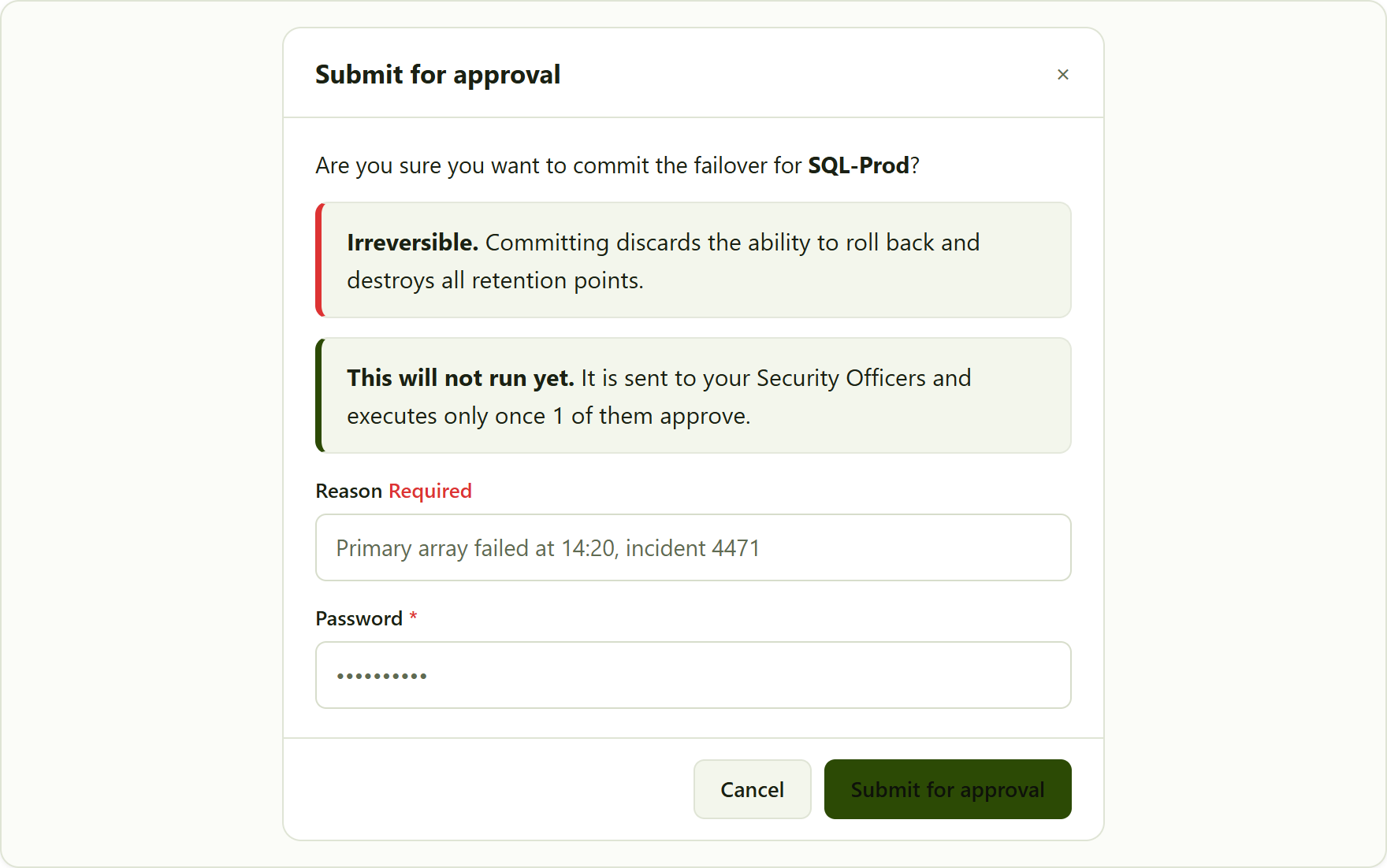
a gated action. The blast radius is stated above the credential, and the dialog says outright that nothing has happened yet.
After you submit, the portal confirms the request was submitted for authorisation and gives you its number. Nothing has been changed on the vendor platform at this point - the action is stored and replayed later, only if it is approved.
You can withdraw your own request. If you change your mind, open it from the Approvals list and cancel it. Only the person who raised a request may withdraw it.
2. Deciding a request
If you are a Security Officer, requests appear in your Approvals inbox, soonest to expire first - it is a work queue, so the one about to strand a colleague sits at the top. Open one to see the full picture: the action, the target, the reason given, who raised it, how many approvals it needs, and when it expires.
Approving or rejecting asks for your own password or authenticator code. That step-up is what makes the decision attributable to you rather than to whoever was sitting at the machine.
- Approve - once the required number of approvals is reached, the action is queued and runs. If yours is the deciding vote, the button says so.
- Reject - one refusal ends it. There is no outvoting a rejection: if an authorised checker says a destructive action should not happen, it does not happen.
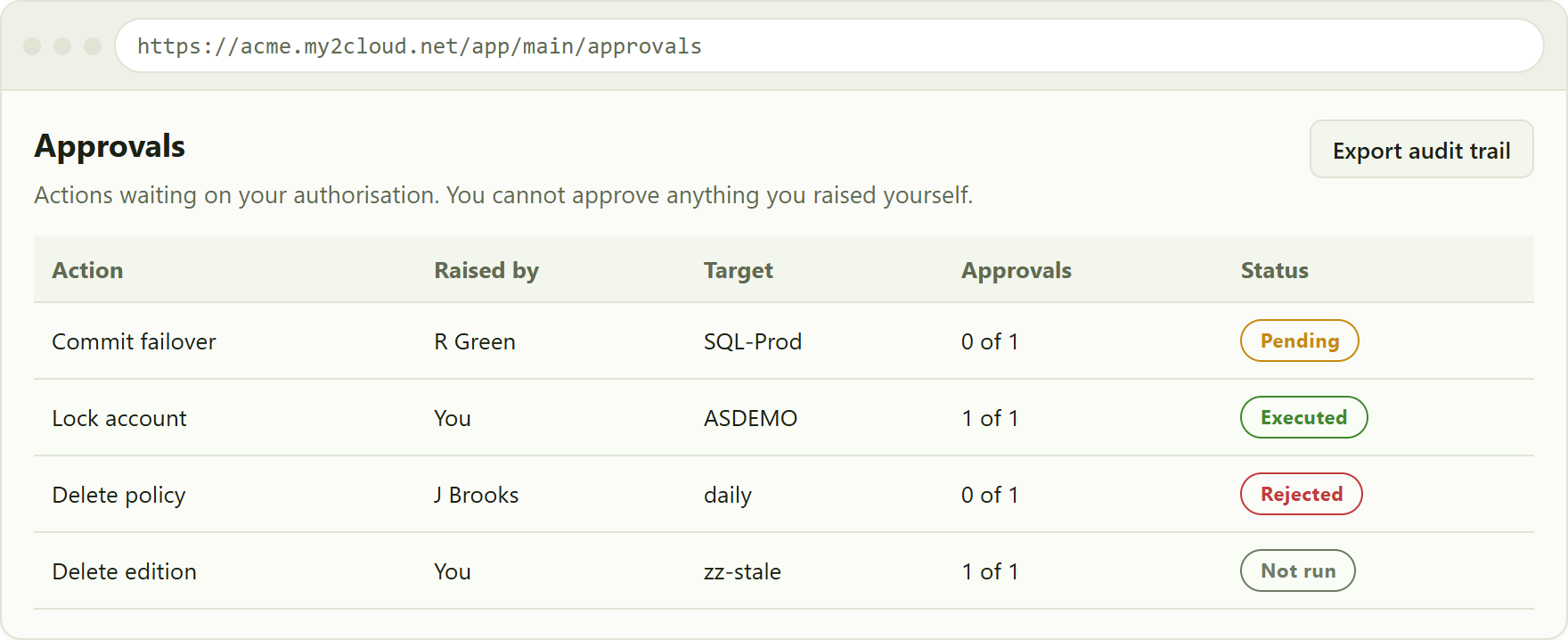
the Approvals inbox. Pending requests sort to the top, soonest to expire first; decided ones follow as history.
You will never see an Approve button on your own request. That is the control working, not a fault. Your requests still appear in the list so you can follow progress and withdraw them.
3. What the statuses mean
| Pending | Waiting for a decision, and still inside its expiry window. |
| Approved | Quorum reached; queued to run in the background. |
| Executed | It ran, and the platform accepted it. |
| Rejected | An officer refused it. It will not run. |
| Expired | Nobody decided in time. Nothing happened - raise it again if it is still needed. |
| Cancelled | Withdrawn by the person who raised it. |
| Failed | It was authorised and attempted, but something went wrong. The reason is shown on the request. |
| Not run | Authorised, but declined by its own safety check because the world had moved on. Nothing happened, and nothing is wrong. |
Why “Not run” is not red. A request can sit for hours, and things change. Before running, the portal re-checks the target and refuses if it no longer matches what was approved - for example an edition that has gained a subscriber in the meantime. That is the guard doing its job, so it is not reported as a failure.
4. Emergencies: break-glass
During a genuine disaster you may not be able to wait for an officer. If your administrator has granted it, certain failover actions offer a break-glass override: you supply a written justification, and the action runs immediately without a quorum.
It is not a quiet back door. A break-glass writes its full record before the action runs, marks the request plainly in the inbox and in the audit export, and raises a high-severity notification. The point is not to prevent the override - it is to make sure nobody can use one unnoticed.
5. Expiry and stalled requests
Every request has an expiry window set by your administrator. If nobody decides in time it closes as Expired, the person who raised it is told, and nothing runs. A lapsed request cannot be approved late.
If the Security Officer roster changes while a request is open, the portal warns that it can no longer be authorised - for example if the only officer who could have approved it has left the organisation. The fix is to appoint another officer, not to lower the threshold.
6. Exporting the audit trail
The Export audit trail button downloads a spreadsheet of every request and every decision in your organisation - approvals, rejections, expiries and break-glass overrides alike, with the reasons given and timestamps in your own timezone. It is meant to be handed to an auditor as it comes.
The workbook has two sheets: Requests (what was asked for) and Decisions (who said yes or no, when, and why). They join on the request number.
Tips and troubleshooting
- An action asked for a reason and a password when it never used to - it has been added to the gated list for your organisation. Nothing is wrong.
- My request is still Pending and nothing is happening - it needs a Security Officer other than you. Check the Approvals page for a warning that the roster is too small.
- I cannot see the Approvals page - it needs the Approvals permission. Ask your administrator.
- I can see requests but there is no Approve button - approving is reserved to the Security Officer role and cannot be granted any other way.
- The request says Not run - it was approved, but the target had changed by the time it ran, so nothing was done. Read the explanation on the request and raise it again if it is still needed.
Was this article helpful?
That’s Great!
Thank you for your feedback
Sorry! We couldn't be helpful
Thank you for your feedback
Feedback sent
We appreciate your effort and will try to fix the article