Mia is the assistant built into My2Cloud. If your administrator has switched voice on, you can ask your question out loud instead of typing it, and have Mia read its answers back to you. This guide explains how the microphone and read-aloud controls work.
Where to find it. The voice controls live in the Mia panel, at /app/main/mia on your My2Cloud portal. Look for the microphone in the ask bar at the bottom, and the read-aloud control alongside it. Voice is switched off until your administrator enables it for your account, so you may not see these controls at all.
What voice does
Voice adds two things to the Mia panel:
- Dictation. Speak your question and it is typed into the ask bar for you, then sent to Mia.
- Read-back. Mia can read its written answer out loud, so you can listen rather than read.
Both are optional and additive. Nothing about the way you already type questions changes, and you can use one without the other.
Turning it on
Voice is off by default. It is switched on for your account by your administrator. Once it is enabled, the microphone and read-aloud controls appear in the ask bar the next time you open Mia.
No microphone in the ask bar? That means voice has not been enabled for your account yet. Ask your My2Cloud administrator to turn it on.
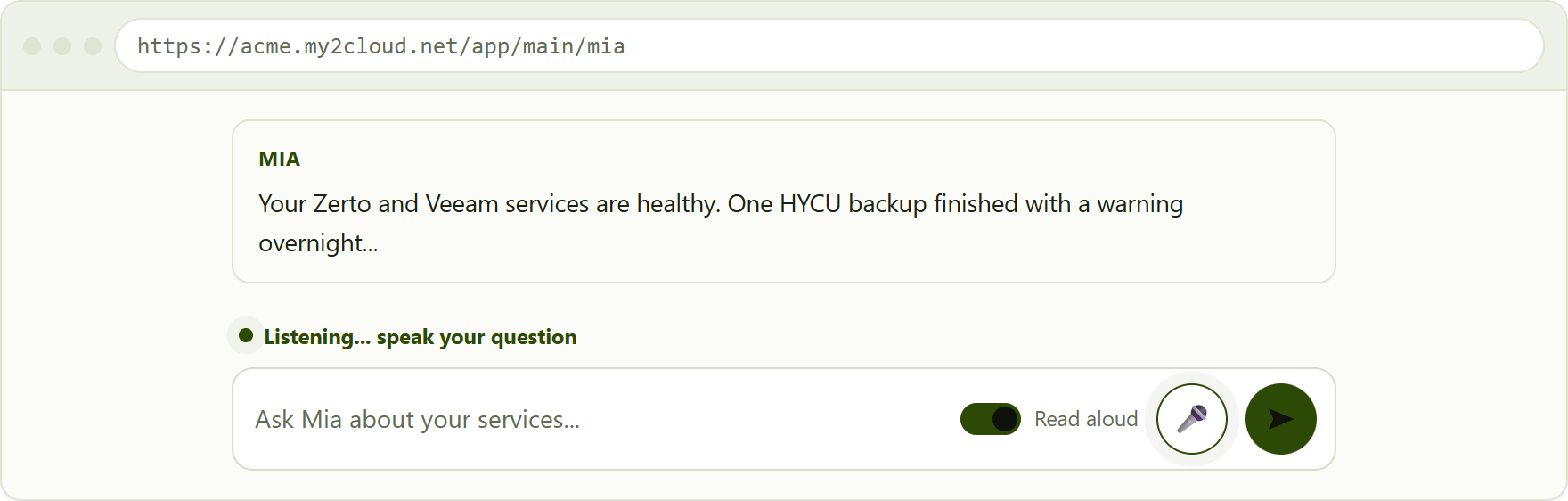
the Mia ask bar with voice enabled. The microphone (right) is shown in its "listening" state with a soft pulsing ring, and the read-aloud toggle sits to its left, switched on.
Dictating a question
- Click the microphone in the ask bar. The first time, your browser will ask permission to use the microphone (see below).
- Speak your question naturally. On a computer you will see the words appear in the ask bar as you speak.
- When you stop talking, Mia notices the pause and treats the question as finished. It fills in what you said and sends it straight away, so you do not need to press anything.
If you would rather stop yourself, click the microphone a second time. Stopping it by hand leaves the text in the ask bar so you can read it over or tidy it up before sending.
Vendor names are handled for you. Mia keeps a small vocabulary of the terms we use, so spoken names such as HYCU, Zerto, Veeam, Asigra and CloudAlly are written correctly even though they are easily misheard. Common terms likeRPO,VPGandM365are tidied up in the same way.
Having answers read aloud
Next to the microphone is a Read aloud control. Turn it on and Mia will speak its answers as well as showing them on screen; turn it off to go back to reading only.
- Only the written summary of an answer is spoken, one sentence at a time for a natural pace. The tables, figures and charts are shown on screen but not read out.
- Your choice is remembered for next time, so you only need to set it once. It is a personal preference and does not affect anyone else.
- Starting a new question stops any answer that is still being read.
Practical notes
- Microphone permission. The first time you use dictation, your browser asks whether My2Cloud may use your microphone. Choose Allow. If you block it, dictation cannot start until you allow it again.
- On a computer. Dictation runs on your own device, inside your browser. A small speech model is prepared the first time you use it, so the very first go can take a moment while it gets ready. After that it is quick, and it is warmed up in the background as soon as you open Mia.
- On a phone or tablet. Dictation uses your device's own built-in voice typing instead, which is instant and needs no download.
Your privacy. On a computer, your speech is turned into text right there in your browser. The audio is not sent to Assurestor or to any outside service; only the resulting text goes to Mia, exactly as if you had typed it.
If something is not working
- No microphone in the ask bar. Voice has not been enabled for your account. Ask your administrator to switch it on.
- The microphone will not start. Your browser is probably blocking microphone access. Re-allow it for the My2Cloud site in your browser's site settings, then try again.
- The first attempt is slow. On a computer the speech model is being prepared for first use. Give it a moment; later attempts are much quicker.
- Nothing was heard. Check your microphone is working and try speaking again, a little closer to the mic.
Voice is an aid, not a requirement. If dictation is ever unavailable, you can always type your question in the ask bar as normal - Mia works exactly the same way either way.
Was this article helpful?
That’s Great!
Thank you for your feedback
Sorry! We couldn't be helpful
Thank you for your feedback
Feedback sent
We appreciate your effort and will try to fix the article