Mia can turn your estate data into ready-made, board-ready reports in the Assurestor house style, and can send you a short daily summary of what changed overnight. This guide explains how to generate a report, view and export it, schedule it, and opt in to the daily brief.
Where to find it. Open Mia from the left-hand menu and go to the Reports tab. The web address is /app/main/mia on your My2Cloud portal. Reports are a Mia Advanced feature - if you do not see the Reports tab, see the note at the end of this article.
What Mia reports are
A Mia report is a composed document built from your own estate data - the same backup, recovery and capacity figures you see on your dashboards - arranged into a tidy, presentable layout. You choose who the report is for and which period it covers, and Mia assembles the narrative, the headline figures, the trend chart and the supporting detail for you.
Every report is produced in the Assurestor house style: a clean "paper" layout with a titled header, a row of headline indicators and clearly sectioned content, ready to read on screen or to share as a polished file.
Generating a report on demand
To create a report there and then:
- Open Mia and select the Reports tab.
- Choose the Audience the report is for (see below).
- Choose the Period the report should cover: This month, Last month or Last 90 days.
- Click Generate. Mia gathers the figures for your scope and builds the report in front of you.
Reports only ever cover the services and customers you are entitled to see. Where a service is switched on but had nothing to report in the period, Mia says so rather than leaving a gap.
Choosing the audience
The audience decides how much detail the report shows and how it is worded. The underlying figures are the same; the presentation changes to suit the reader.
- Board. Outcome-led and concise. A short executive summary, a few headline indicators, one trend and points for review. Written in plain language for a director or exec reader. This is the default.
- Operations. Detailed and health-focused. Denser tables, per-engine status, error detail and named workloads, plus action items, aimed at an IT or support reader who needs to act.
- Partner service review. A polished, per-customer review. Reassuring, low on jargon, framed around assurance and capacity, and written to share with a customer.
- Daily brief. A compact once-a-day style summary: the headline figures and anything that needs attention. The same brief can also be delivered to you automatically as a notification, described later in this article.
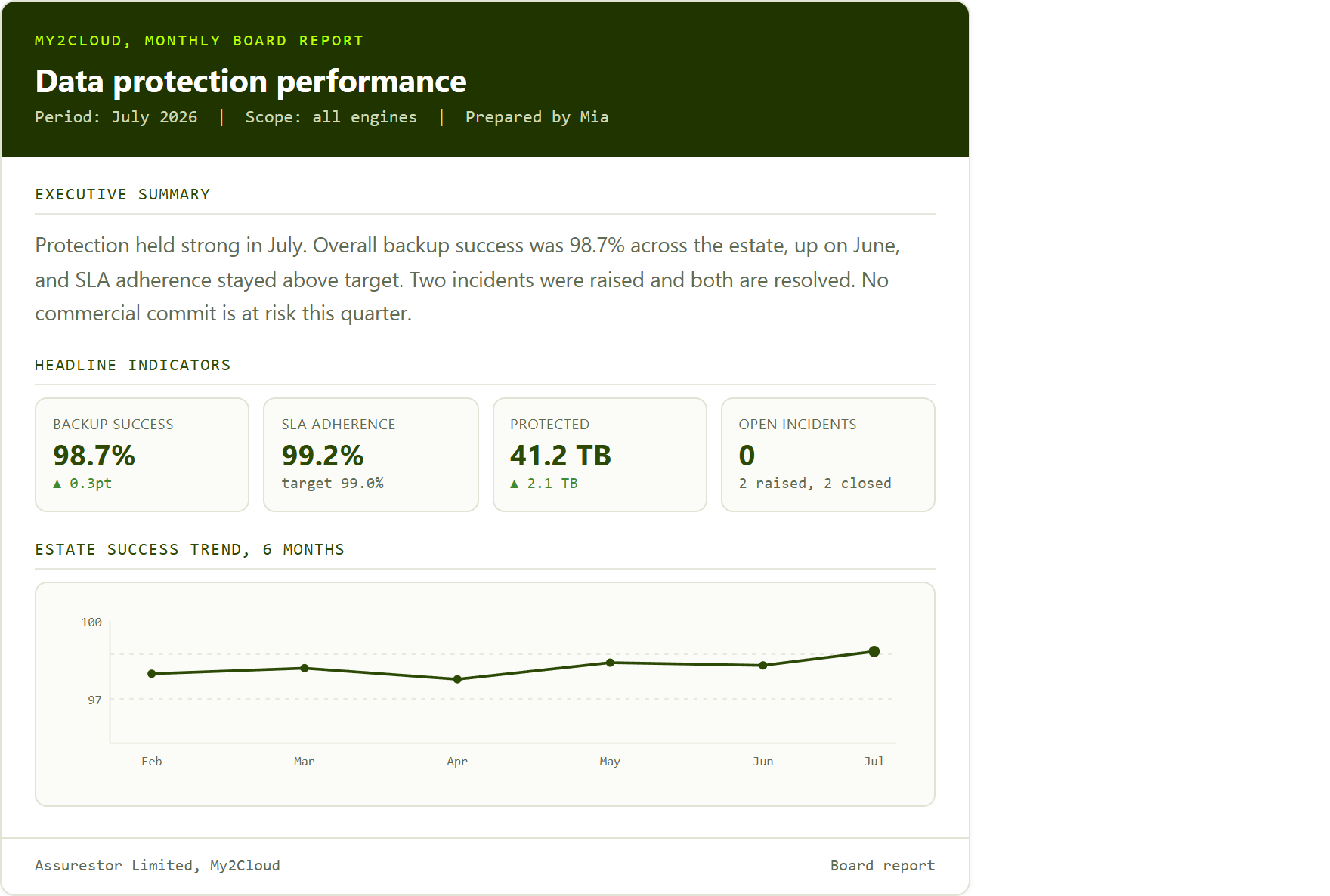
a generated board report in the house style - a titled period header, a row of headline indicators, and an estate trend chart. Operations and Partner reports use the same layout with more or less detail to suit the reader.
Viewing and exporting
Once generated, the report appears in the portal's report viewer so you can read it on screen straight away. When you are happy with it, the Export PDF button produces a polished, print-ready PDF in the house style, rendered on the server and downloaded to your device.
Exporting does not change the report; it simply produces a file you can save or forward.
Scheduling reports
Rather than generating a report by hand, you can have one produced and delivered automatically on a schedule. Scheduling is off by default and is switched on by an administrator. When it is enabled, each report type becomes a notification you can subscribe to, and it is then delivered on its own schedule: the board and partner service review reports monthly, and the operations status report daily.
Scheduled reports reach you through your notification preferences, in the portal and, where email is enabled, by email. The report itself opens in the portal when you follow the notification.
If you would like reports delivered on a schedule, ask your administrator to enable scheduled reports. On-demand generation from the Reports tab is always available regardless of whether a schedule exists.
The daily brief
The daily brief is a short, once-a-day summary of what changed across your estate. It counts the new alerts raised in the last 24 hours and breaks them down by service, so you get a quick read on where attention is needed. It is opt-in: you will not receive it unless you subscribe to it. When you do, it is delivered as a notification each day.
The brief is deliberately brief. It is a heads-up on what is new, not a full report, and it points you back to Mia to look into the cause. When nothing new was raised, no brief is sent that day.
Subscribing to reports and the brief
The scheduled reports and the daily brief are delivered as individual, subscribable notifications. In your notification settings they are grouped together under Mia reports & briefs, and you can turn each one on or off independently to suit how you like to be kept informed. Each can reach you in the portal and, where email is enabled, by email.
Subscriptions apply going forward. Turning a notification on starts future deliveries; it does not send you past reports or briefs. If you stop receiving something you expected, check that its subscription is switched on under Mia reports & briefs in your notification settings.
Reports require the Mia Advanced tier. Generating, viewing and exporting reports, and subscribing to the scheduled reports, are part of Mia Advanced. If you do not see the Reports tab in the Mia panel, your account is on the basic tier, which covers Mia's day-to-day questions but not reporting; an administrator can enable Advanced for your account. The daily brief is the exception: it is available whenever Mia is enabled, including the basic tier.
Was this article helpful?
That’s Great!
Thank you for your feedback
Sorry! We couldn't be helpful
Thank you for your feedback
Feedback sent
We appreciate your effort and will try to fix the article