As well as seeing service alerts in the portal and receiving them by email, My2Cloud can deliver each alert to an HTTP endpoint you control. This lets you feed alerts straight into a help desk, a monitoring or SIEM tool, or your own automation, so an Asigra, Zerto, CloudAlly, Veeam or HYCU alert can raise a ticket or fire a workflow the moment it happens. This guide is aimed at technical readers who run those systems.
Where to find it. Webhooks are managed on the Webhook Subscriptions page, under Administration > Webhook Subscriptions in the portal. You need the Webhook Subscriptions permission on your role; a tenant administrator can grant it under Administration > Roles.
What a service-alert webhook is
A webhook is a small HTTP POST that My2Cloud sends to a URL you own whenever it raises a service alert. It is the same alert you already see in the in-app inbox and the opt-in alert email, delivered instead as a machine-readable JSON message so your own system can act on it automatically.
There is a single event type, Service alert (App.ServiceAlert), and it covers every backup and recovery engine: Asigra, Zerto, CloudAlly, Veeam and HYCU. You subscribe once, and each message carries a stable serviceKey so you can route by service on your side.
This is in addition to, not instead of, the in-app alert inbox and email notifications. The bell inside the portal and any alert emails you have enabled carry on exactly as before; the webhook is an extra delivery channel for your own tooling.
Setting up a subscription
- Open Administration > Webhook Subscriptions and click Create.
- In Webhook Endpoint, enter the HTTPS URL your receiver listens on.
- In Webhook Events, start typing
serviceand pick Service alert (App.ServiceAlert). - Optionally add any static Additional Webhook Headers your endpoint expects, such as an authorisation token.
- Click Save. A signing secret is generated for the subscription automatically.
The signing secret stays blurred on screen until you choose to reveal it. Open the subscription's Detail page, click View next to the secret, then copy it and store it somewhere safe. You will need it at your receiver to verify that each request genuinely came from My2Cloud.
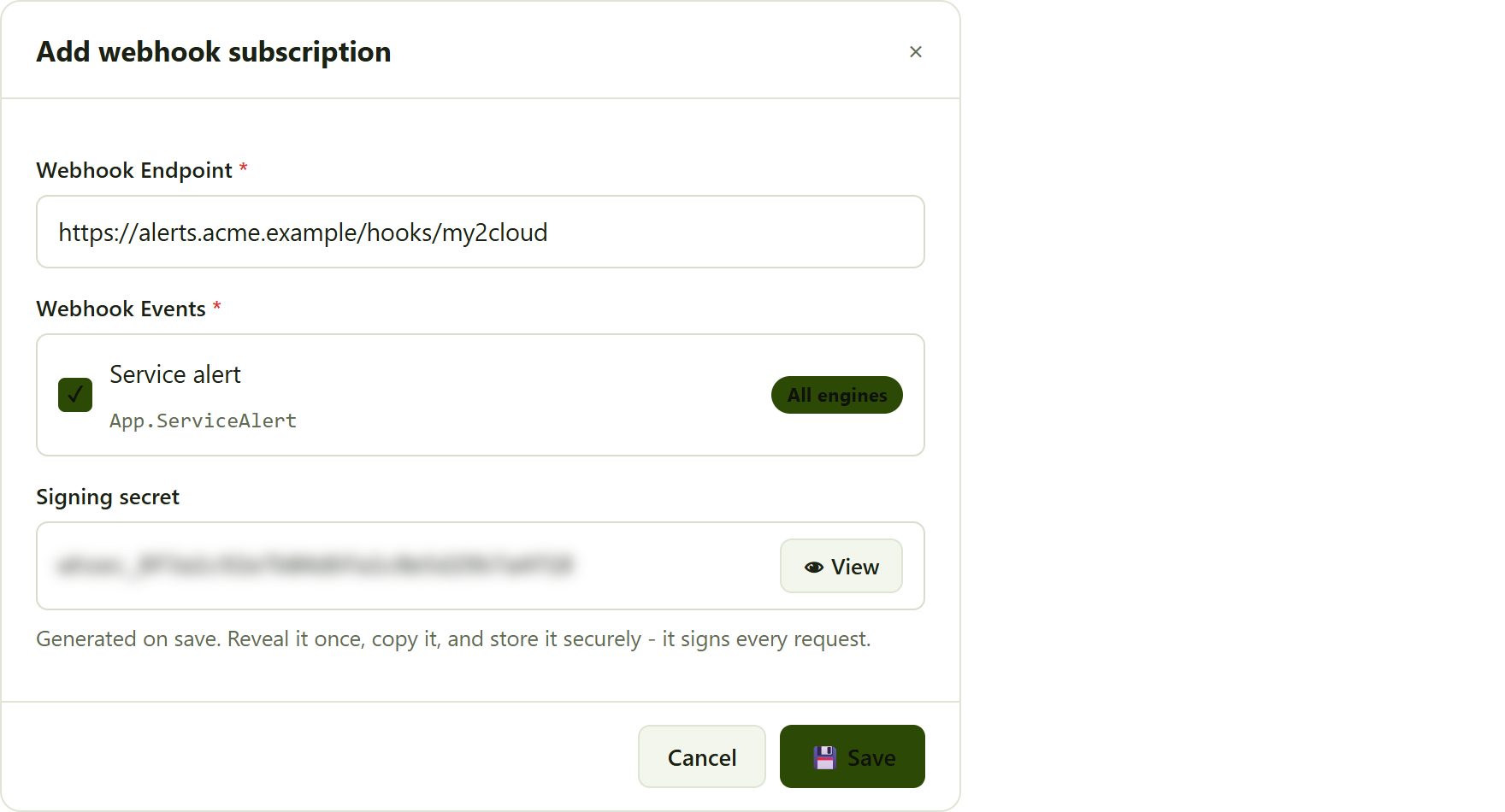
the Add webhook subscription form, with the endpoint URL, the Service alert event selected, and the signing secret shown blurred behind a View control.
What you receive
Each alert is delivered as a signed JSON message. The alert data sits inside the standard My2Cloud webhook envelope, and the alert object itself carries a stable set of fields:
tenantId- your tenant id.serviceKey- the stable service key to route on, for exampleApp.Service.Zerto. Prefer this over the display name.service- the friendly engine name, for exampleZerto.alertId- a stable per-vendor identifier for the alert, and the de-duplication key.severity- one ofInfo,WarningorError.titleanddescription- a short summary and, where the source provides one, a longer description.details- an ordered list of{ "label", "value" }context lines, the same lines shown in the in-app notification and the email.occurredAtandraisedAt- when the underlying event happened (if known) and when My2Cloud raised the alert, both UTC.
Each request also carries a signature header. Recompute the signature at your receiver using your signing secret and compare it, using a constant-time comparison, before you trust the request.
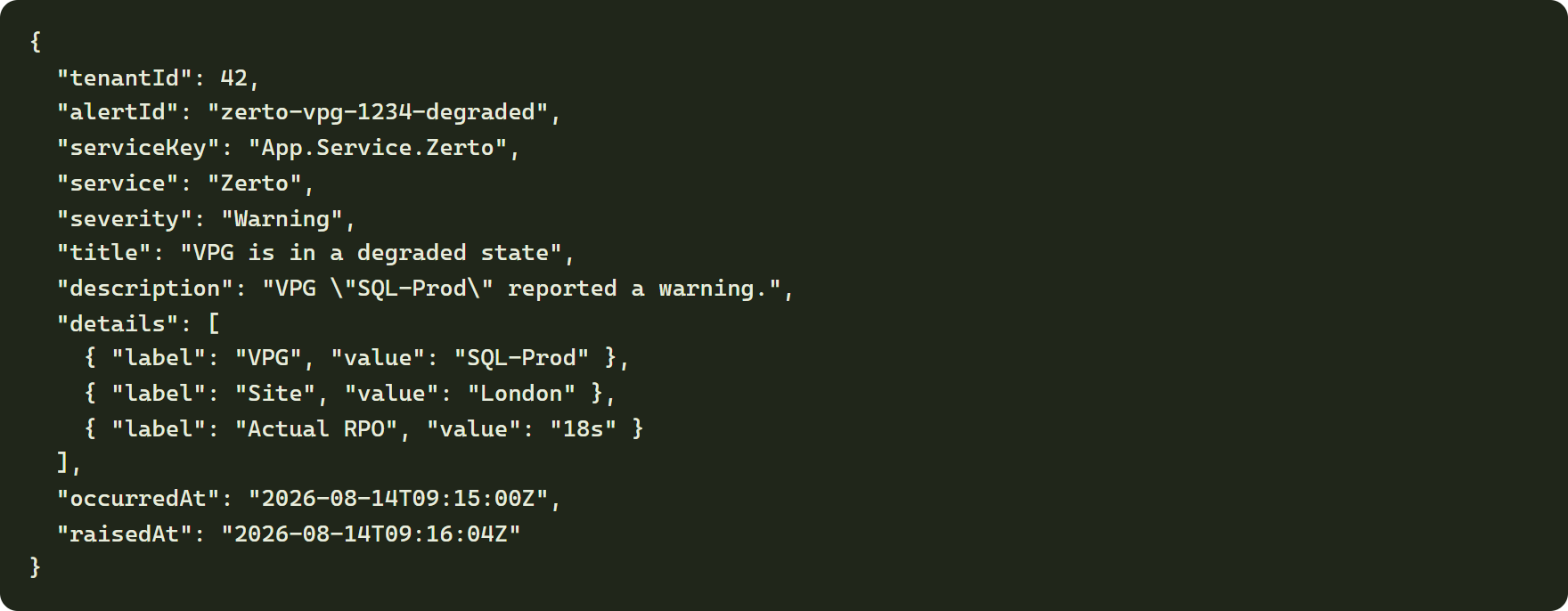
the shape of the alert object inside a delivered message. Field names are stable, so you can map them into your own system.
TheserviceKeyvalues areApp.Service.Asigra(Asigra),App.Service.Zerto(Zerto),App.Service.Cloudally(CloudAlly),App.Service.Veeam(Veeam) andApp.Service.Saas2CloudNg(HYCU). Route and filter on these rather than on the friendlyservicename.
Scope, safety and limits
- Scoped to your tenant. A subscription only ever receives alerts for your own tenant. You never see another customer's alerts.
- Delivered once. Each alert fires once per tenant, using the same de-duplication as the in-app notification: a given
(service, alertId)is sent a single time. - Not retroactive. Only alerts raised after you subscribe are sent; existing alerts are not backfilled.
- Best effort. Delivery does not replace the in-app inbox. A slow or unavailable endpoint never delays or blocks the in-app alert or the email, and failed deliveries are retried on the platform's own schedule. Subscriptions that keep failing may be deactivated automatically; re-enable them once your endpoint is healthy.
- Removable at any time. Delete a subscription from the Webhook Subscriptions page whenever you no longer need it, and delivery stops.
Keep the signing secret private. Anyone holding it could forge requests that look genuine. Store it as a secret in your receiver's configuration, never in source control, and rotate it if you think it has been exposed.
Verifying and troubleshooting deliveries
Every subscription keeps a record of each delivery. Use the subscription's Send attempts and Detail pages to see each request, the exact body and headers your endpoint received, the response it returned, and to resend a delivery while you build and test your receiver. Confirm the exact signature header name and value format against a real delivery there.
For the full technical contract - the complete payload envelope, every field, the signature header and how to verify it - see the service-alert webhook reference that ships with the portal documentation, at docs/webhooks/service-alert-webhook.md.
Was this article helpful?
That’s Great!
Thank you for your feedback
Sorry! We couldn't be helpful
Thank you for your feedback
Feedback sent
We appreciate your effort and will try to fix the article