HYCU is Assurestor's next-generation service for protecting cloud and SaaS workloads, powered by HYCU R-Cloud. It brings your AWS, Azure, Google Cloud and SaaS sources (Microsoft 365, Google Workspace, Salesforce, Jira and many more) into My2Cloud alongside a full set of live views, dashboards and historical analytics. This guide introduces the service, walks through the pages you will see, and explains how access is granted.
Where to find it. In the left menu open Services → HYCU for the live pages (web address/app/main/services/hycu/…), and Analytics → HYCU for the historical usage dashboard (/app/main/analytics/hycu/dashboard). The service is off by default, so if you do not see it your organisation has not yet had it enabled.
Not the same as CloudAlly. HYCU (powered by HYCU R-Cloud) is a different service from the original CloudAlly (powered by CloudAlly). They protect overlapping workloads but are separate platforms with separate pages in My2Cloud. This guide covers HYCU only. If your menu shows a plain "CloudAlly" entry, that is the CloudAlly service and has its own guide.
What HYCU is
HYCU is Assurestor's cloud data protection service built on HYCU R-Cloud. Where the original CloudAlly focuses on cloud-to-cloud backup of mailboxes and files, HYCU covers a much broader estate: full public-cloud accounts and their resources, as well as a large and growing catalogue of SaaS applications.
The workloads it can protect fall into four families, mirroring HYCU's own source categories:
- SaaS - Microsoft 365 (Exchange Online, SharePoint, OneDrive, Teams and more), Google Workspace, Salesforce, Jira and Confluence, GitHub, Okta, DocuSign and dozens of other applications.
- AWS - an Amazon Web Services account and its resources (EC2 instances, EBS volumes, RDS databases, S3 buckets and so on).
- Azure - a Microsoft Azure subscription or resource group.
- Google Cloud - a Google Cloud project and its services.
Backups are held on immutable, Object Lock cloud storage that Assurestor provisions and manages for you, so protected data cannot be altered or deleted before its retention has elapsed.
A note on wording. In HYCU an Account is a HYCU protection set - a self-contained container that holds your backup target, policies and sources. It is not your My2Cloud login. A source is a cloud account or SaaS application connected to a protection set, and an entity (an instance, application, bucket or SaaS item) is an individual thing within a source that gets backed up.
HYCU compared with CloudAlly
Both services live under Services in the left menu, so it is worth being clear about which is which:
| CloudAlly | HYCU | |
| Powered by | CloudAlly | HYCU R-Cloud |
| Main focus | Cloud-to-cloud SaaS backup (Microsoft 365, Google Workspace) | Cloud and SaaS workloads across AWS, Azure, Google Cloud and 60+ SaaS applications |
| Menu entry | Services → CloudAlly | Services → HYCU |
| Web address | /services/cloudally/… | /services/hycu/… |
If your organisation uses both, the two run independently and each keeps its own live views, dashboards and analytics. Nothing you do in one affects the other.
Finding your way around the live views
Under Services → HYCU you will find a set of live pages, each drawn in real time from HYCU R-Cloud. Nine of them are read-only views of what is running now:
- Dashboard - a real-time, at-a-glance overview built from customisable widgets (covered below).
- Sources - the cloud accounts and SaaS applications connected to your protection sets, each with a status and a count of the entities it protects.
- SaaS - the individual SaaS items being backed up (for example mailboxes, sites or application records), with their policy and compliancy.
- Applications - protected application workloads discovered within your sources.
- Instances - protected compute instances (such as virtual machines and cloud instances).
- Buckets - protected object-storage buckets.
- Policies - the backup policies defined on your protection sets, each showing how many SaaS items, instances, applications and buckets it covers.
- Targets - the backup storage targets, showing type, location, storage class, health and how much space is used. Immutable targets carry a shield icon.
- Monitoring - operational activity, split into Tasks (individual backup and restore jobs, with progress and start/finish times) and Events (a severity-ranked log of what HYCU has reported).
A tenth page, Accounts, lists your protection sets and, where your organisation has the relevant capability enabled, lets you create new ones. Because it is a self-service management page rather than a read-only view, it is covered separately (see "How access works" and the companion articles at the end).
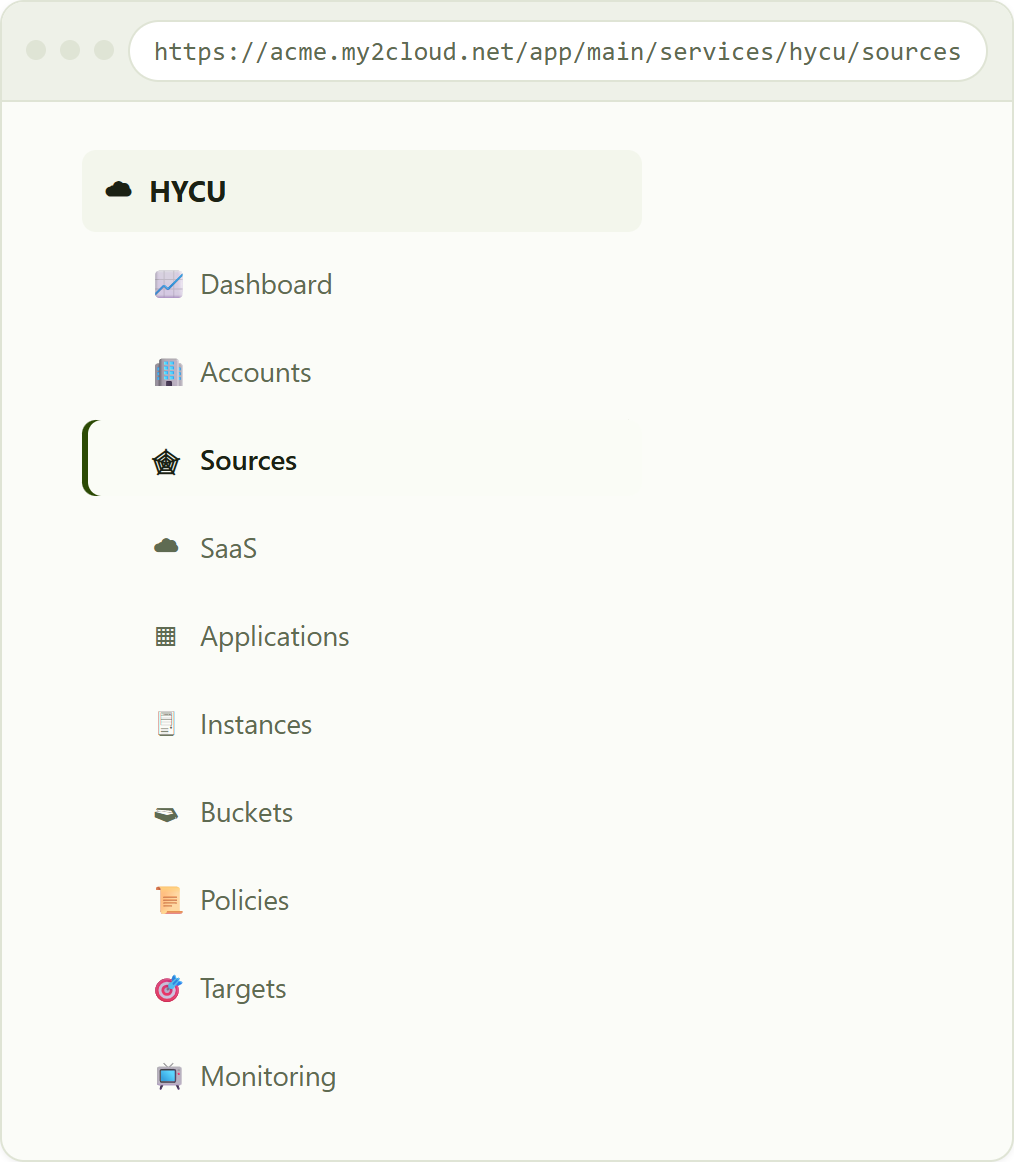
the HYCU menu under Services, with Sources selected. Which entries you see depends on the permissions granted to you.
How the live lists behave
Every list page shares the same familiar layout: a title and short description across the top, a filter row beneath it, then a sortable table. Click any column header to sort, and use the filters and free-text search to narrow the view. Most lists can be scoped to a single Account (protection set), and several offer additional filters such as policy, compliancy and protection status. Where a page supports it, an Export to Excel button downloads the list exactly as you have filtered and sorted it.
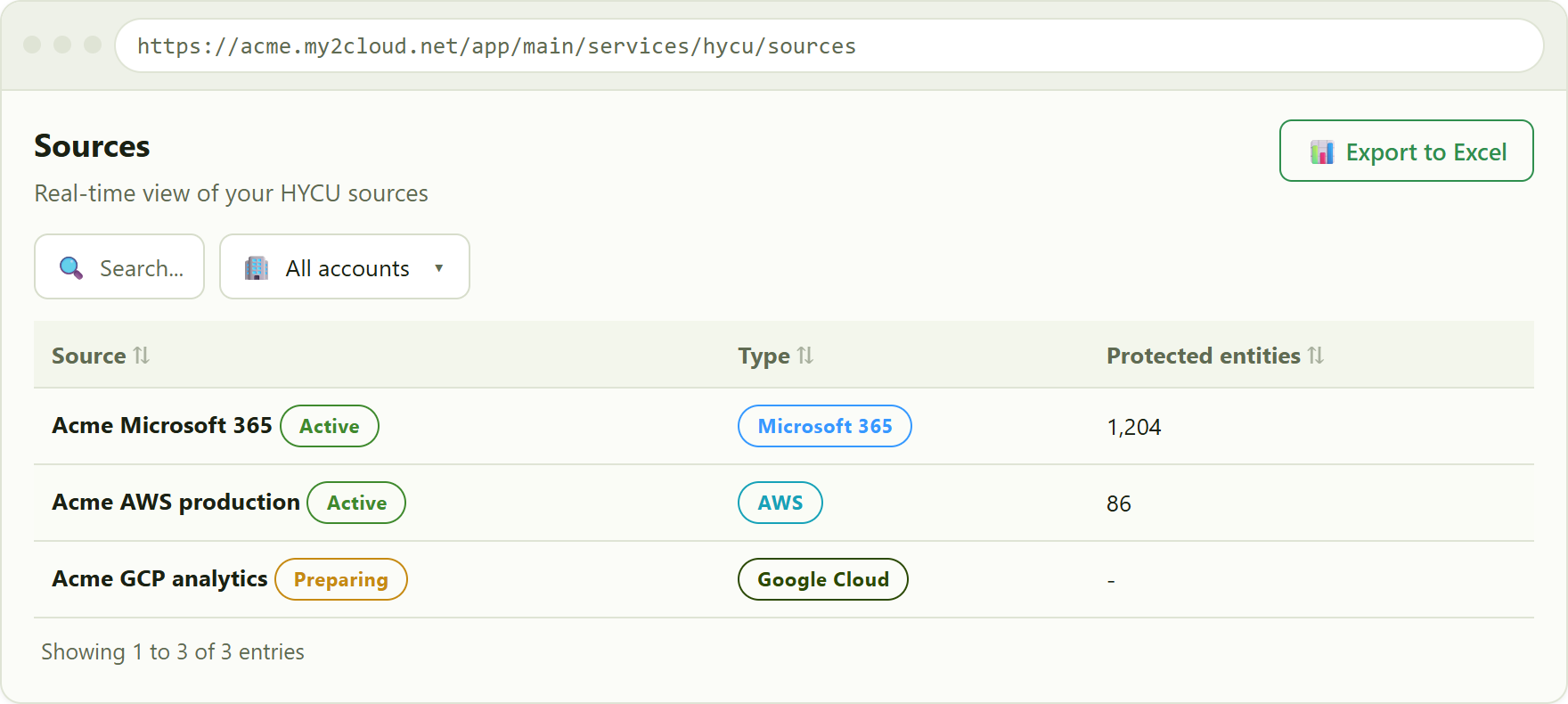
the Sources list. The name column carries a status pill, and the count shows how many entities each source protects.
The live Dashboard
The Dashboard is the quickest way to see the state of your protection at a glance. Like all My2Cloud dashboards it is built from widgets you can rearrange, add or remove, and it opens on a set of defaults. You can scope the whole dashboard to a single Account (protection set) using the picker at the top, and the summary widgets are click-throughs that open the matching live view already filtered to that Account.
The default widgets are:
- Protection Sets - how many Accounts (protection sets) you have.
- Sources - the number of connected cloud accounts and SaaS applications.
- Protected Entities - the total count of individual items being backed up.
- Cloud Target Storage - how much storage your backups currently occupy.
- Backup Health - a compliancy summary showing how much of your estate is protected and in good standing.
- Backup by Type - a breakdown of what is protected, split by source or workload type.
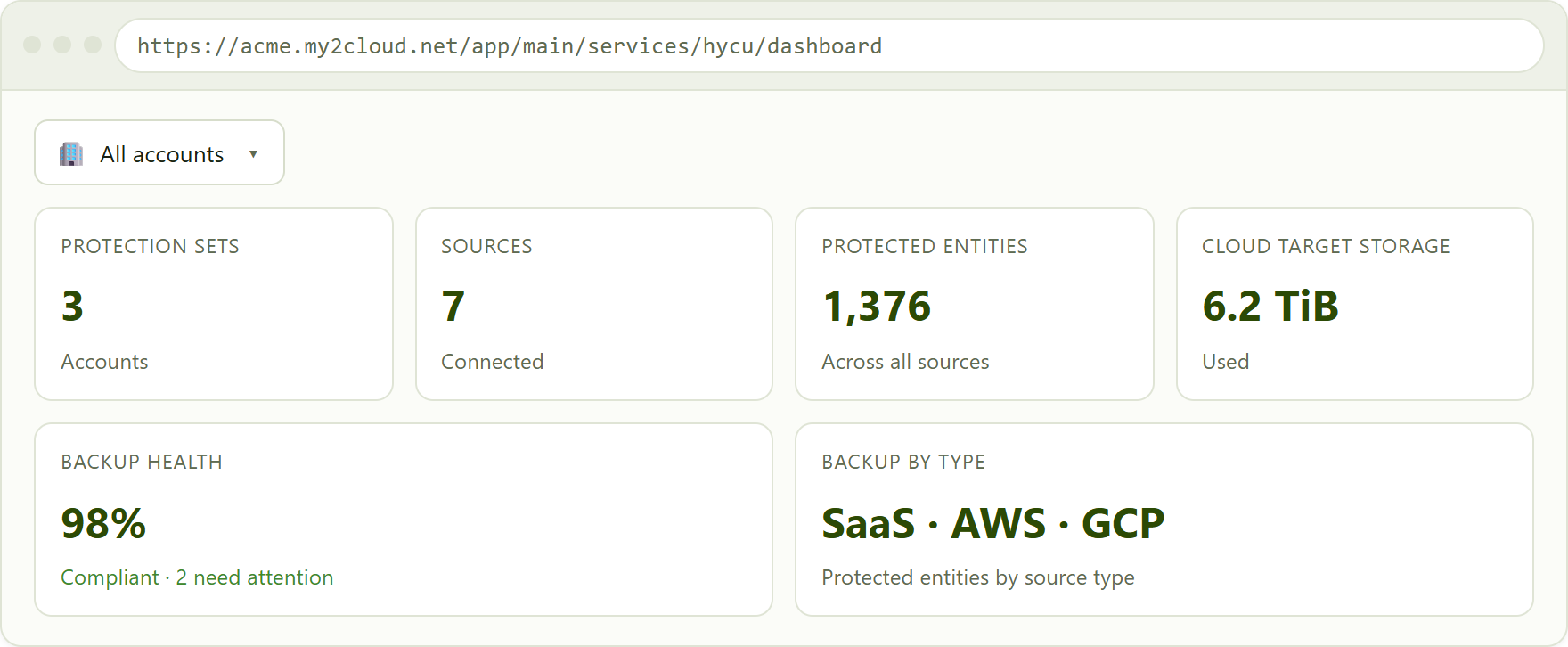
the live Dashboard's default widgets, with the Account picker at the top. Each summary box opens its matching live view scoped to the selected Account.
Historical analytics
The live views tell you where things stand right now. To see how your protection is trending over time, open Analytics → HYCU, which draws on up to twelve months of collected history.
The analytics Dashboard
The analytics Dashboard (/app/main/analytics/hycu/dashboard) leads with a row of peak stat tiles - Accounts (protection sets), Sources, SaaS entities, storage, backup health and M365 billable users - each showing the peak value for the period and how it has moved against the previous month. Below the tiles are trend charts for entity counts and storage, a SaaS-by-type breakdown, and a per-protection-set summary table. As with all My2Cloud dashboards the widgets can be rearranged, added or removed to suit how you read the data.
Looking for a detailed list? The live pages under Services → HYCU are where you browse, filter and export individual sources, SaaS entities and targets. Analytics is for the trend over time; the live views are for the detail as it stands now. For a question that spans the history - "which mailboxes were protected last month", say - ask Mia, which reads the same twelve months of collected data.
For Assurestor administrators. Managed service providers running My2Cloud in host mode also get a Tenant Usage dashboard for HYCU (under Administration → Tenant Usage), which reports the same measures across all tenants for capacity and billing oversight.
How access works
HYCU is opt-in per organisation and off by default. Turning it on and deciding who can do what is an administrator task, and happens in two layers.
1. Enabling the service
An Assurestor administrator first enables the HYCU feature for your organisation. Until that is done the service does not appear in the menu at all. Enabling the base feature switches on the read-only live views and the analytics pages.
2. Granting permissions
Within your organisation, one of your administrators then grants the relevant permissions to each role or user. Permissions are granular, so a user can, for example, be allowed to see the Dashboard and Sources but not the Monitoring pages. If a page is hidden from you, it simply has not been granted to your role.
3. Restricting a user to one Account
Where a user should only ever see a single protection set, an administrator can apply a per-user Service Filter for HYCU. This clamps that user to one Account everywhere in the service - the live views, the dashboards and the analytics all show only that protection set. A small indicator appears next to the user's name in the admin user list to show a filter is in place.
Self-service command and control
Beyond the read-only views, HYCU offers self-service management capabilities. Each is gated by its own separate feature and permission, so your administrator can grant them independently of the read-only access above:
- Account onboarding - creating a new Account (protection set), which provisions the backup storage target and default policy behind the scenes, from the Accounts page.
- Source management - adding, editing and removing the cloud accounts and SaaS applications a protection set backs up.
- Policy management - creating, editing and setting default backup policies, and assigning them to what you protect.
- On-demand backup - triggering an immediate backup of selected SaaS entities, gated by its own Manual Backup capability.
These management capabilities are covered in their own companion guides: "Managing your HYCU sources" for adding and maintaining what you protect, and "HYCU backup policies" for creating and assigning policies. If the buttons and menus described in those guides are missing for you, the corresponding capability has not been granted to your role.
Getting started
- Open Services → HYCU → Dashboard for a real-time overview, and use the Account picker to focus on one protection set.
- Use Sources to confirm every cloud account and SaaS application you expect to be protected is connected and active.
- Check Policies and Targets to see how your data is being backed up and where it is stored, then use Monitoring → Tasks to confirm jobs are completing.
- Open Analytics → HYCU to see how your usage is trending, and ask Mia when you need a figure from the history.
- If you need to add a source, create a protection set or change a policy, ask your administrator to grant the relevant management capability, then follow the companion guides.
Was this article helpful?
That’s Great!
Thank you for your feedback
Sorry! We couldn't be helpful
Thank you for your feedback
Feedback sent
We appreciate your effort and will try to fix the article